SMS Messaging
Overview
SMS Messaging controls what happens to inbound text messages sent to the hosted mobile numbers on your phone system. Every routed text is delivered to the myCloudConnect App as a conversation your team can read and reply to, and can also be forwarded to email, your CRM or your own systems.
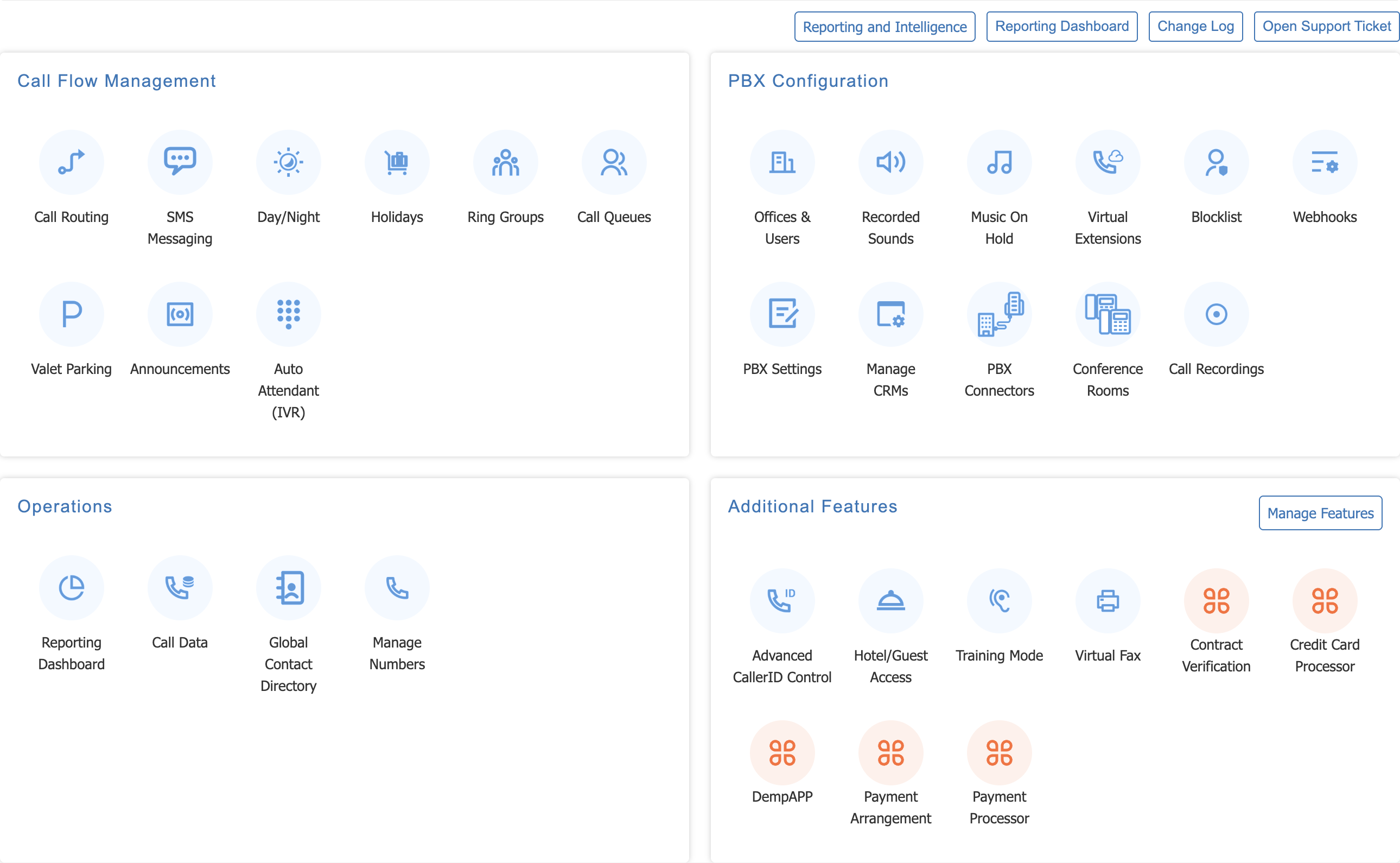
Open it from 'SMS Messaging' under Call Flow Management on the service page.
Changes on this page are live
Saving a route changes how inbound SMS messages are handled immediately. There is no 'Apply Changes' step.
The SMS Messaging page
Every SMS-capable number on the phone system is listed here, routed or not.
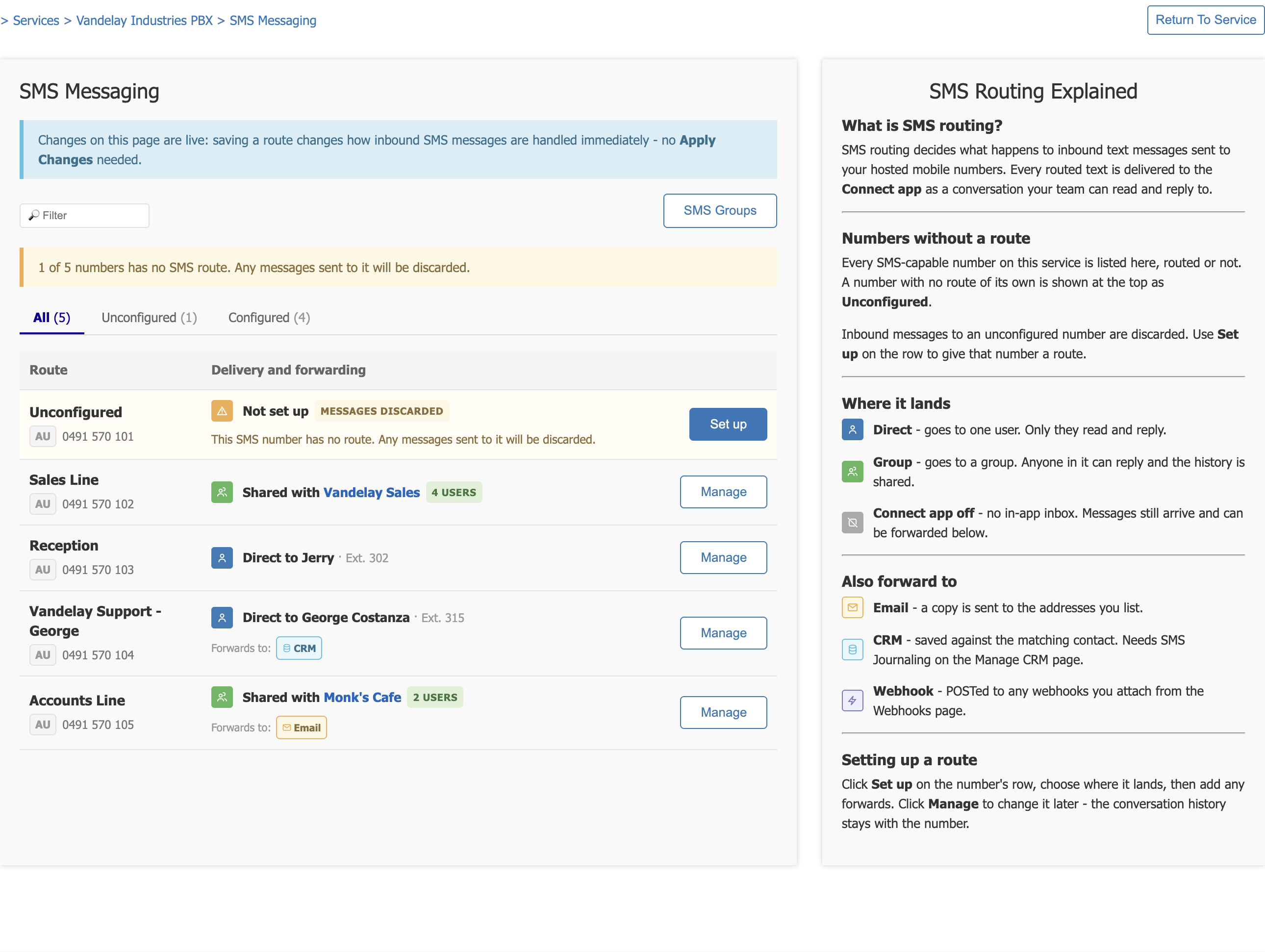
- Use 'Filter' to find a number or route by name.
- The tabs above the table narrow the list to 'All', 'Unconfigured' or 'Configured', with a count beside each.
- 'SMS Groups' opens the group manager described below.
- A banner above the tabs warns you when any number on the service still has no route.
If the phone system has no SMS-capable numbers, the table says so. Numbers are added through Manage Numbers.
Numbers without a route
A number with no route of its own is shown at the top of the list as Unconfigured, with a Messages discarded badge.

Inbound messages to an unconfigured number are discarded. Use 'Set up' on the row to give that number a route.
The route list
Each row shows the route name, the country code and number, and where messages land.
- Direct to a named user, with their extension number.
- Shared with a named group, with the number of users in it.
- Forwards to chips underneath show any email, CRM or webhook forwarding on the route.
Click 'Manage' on a configured row, or 'Set up' on an unconfigured one, to open the route.
Setting up or editing a route
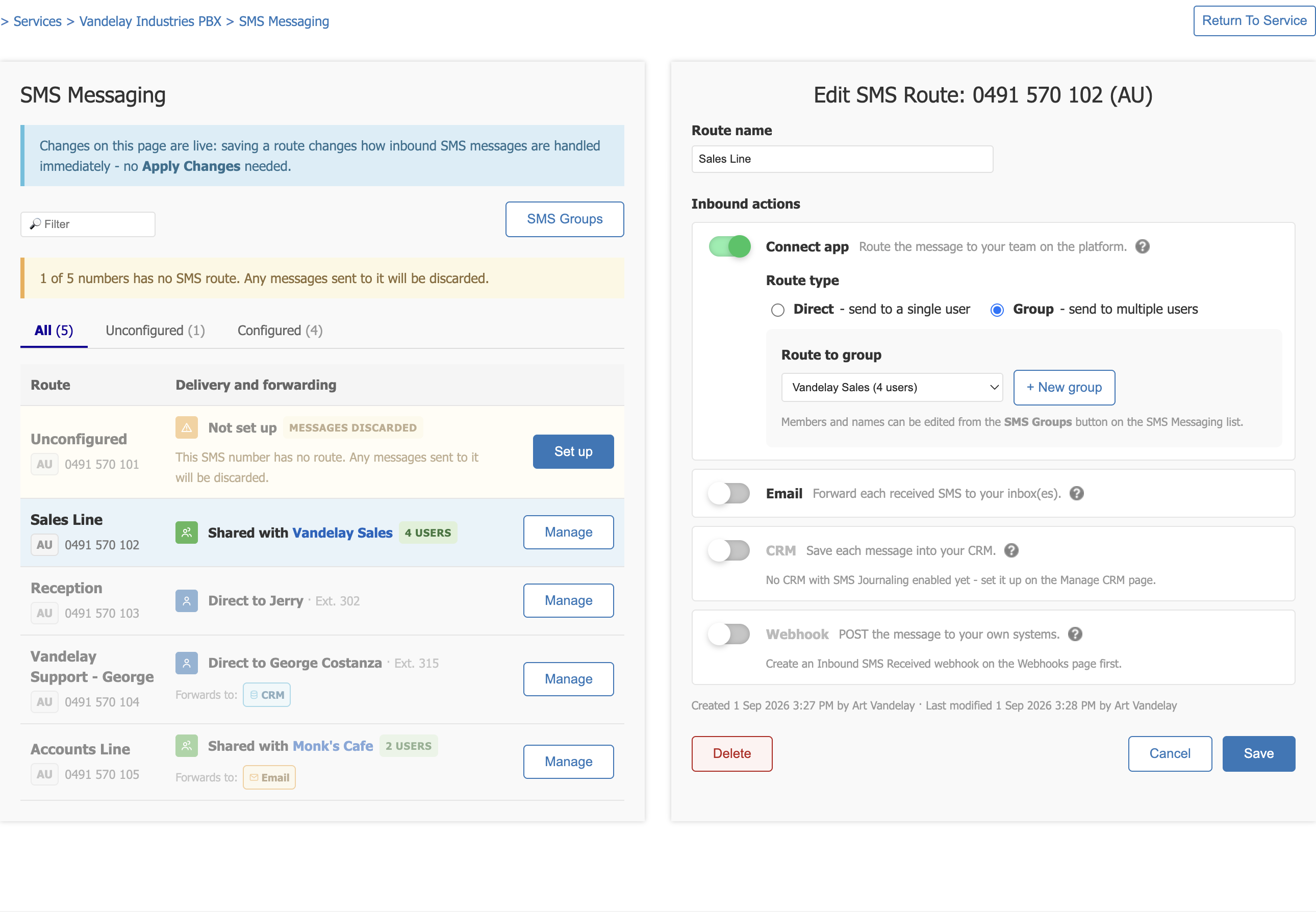
Route name is a label for your own reference. It appears in the list and nowhere else.
Where it lands
The Connect app toggle controls whether the message becomes a conversation in the Connect App. With it on, choose a Route type.
| Route type | What happens |
|---|---|
| Direct | Goes to one user. Only they read and reply. |
| Group | Goes to a group. Anyone in it can reply and the history is shared. |
Choosing Direct shows the Route to user dropdown, listing each user on the phone system with their extension number. Only real users appear here. Voicemail boxes, fax lines and similar system extensions are left out.
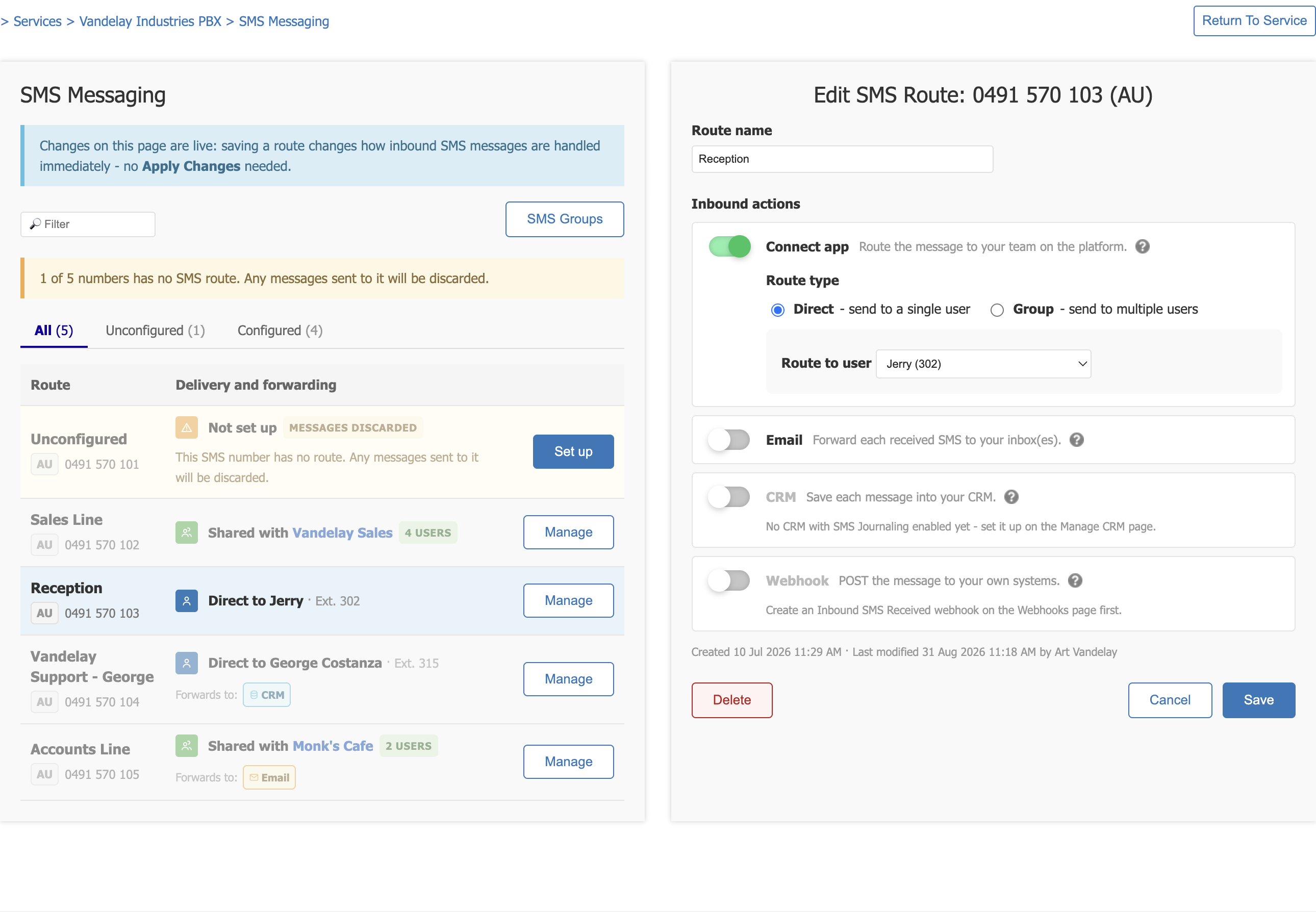
Choosing Group shows the Route to group dropdown, listing each group with its member count. '+ New group' creates one without leaving the page.
Turning the Connect app toggle off means there is no in app inbox for that number. Messages still arrive and can still be forwarded.
Also forward to
Each forward is independent and can be used with any route type.
| Forward | What it does | Requires |
|---|---|---|
| A copy is sent to the addresses you list. | An email address on the route. | |
| CRM | Saved against the matching contact. | SMS Journaling enabled on the Manage CRM page. |
| Webhook | POSTed to any webhooks you attach. | An Inbound SMS Received webhook on the Webhooks page. |
The CRM and Webhook toggles stay greyed out until their prerequisite exists, and the panel says which one is missing.
Saving
'Save' applies the change immediately. The panel stays open and the list refreshes underneath, so you keep your place.
The line above the buttons records who created the route and who last modified it, and when.
'Delete' removes the route. The number stays on the service and becomes unconfigured again.
Changing a route keeps the history
Switching a number from a person to a group, or back again, does not start over. The conversation history stays with the number.
SMS Groups
A group lets several people share one number's conversation. Open 'SMS Groups' from the SMS Messaging list to create and edit them.
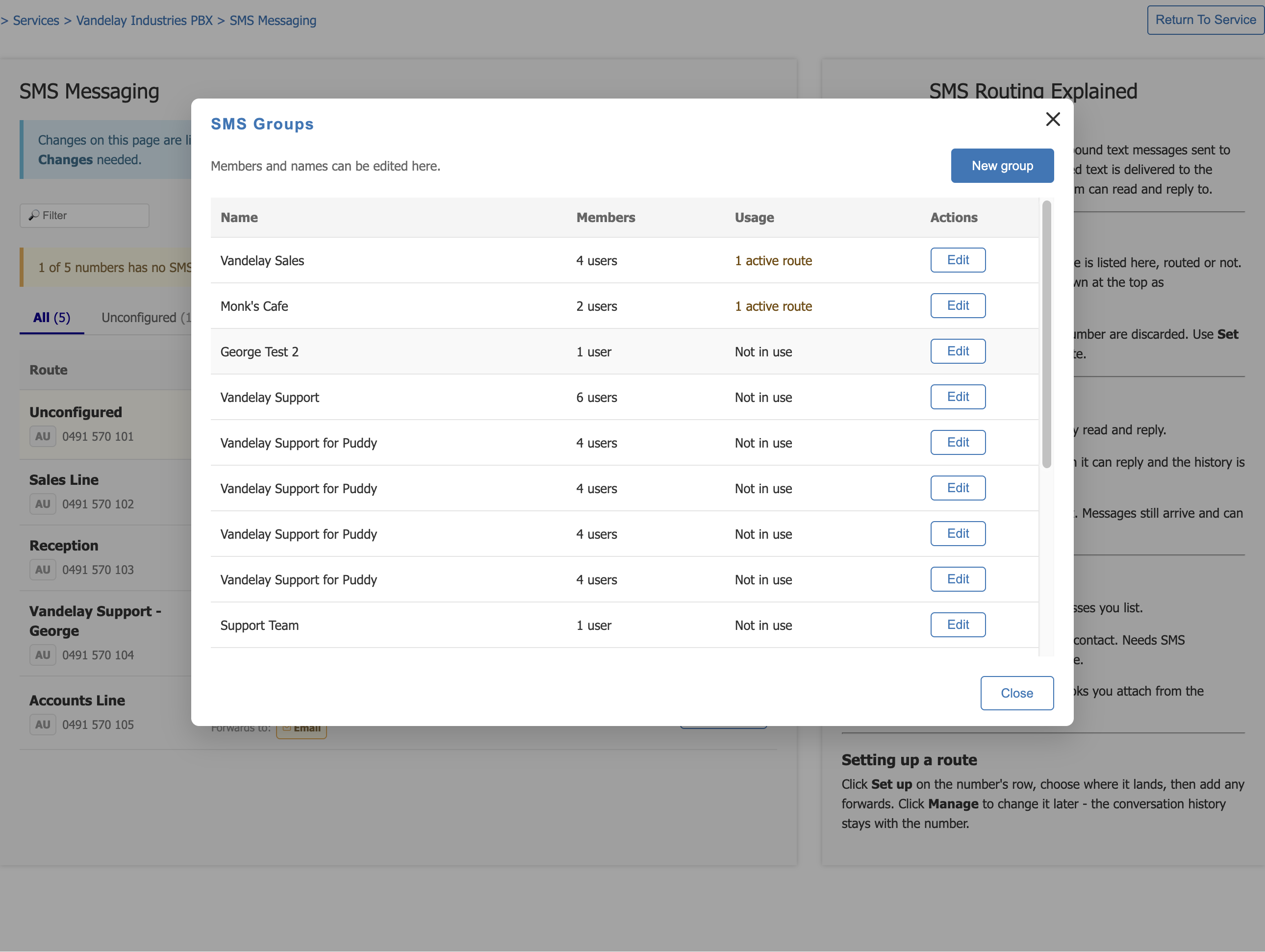
Click 'New group' to create one.
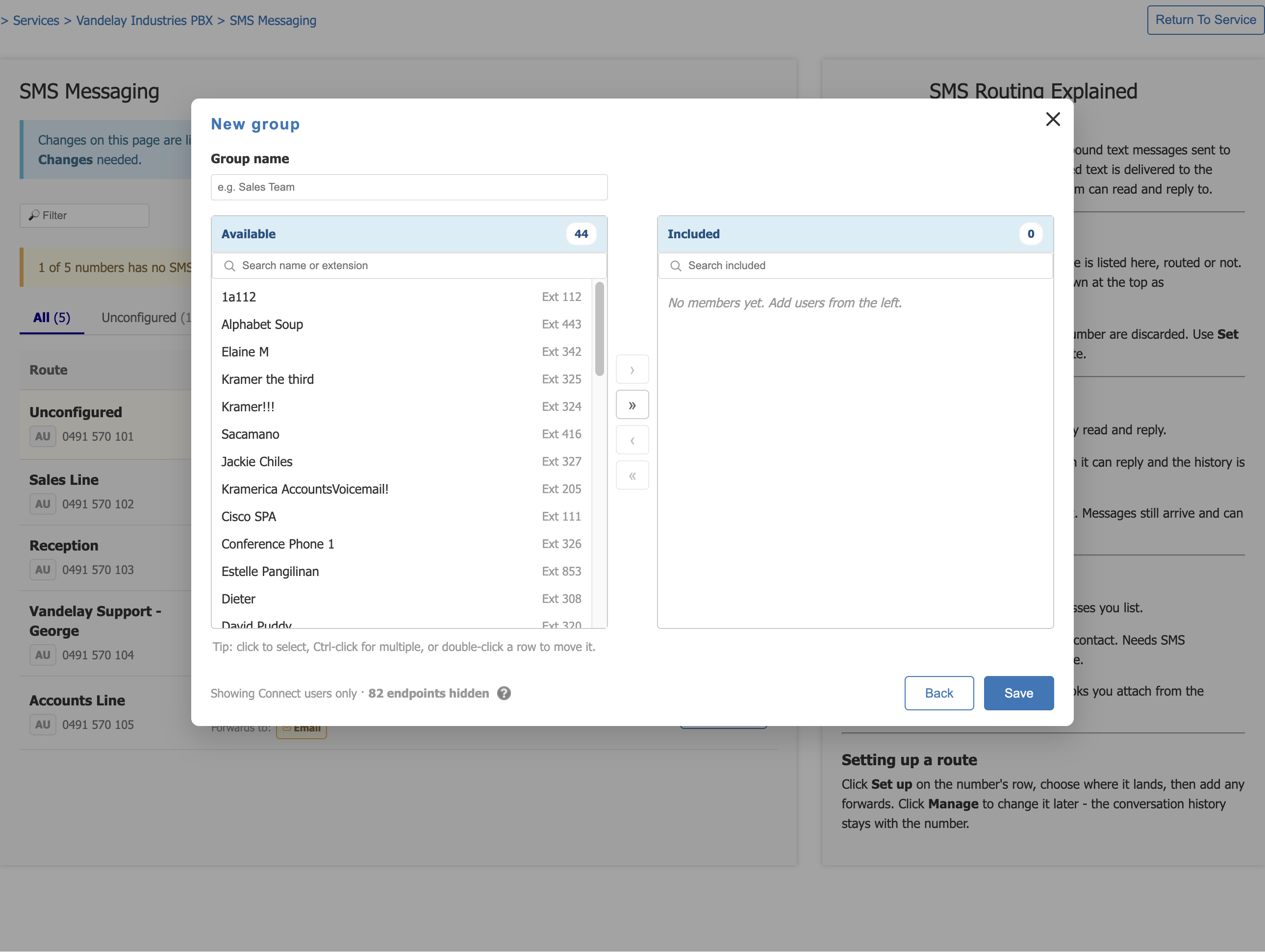
- Give the group a Group name, for example Sales Team.
- The Available list on the left shows the users on the phone system with their extension numbers. Use 'Search name or extension' to find someone.
- Move users into Included on the right. Click to select, Ctrl-click for several, or double-click a row to move it. The arrows move the selection or the whole list.
- Click 'Save'.
Group members and names can be changed here at any time. Changes apply to every route using that group.
Phone number formats
Mobile numbers are accepted in any sensible Australian format. 0412 345 678, 0412345678 and +61412345678 are all treated as the same number.
Reporting
Inbound and outbound messages are recorded in SMS journaling, so they appear in reporting and, where CRM forwarding is on, against the matching CRM record.