Build
Overview
Build in the new dashboard is for people connecting their own software to the phone system, such as a CRM, a wallboard or a billing export. It has three parts: SDK, API accounts and Licence & access.
Who can use Build
Anyone signed in can see the SDK and the developer portal, once they have accepted the licence. API accounts are for Administrators only, signed in with multi-factor sign-in.
SDK
The SDK page has the customer SDK, a ready made client for your integration, in TypeScript, Go, Python, C# and PHP.
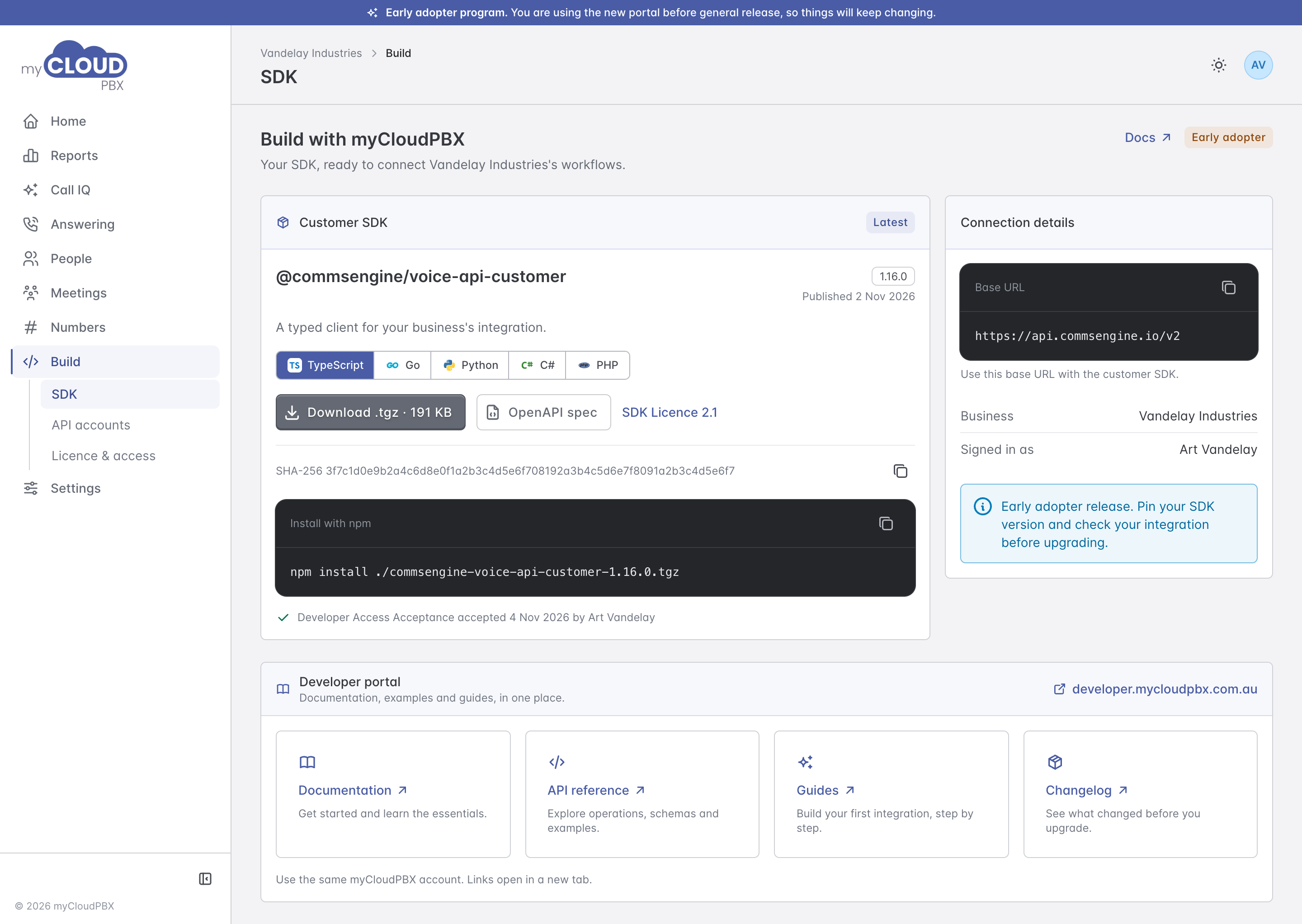
- Customer SDK. Pick a language and choose 'Download'. The page shows the file's checksum, and for TypeScript and Python the line to install it. 'OpenAPI spec' downloads the description of every operation.
- Connection details. The address your integration connects to, and the business and person you are signed in as.
- Developer portal. Links to the documentation, the API reference, guides and the changelog.
The first download, or the first visit to the developer portal, asks you to accept the Developer Access Acceptance. Each person accepts it once. You can read the SDK Licence first.
Pin your version
The SDK is an early adopter release. Pin the version your integration uses, and check it before you upgrade.
API accounts
An API account lets your software read this workspace's data with nobody signed in. Each one has its own key.
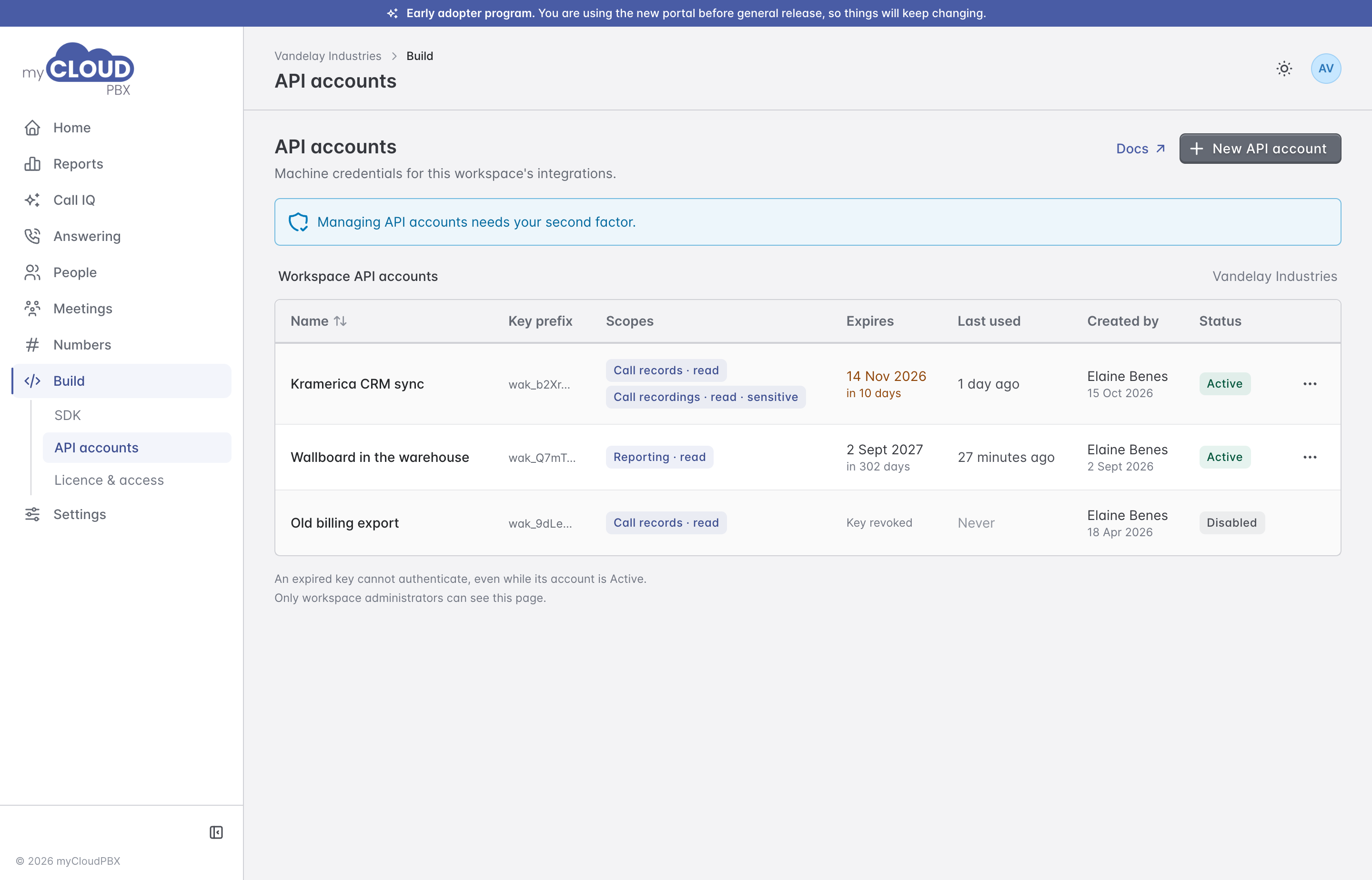
The list shows each account's name, the start of its key, what it can read, when the key expires, when it was last used, who created it and whether it is Active or Disabled.
Creating an API account
- Choose 'New API account'.
- Give it a Name that says what will use it, for example Practice reporting.
- Tick the Scopes it needs:
- Call records: who called whom, when, for how long and how each call ended.
- Reporting: the call and people reports.
- Call recordings: each recording's audio, transcript and summary. This is sensitive content, and you can only grant it if you have the Call Content permission yourself.
- Choose when it Expires after.
- Copy the key. It is shown only once, so store it where your integration keeps its secrets.
An API key can only read. Nothing on the phone system can be changed with it.
Keeping a key working
An expired key stops working, even while its account is Active. Before it expires, choose 'Issue a new key' from the account's menu. The old key stops working the moment the new one is issued, so update your integration straight away.
'Disable' stops an account's key working for good.
Licence & access
Licence & access shows whether you have accepted the SDK licence, with 'Read the licence' and 'Review and accept'. It also sets out who can do what:
| Who | What they can do |
|---|---|
| Anyone signed in | Read the developer portal and download the SDK, after accepting the licence. |
| Administrators | Manage API accounts, with multi-factor sign-in. |
| Your integrations | Read only what their key's scopes allow, until it expires, is disabled or is replaced. |