Signing in with Google or Microsoft
Overview
Anyone with an extension can sign in to myCloudConnect with their Google or Microsoft account, instead of waiting for a call with a code or typing a password. Each person links their own account once. After that it is one click.
| Account | What works |
|---|---|
| Gmail and Google Workspace accounts. | |
| Microsoft | Work or school accounts. Personal Microsoft accounts cannot be used. |
Signing in with your extension, or with your email and password, keeps working alongside it.
For administrators
Nothing to set up
Google and Microsoft sign-in work the same way on every phone system. There is no app to register in Microsoft Entra or Google Workspace, nothing to connect to your organisation's directory, and no groups to map. Each person links their own account.
The email addresses have to match
A Google or Microsoft account links to the extension whose email address is the same as the account's (capitals do not matter). Before people link, check that each extension has the right email address on it. You can change it on the user in the portal. See Offices and Users.
If two extensions share an email address, neither can be linked to it.
Groups, domains and directories
Sign-in is per person. These are not supported:
- Allowing or blocking sign-in by a Microsoft Entra or Google security group.
- Limiting sign-in to your own organisation's Microsoft or Google accounts.
- Creating users from your directory. People are still added on the phone system first.
- Making Google or Microsoft the only way to sign in.
Who can sign in is decided by the users on your phone system and the email address on each extension.
What happens when things change
| When | What happens |
|---|---|
| You change the email address on an extension | Its Google or Microsoft link is removed and the person is signed out. Their history stays. They can link again with the new address. |
| You remove or deactivate a user | Their links are removed straight away. |
| Someone chooses 'Disconnect' in Connect | That account can no longer be used to sign in. Sessions already running carry on. |
Multi-factor sign-in
A Google or Microsoft account does not replace multi-factor sign-in. If it applies to someone, they are still asked for the code from their authenticator app.
Portal logins
This covers people signing in to Connect with an extension. Your portal login is separate and is not linked to Google or Microsoft.
Linking your account
From the sign-in page
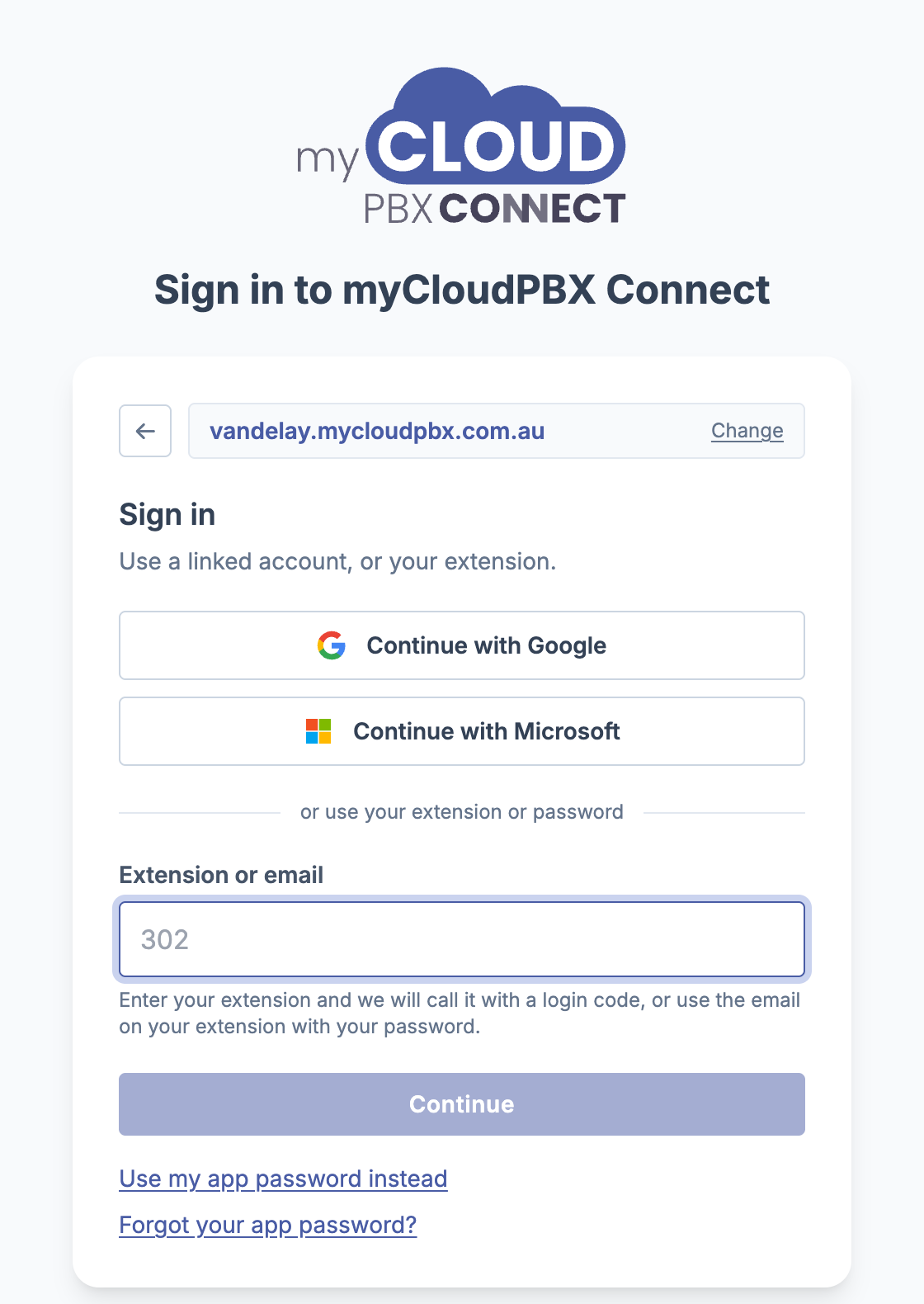
- Enter your workspace or office phone number and choose 'Continue'.
-
Choose 'Continue with Google' or 'Continue with Microsoft', and sign in to that account.
-
Google links straight away when the email addresses match, and you are signed in.
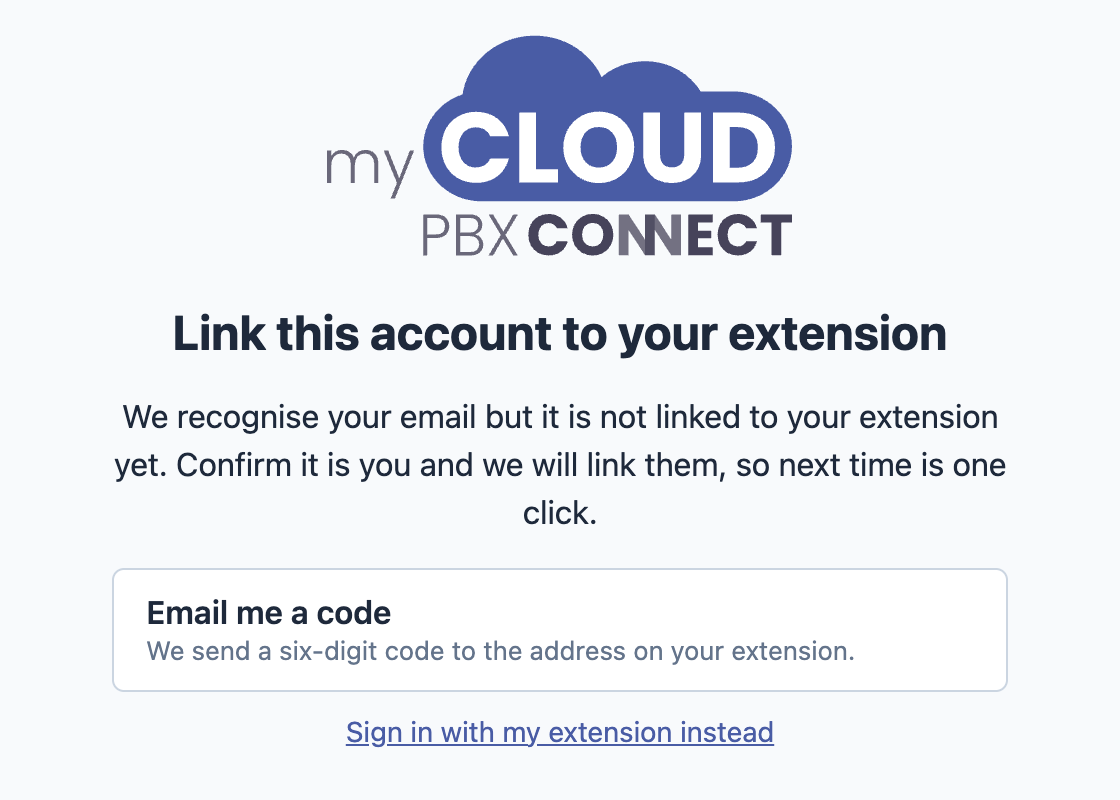
Microsoft asks you to confirm it is you the first time. Choose 'Email me a code'. A six-digit code is sent to the email address on your extension. Enter it, and the account is linked.
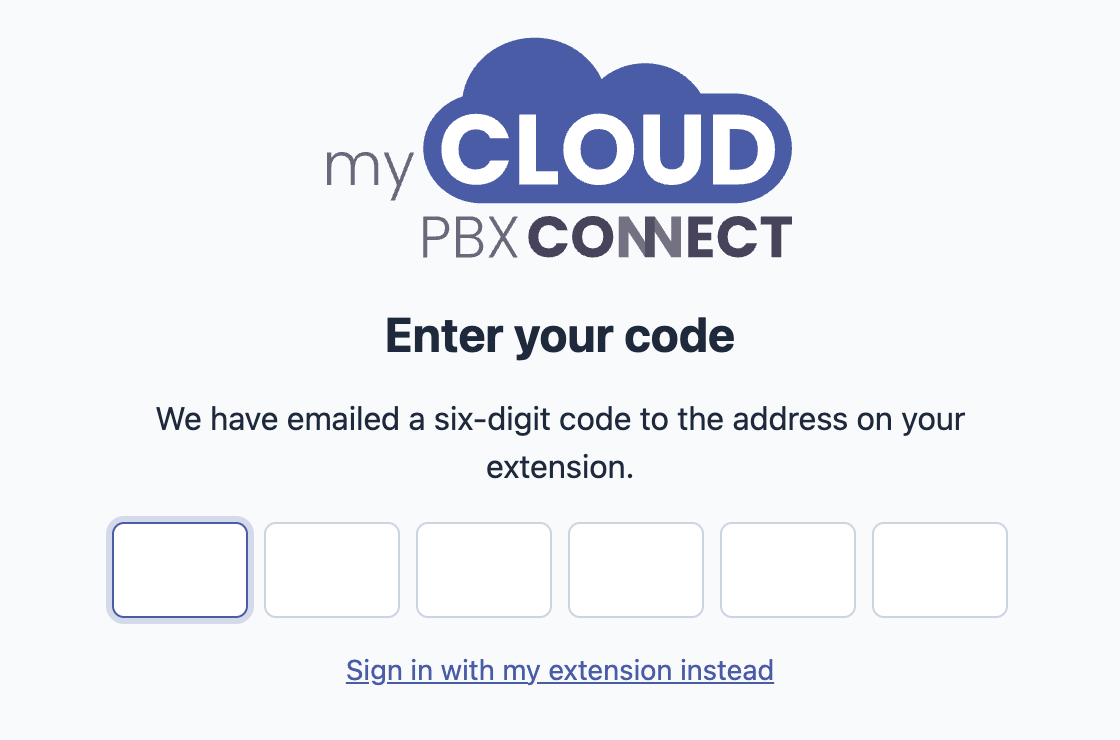
Next time, 'Continue with Google' or 'Continue with Microsoft' signs you straight in.
From Connect
If you are already signed in, go to Settings > Sign-in & security and choose 'Connect Google' or 'Connect Microsoft'. See Settings.
If it does not work
| What you see | What to do |
|---|---|
| 'We could not match that account to a single extension in this Workspace' | The account's email address is not the one on your extension, or more than one extension has it. Sign in with your extension, and ask your administrator to check the email address on it. |
| 'That account is not linked to a myCloudPBX extension yet' | Sign in with your extension, then link the account from Settings in Connect. |
| No code arrives | The code goes only to the email address on your extension. Check your junk folder, or ask your administrator which address is on your extension. |
| A greyed out button that says it is not set up for this Workspace | Google and Microsoft are available on every phone system, so this should clear by itself. Sign in another way for now and try again later. |