HotDoc CRM
HotDoc is a patient engagement platform used by medical practices for bookings, patient communications, forms, reminders, recalls, payments, and related front-desk workflows.
Connecting HotDoc to myCloudPBX allows incoming calls to trigger HotDoc Caller ID. When a patient calls the practice, myCloudPBX sends the call information to HotDoc, where the caller's phone number can be matched against the practice software and shown in the HotDoc Sidebar.
This helps reception staff see who is calling before they answer, including patient details, appointment context, communication history, and important alerts where available. The integration runs through the existing myCloudPBX cloud phone service, so practices do not need to run additional phone hardware, servers, or a separate phone provider.
Configuration
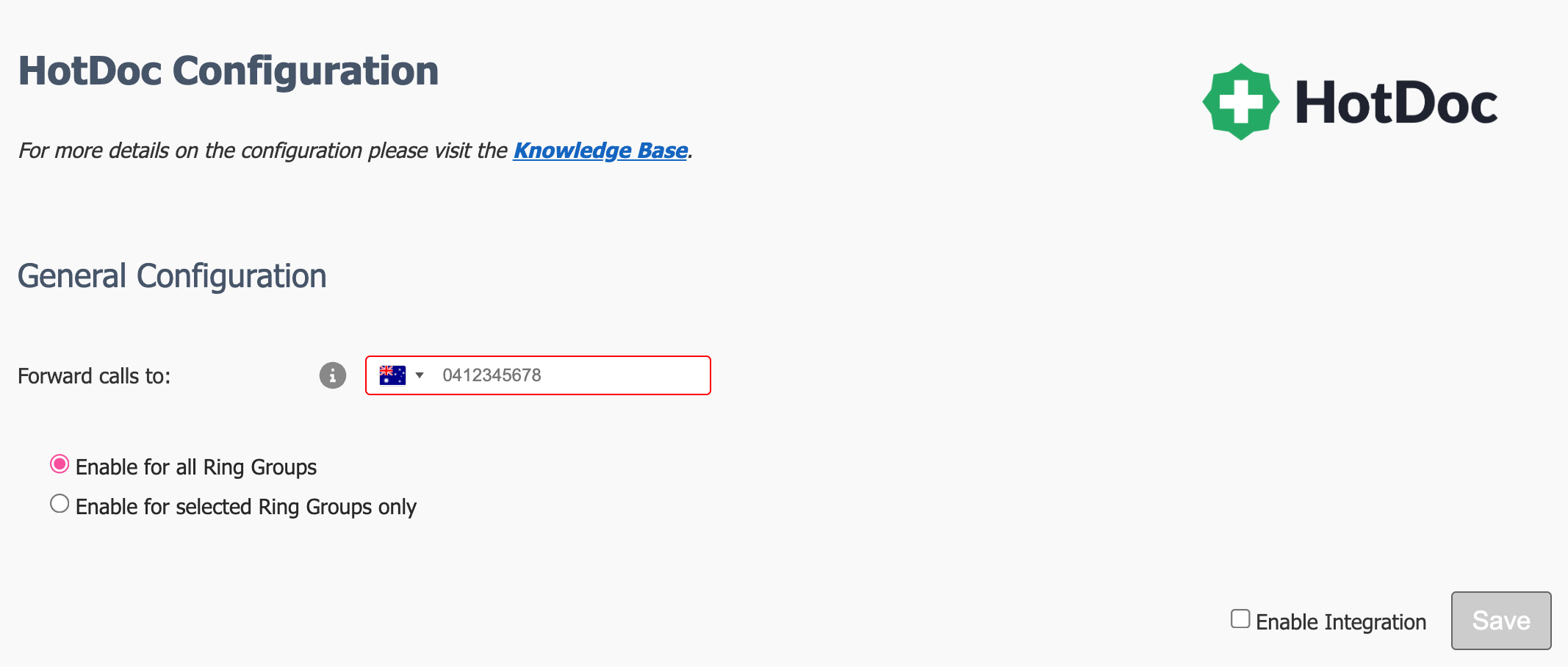
The configuration for HotDoc is very basic as there are no API functions required.
HotDoc will have provided you with a phone number to forward calls to. These calls are never answered and are used to provide the Caller ID functionality.
-
Enter the forwarding number.
-
Specify if you want to enable the HotDoc functionality on all Ring Groups, or a subset.
-
If you select to "Enable for selected Ring Groups only", then you will need to enable on each Ring Group separately.
Once you are happy with your configuration, make sure that 'Enable Integration' is ticked, then click 'Save'.
Tip
Don't forget to click Apply PBX Changes if prompted.
Enabling on individual Ring Groups
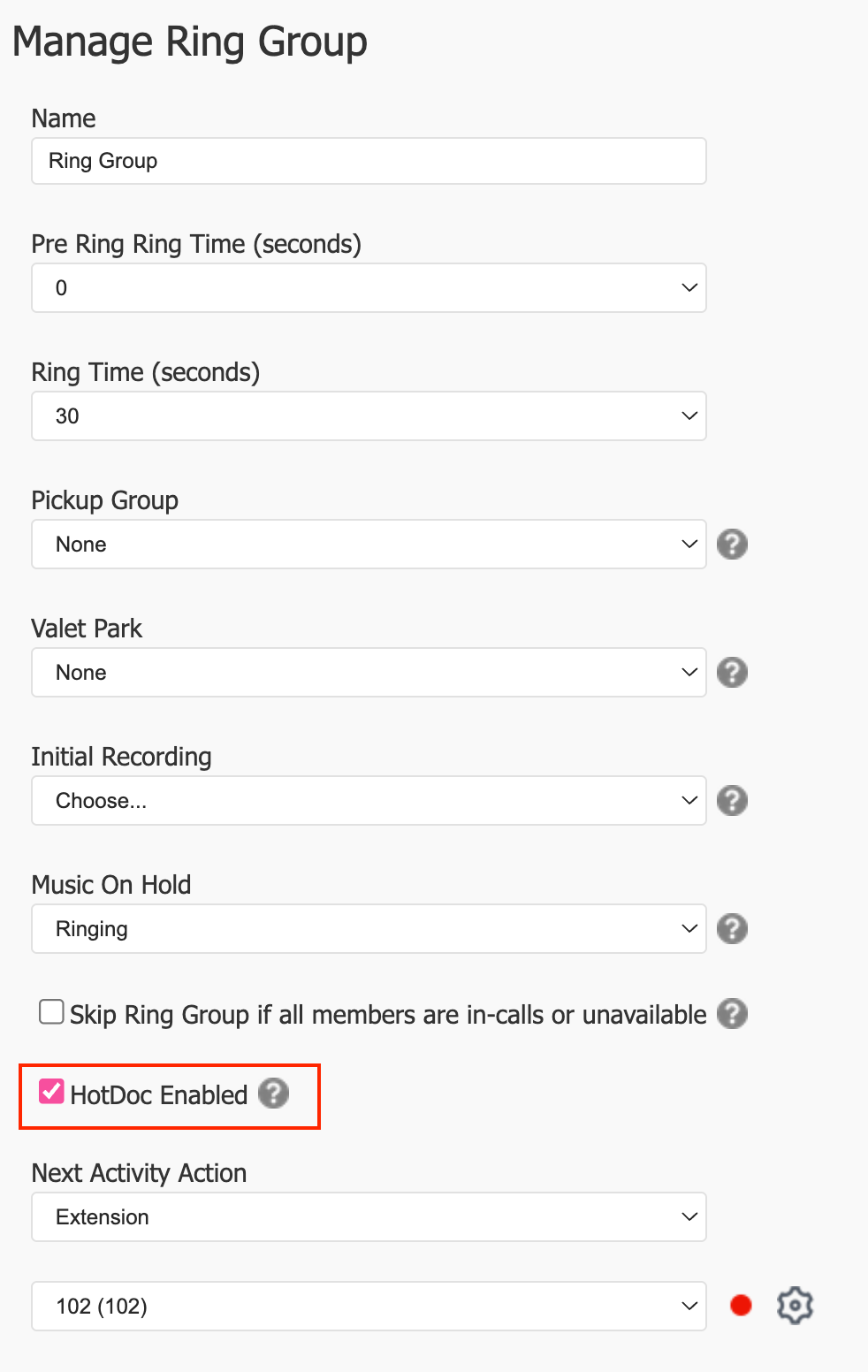
If you selected to enable HotDoc on only some of your Ring Groups, then you'll see a new option available on the Ring Group configuration pages.
Disable/Enable CRM integration
Disabling the CRM temporarily is done by un-ticking the 'Enable Integration' checkbox.
This will disable the CRM for all users on the PBX.
Tip
Don't forget to click Apply PBX Changes if prompted.