Global Contact Directory
Overview
The Global Contact Directory is a shared address book of external contacts (customers, suppliers, partners) that everyone on your phone system can see and use.
Contacts saved here appear in two places.
- In the compose picker when sending an SMS from the myCloudConnect App.
- In the caller ID display when a saved contact rings your phone.
Where the directory is synced to handsets, contacts also appear on the physical phone.
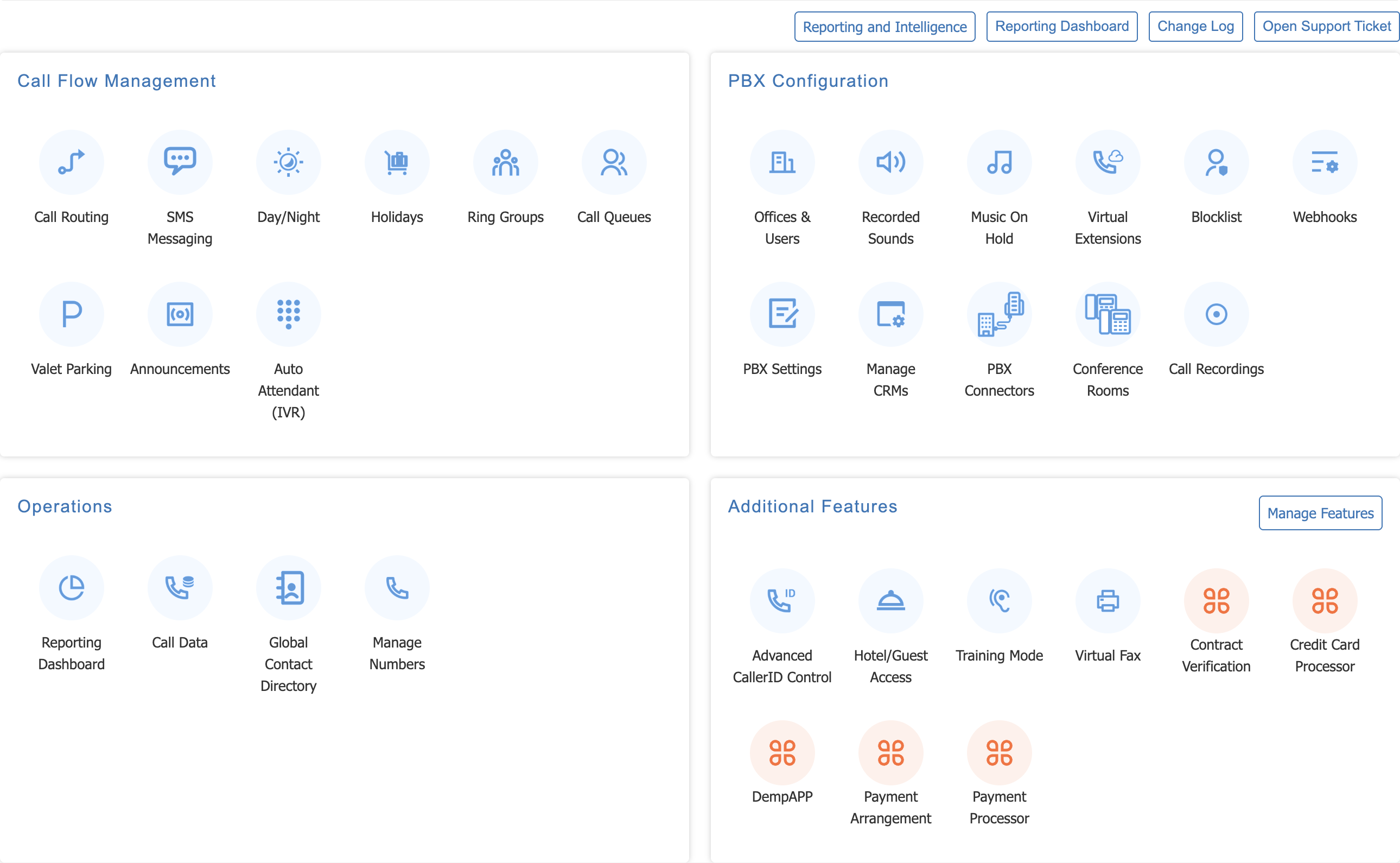
Open it from 'Global Contact Directory' under Operations on the service page.
Changes on this page are live
Contacts you add, edit or delete update immediately for everyone in your workspace. There is no 'Apply Changes' step.
Turning the directory on
The directory is controlled under 'PBX Settings' in Connect App Feature Settings.
- Global Contact Directory turns the workspace-wide contact list on. Users with the Manage Global Contact Directory permission can add, edit and delete contacts.
- Sync directory to physical handsets makes the directory visible on every physical handset that supports the feature.
The Manage Global Contact Directory permission is granted against a user's portal role, under Admin > Configure Roles.
The directory page
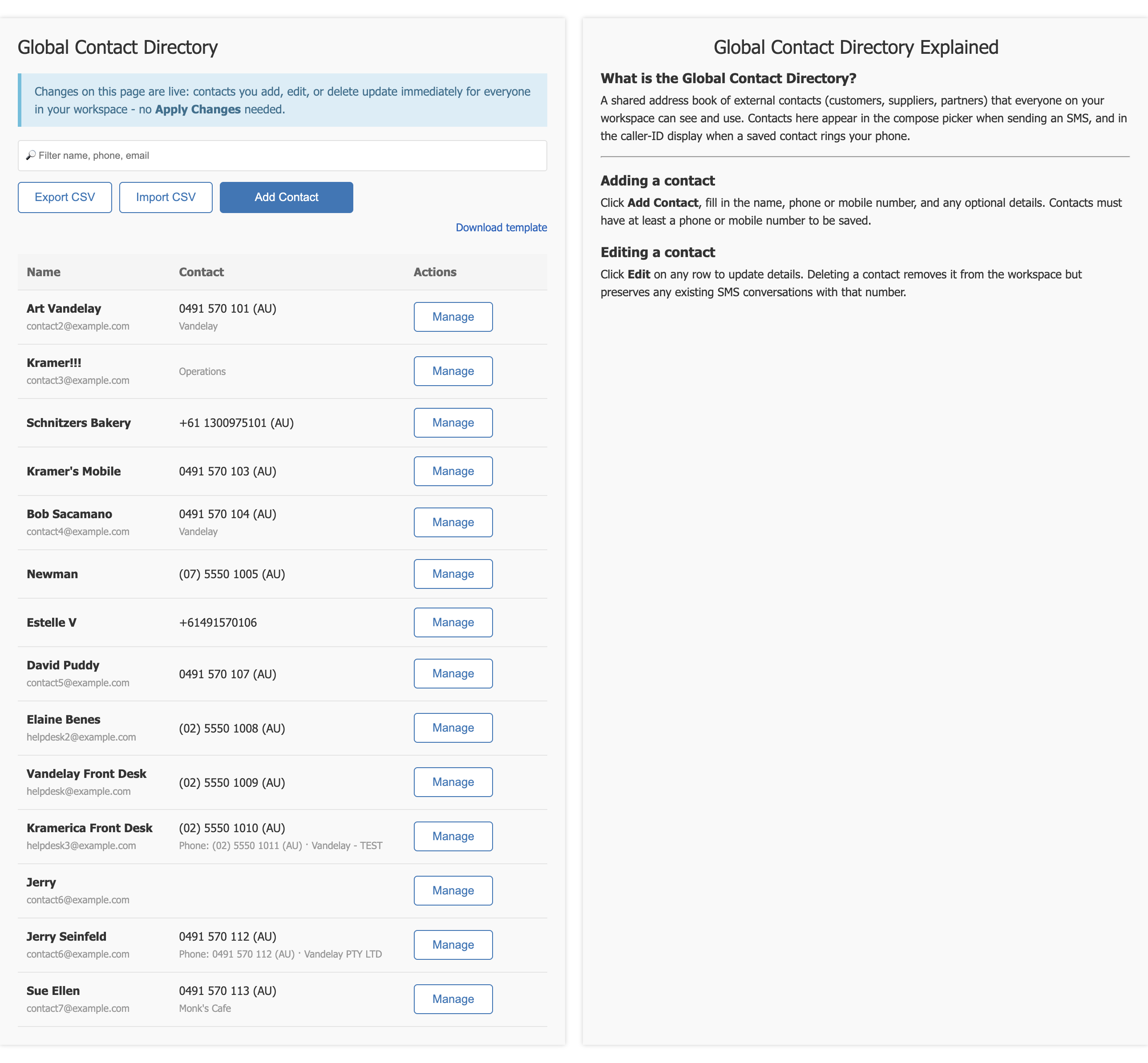
- 'Filter name, phone, email' searches the list.
- 'Add Contact' opens the contact form.
- 'Import CSV' brings across a whole list at once. 'Download template' gives you the file layout to fill in.
- 'Export CSV' downloads the current directory. It is greyed out while the directory is empty.
Each row shows the contact name, their contact details, and the actions available on them.
Adding a contact
Click 'Add Contact' and fill in the form.
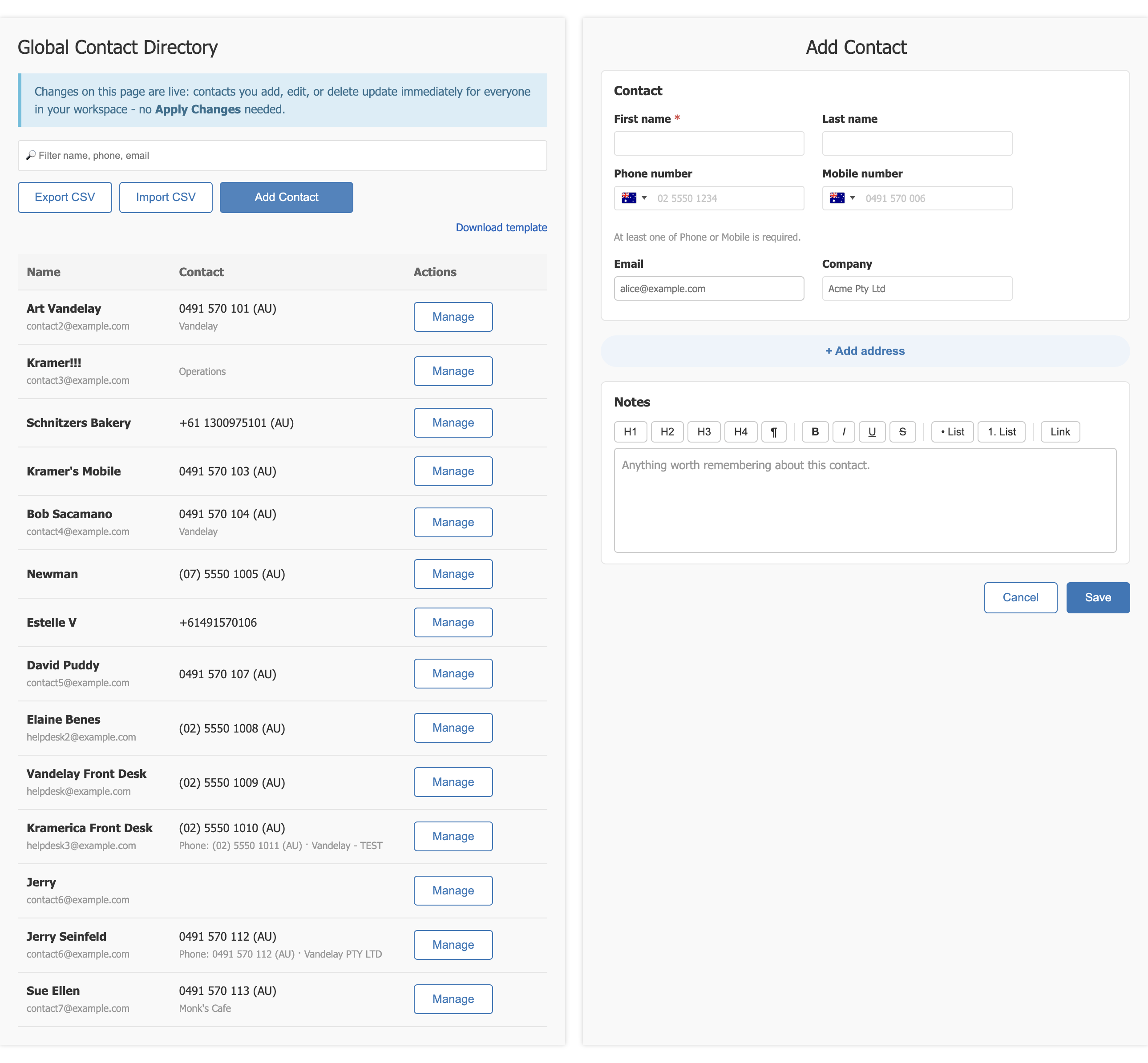
| Field | Notes |
|---|---|
| First name | Required. |
| Last name | Optional. |
| Phone number | Landline number, with a country selector. |
| Mobile number | Mobile number, with a country selector. |
| Optional. | |
| Company | Optional. |
At least one number is required
A contact must have either a phone number or a mobile number to be saved. Obviously invalid numbers and email addresses are refused.
Address and notes
'+ Add address' opens the address fields. 'Hide' collapses them again.
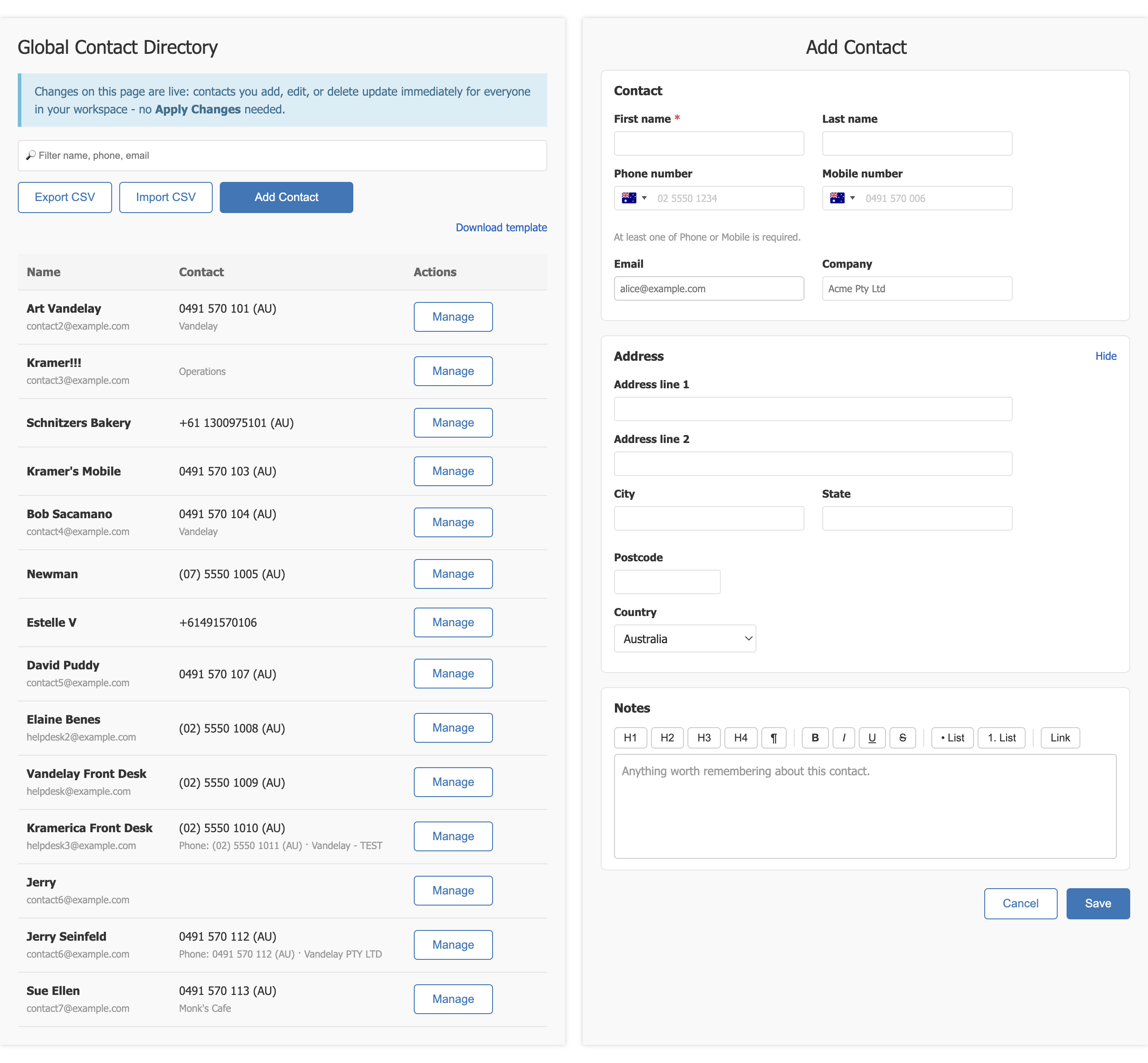
The address block takes two address lines, city, state, postcode and country. Country defaults to Australia.
Notes is a rich text field for anything worth remembering about the contact. It supports headings, bold, italic, underline, strikethrough, bulleted and numbered lists, and links.
Click 'Save' to add the contact. It is visible to everyone on the workspace straight away.
Editing and deleting a contact
Click 'Edit' on any row to update the details. Fields you do not touch are left as they were.
Deleting a contact removes it from the workspace but preserves any existing SMS conversations with that number. You are asked to confirm before anything is deleted, and choosing 'Cancel' leaves the contact where it was.
A number that has been deleted can be used again. Adding a new contact with the same phone number as a deleted one works normally.
Importing and exporting
'Import CSV' loads a list of contacts in one go. Use 'Download template' first to get the expected column layout, fill it in, then import it.
'Export CSV' downloads the current directory, which is useful for bulk edits and as a backup before a large import.
Auditing
Adds, edits and deletes are each recorded against the name of the person who made the change.
Frequently Asked Questions
I can't see my contacts on the handset
On the handset I can now see "LDAP" under the 'Directory' heading, however when I click on that I can't see any phone numbers.
The Contact Directory is secured behind a firewall. Please ensure that you have added your Public IP Address to the Allow List.
Adding an IP Address is done via the PBX Configuration Portal.
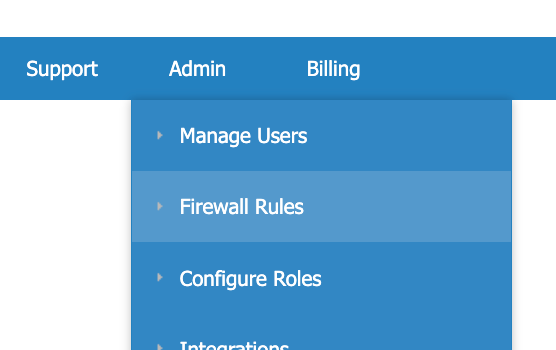
From the 'Admin' menu, select 'Firewall Rules'.
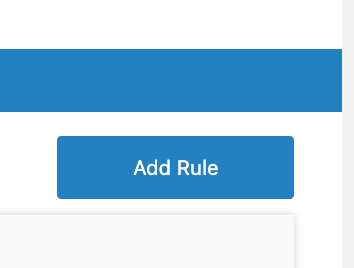
Then click 'Add Rule'.
Enter the following:
- Description: This is for your reference. eg: Home Office
- IP Address: This is your Public IP Address that the phone will be using to access the Internet.
- Netmask: This is the Subnet Mask. Set this to '32 (1 Host)' unless told otherwise.
- Scope: IP Telephony.
Click 'Save' when finished.
Allow 3 to 5 minutes before restarting the handset.