Troubleshooting myCloudConnect
Colleagues show as offline but their phones are working?
The coloured presence dot in Connect shows whether a person is signed in to Connect. It is not linked to whether their handset or softphone is registered, which is what the new dashboard shows (Dashboard in the Connect side menu). A colleague who has not signed in to Connect shows as offline, even though their phone works normally.
Ask them to sign in to Connect and their dot will update. See Presence.
Smart-Open pop-ups not working?
For Smart-Open to function correctly, there are three components that must be enabled and configured.
- CRM functionality must be enabled for your PBX.
- Smart-Open must be enabled for your user within myCloudConnect.
- Pop-up blocker must be configured to allow pop-ups on your web browser.
Enabling CRM Functionality
Ensure that your administrator has enabled CRM functionality on your PBX.
Click here for a list of available CRMs and setup guides.
Smart-Open
Step 1.
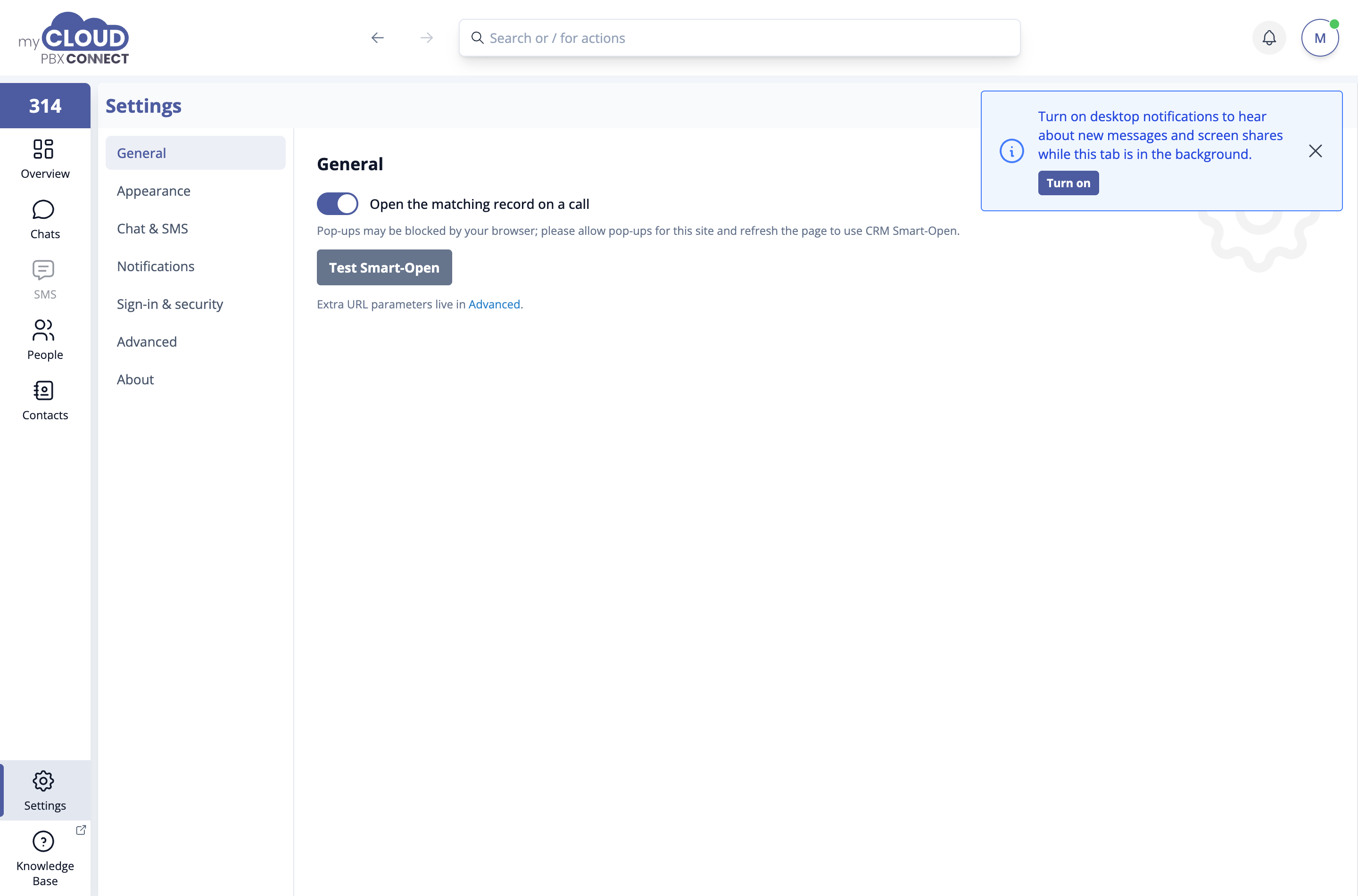
From within myCloudConnect, click 'Settings' at the bottom of the left-hand menu, then 'General'.
Step 2.
Ensure that 'Open the matching record on a call' is turned on. 'Test Smart-Open' checks the setup without waiting for a real call.
Pop-up Blocker
Most web browsers have built-in pop-up blockers to stop annoying ads, so we will need to ensure that myCloudConnect is allowed so that your CRM can be opened.

When a pop-up is blocked, you will see a message similar to this in the address bar of your web browser.
To enable Smart-Open, we will need to explicitly allow myCloudConnect to open new tabs.
Step 1.
Click on the text 'Pop-up blocked'.

Tip
Note: the 'pop-up blocked' message will minimise itself to take up less space pretty quickly and may look like this only

Step 2.
Enable 'Always allow pop-ups and redirects from https://app.mycloudpbx.com.au'.
Click 'Done'.

Now that you have allowed the pop-ups for myCloudConnect, you can re-test. If the test is still failing, please check the other items on the list.