AI assistants
Overview
AI assistants in the new dashboard lets your people connect an AI assistant they already use, such as Copilot or ChatGPT, to myCloudPBX. They can then ask it about their calls, voicemail and Connect chats, for example "Summarise today's missed calls" or "Any voicemail from the bank?".
You stay in charge. An Administrator switches assistants on for the workspace and chooses what they may do. Each person connects their own assistant, and it only ever sees what that person could see themselves.
AI assistants is in beta. It has two parts, Overview and People.
Who can use AI assistants
Only an Administrator signed in with multi-factor sign-in can switch assistants on and choose what they may do. Administrators and Managers can choose who may connect one on the People page. Reporting users can look but not change anything. Users do not see AI assistants in the dashboard. Once it is switched on, anyone allowed on the People page can connect their own assistant.
Overview
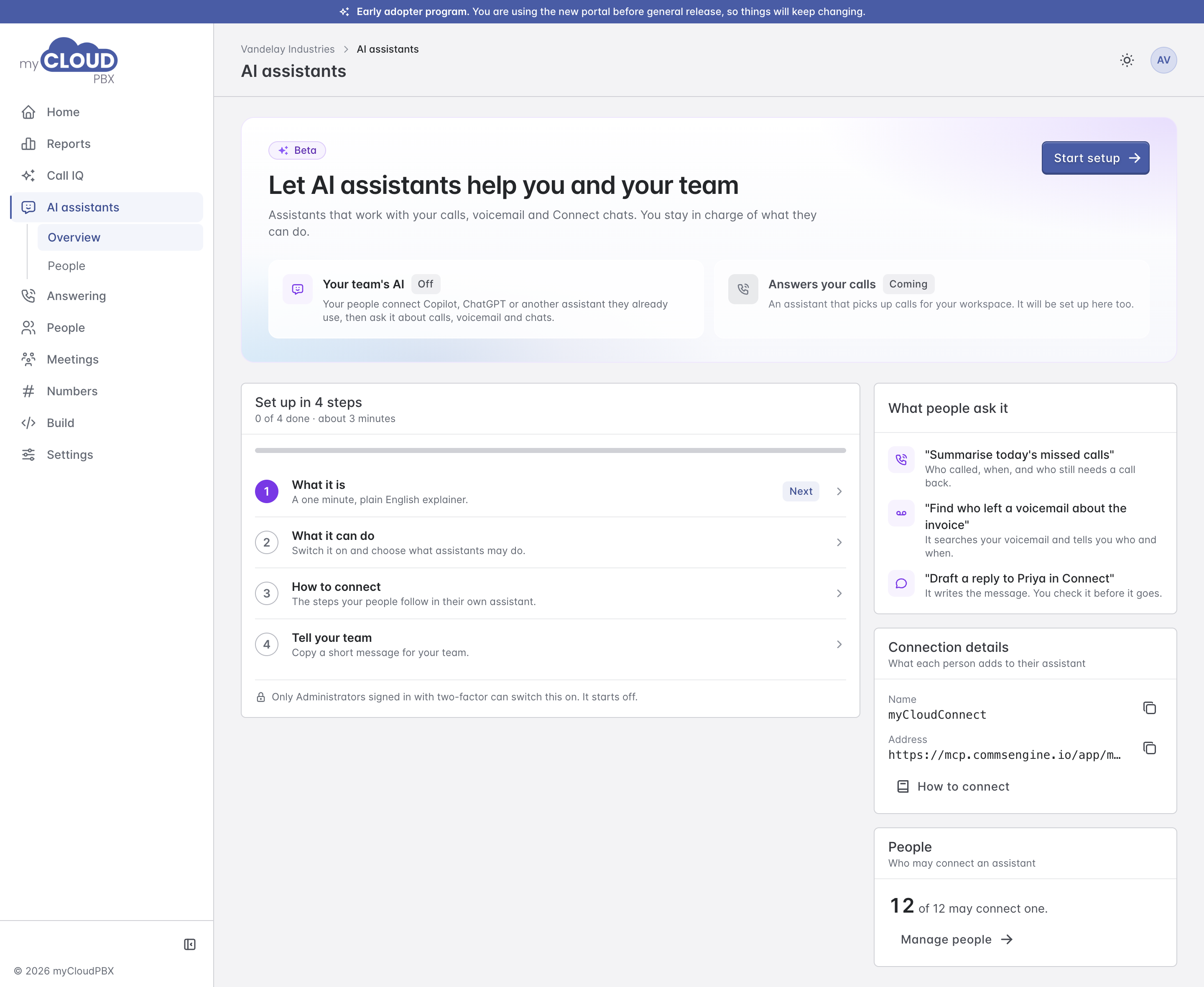
The two cards at the top show what is available:
- Your team's AI shows whether assistants are On or Off for the workspace. It starts off.
- Answers your calls is an assistant that will pick up calls for your workspace. It is marked Coming, and will be set up here too.
Underneath:
- Set up in 4 steps walks you through switching it on. Choose 'Start setup' or any step to open it. You can stop and finish later.
- What people ask it gives examples of what to ask.
- Connection details has the name and address each person adds to their assistant, with copy buttons.
- People shows how many people may connect an assistant. 'Manage people' opens the People page.
Setting it up
1. What it is
A short explainer of what an assistant can do once it is connected. Choose 'Continue'.
2. What it can do
This is where an Administrator switches assistants on and sets the most an assistant can ever do in the workspace.
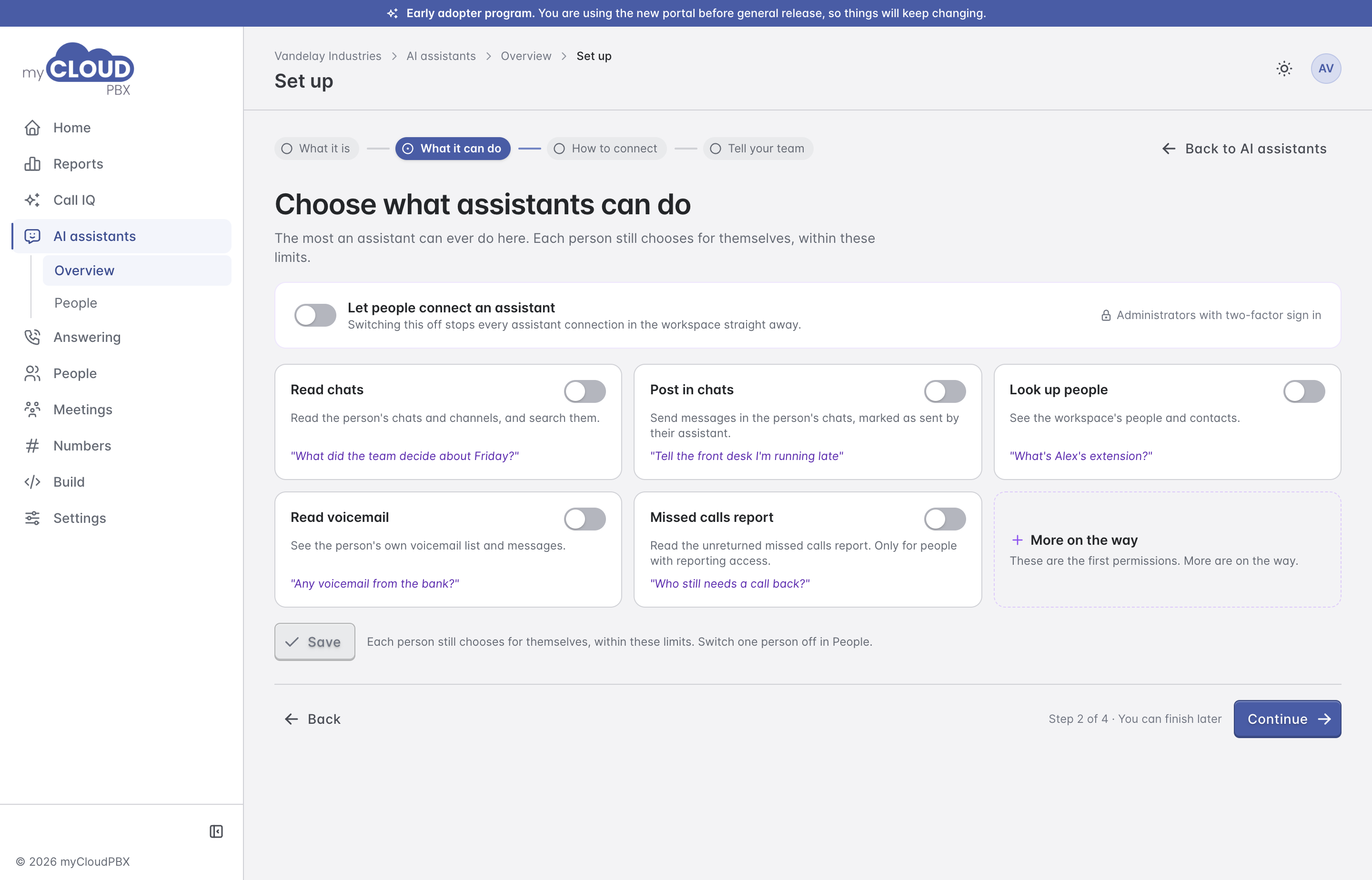
- Switch on Let people connect an assistant.
- Switch on each thing assistants may do:
- Read chats: read the person's chats and channels, and search them.
- Post in chats: send messages in the person's chats, marked as sent by their assistant.
- Look up people: see the workspace's people and contacts.
- Read voicemail: see the person's own voicemail list and messages.
- Missed calls report: read the missed callers nobody called back. Only for people with reporting access.
- Choose 'Save'.
Turn on at least one of them. More are on the way.
These are the limits for the whole workspace. Each person still chooses for themselves within them when they connect, and you can switch one person off on the People page.
Switching it off
Switching off Let people connect an assistant stops every assistant connection in the workspace straight away.
If someone else changed the settings while you had the page open, the dashboard says so and asks you to reload before saving.
3. How to connect
The steps your people follow in their own assistant. It takes about two minutes, and you can try it yourself first.
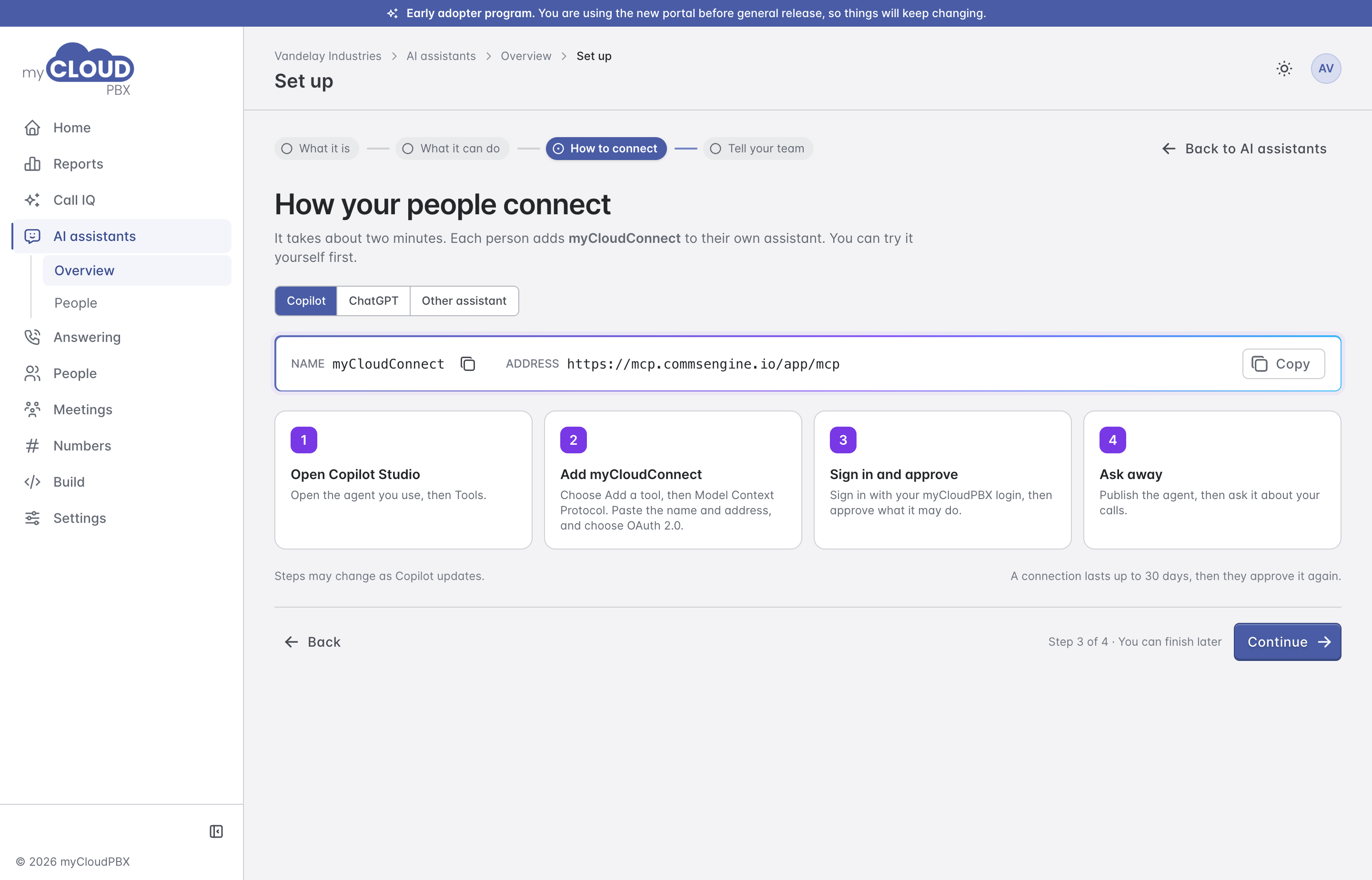
Each person adds myCloudConnect with this address:
https://mcp.commsengine.io/app/mcp
Choose Copilot, ChatGPT or Other assistant for the steps for each one.
| Assistant | Steps |
|---|---|
| Copilot | In Copilot Studio, open the agent you use, then Tools. Choose Add a tool, then Model Context Protocol. Paste the name and address and choose OAuth 2.0. Sign in with your myCloudPBX login and approve what it may do, then publish the agent. |
| ChatGPT | In ChatGPT on the web, open Settings, then Apps and connectors. Choose Create, paste the name and address and choose OAuth. Sign in with your myCloudPBX login and approve what it may do. In a new chat, tap + and choose myCloudConnect. |
| Other assistant | In the assistant's settings, look for connectors, tools or MCP. Add a remote MCP server, paste the name and address, and choose OAuth if it asks. Sign in with your myCloudPBX login and approve what it may do. |
The assistant has to support remote MCP connectors with sign in. Some only offer this on paid plans. The steps in each assistant can change as it updates.
A connection lasts up to 30 days. After that, the person approves it again.
4. Tell your team
A ready message telling your team how to connect, with the address filled in.
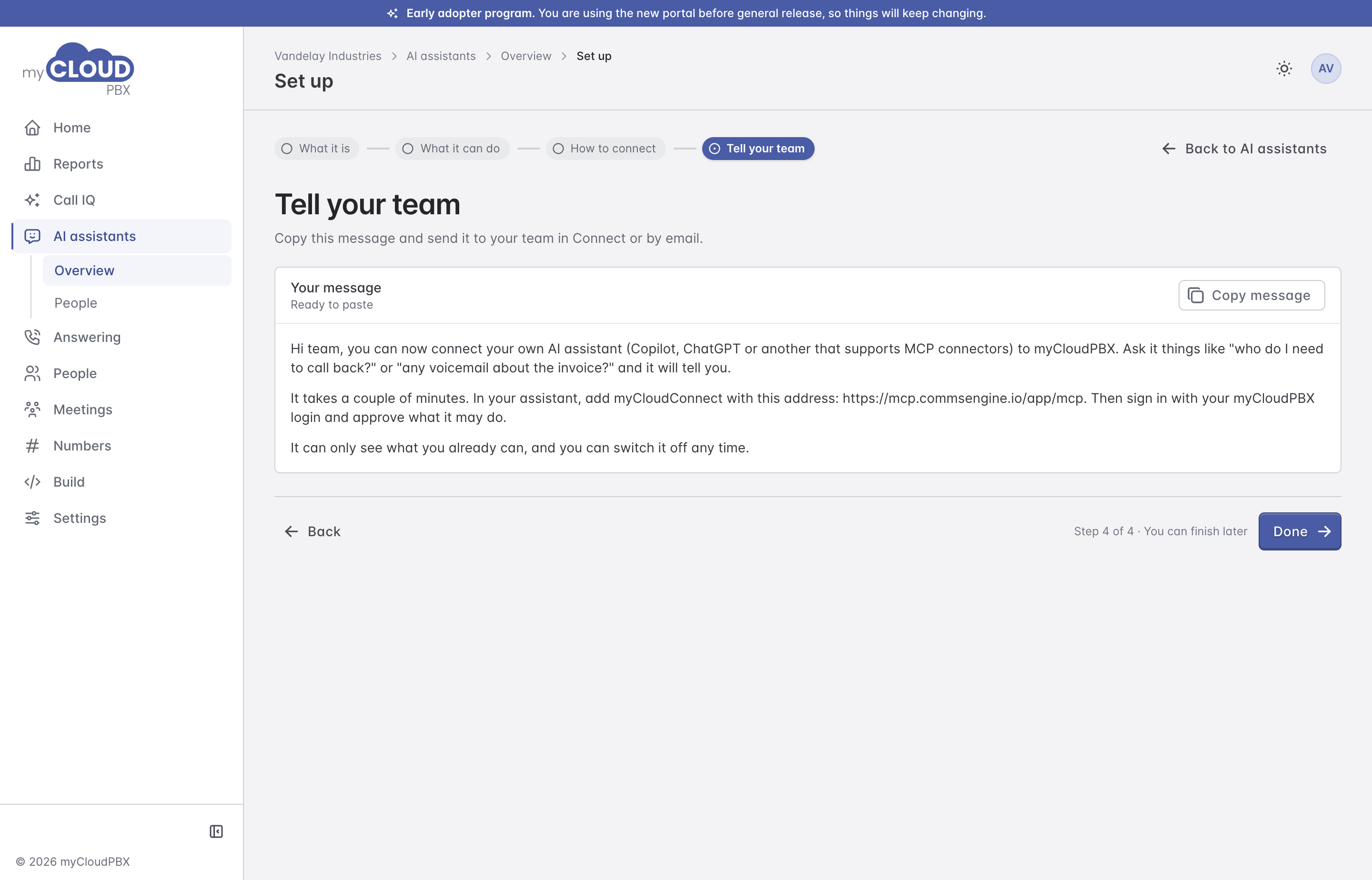
Choose 'Copy message', then paste it into whatever your team uses: Connect, email or any other app. Choose 'Done' to finish.
People
People lists everyone in the workspace and whether they may connect an assistant.
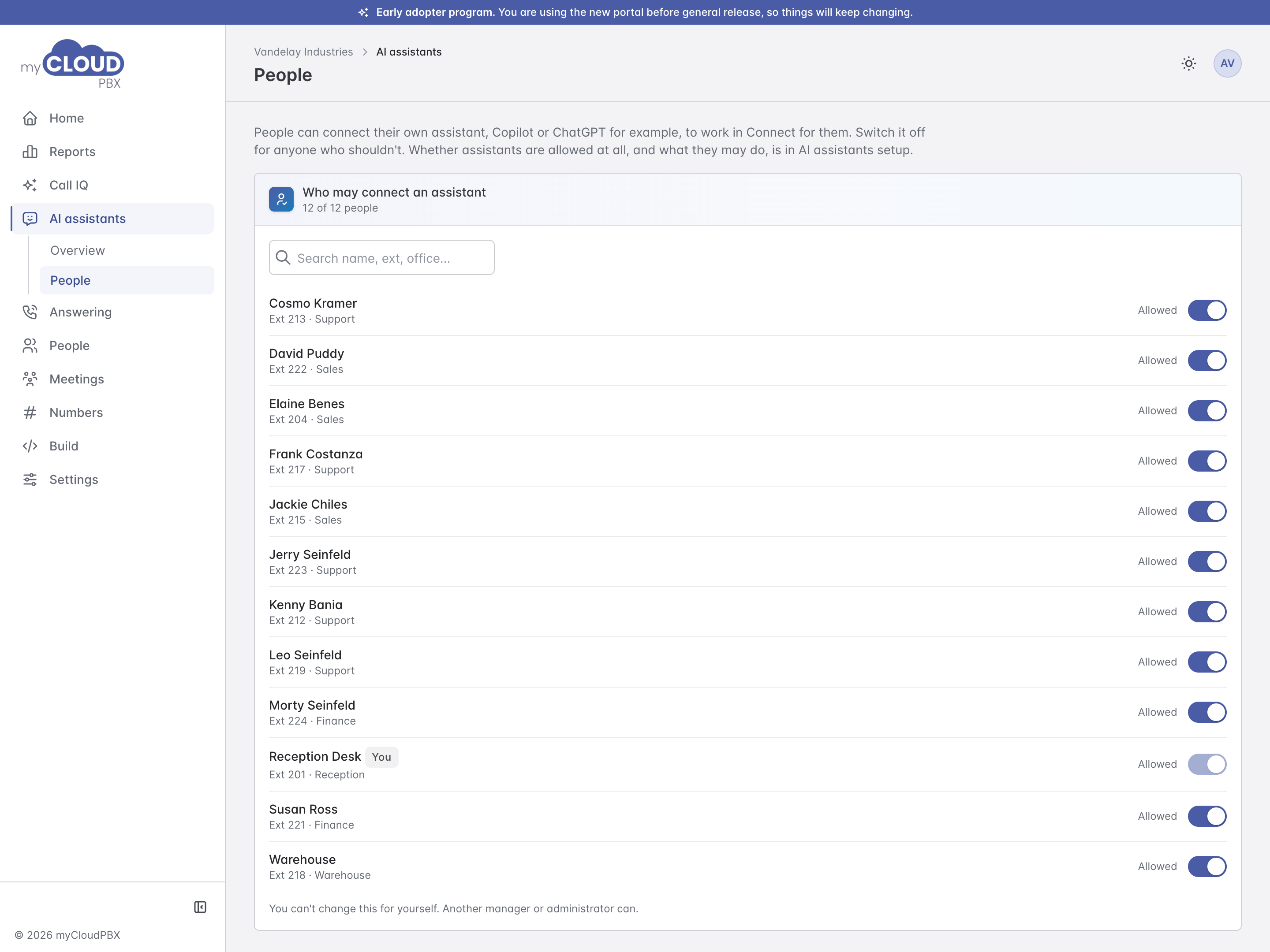
Everyone is Allowed until you switch them off. Switch someone off if they should not use an assistant. The dashboard asks first, because switching a person off also disconnects any assistant they have already connected.
You cannot change this for yourself. Another Manager or Administrator can.
Whether assistants are allowed at all, and what they may do, is set in step 2 of the setup.
Related articles
- Dashboard guide
- Workspace users and roles
- Multi-factor sign-in
- Build, for connecting your own software