Workspace users and roles
Details may change
Workspace roles are part of the Early Adopter Program and are still being finalised. Screens and wording may change, and we will update this article as they do.
Overview
Until now, a user on a myCloudPBX phone system has been an extension: a handset or a softphone. With workspace roles, each phone system has its own people. Each person holds one role, and the people you choose can sign in and use the new Service Portal themselves, straight from the myCloudPBX Connect App.
Roles are switched on when a phone system joins the Early Adopter Program. Phone systems that have not joined carry on as they are.
The four roles
Every person on a phone system holds one role.
| Role | What they look after |
|---|---|
| Admin | The whole workspace. Everything a Manager can do, plus ordering, porting and cancelling numbers, 000 emergency addresses, recording and transcription settings, integrations such as CRM and Teams, and who holds which role. |
| Manager | Running the phones day to day: users, handsets, call flows, IVRs, queues, schedules, the blocklist and routing for existing numbers. Managers can add people as Managers, Reporting users or Users. |
| Reporting | Reports and call records. No changes to settings, unless Operational Controls is switched on for them. |
| User | Their own phone: voicemail, greetings, forwarding, their profile and the company directory. |
There are no custom roles. If someone's access has been tailored to them, choose the role that fits them best.
Two extra permissions
On top of their role, two permissions can be switched on for a person.
Operational Controls
Operational Controls cover the jobs that keep the phones running, without changing how they are set up. Someone with Operational Controls can, from their handset, the Service Portal or the Connect App:
- switch day, night and holiday mode
- record and update greetings, IVR menus and announcements
- add and edit contacts in the shared company directory
Admins and Managers have Operational Controls included with their role. They can be switched on for a Reporting user or a User, which suits a receptionist. Leave them off for staff who only make and take calls.
Call Content
Call Content covers what was said on a call:
- listen to call recordings
- read call transcripts and AI summaries
- view faxes
- listen in to live calls
Admins always have Call Content. For everyone else it is off until someone switches it on for them. Everyone can always hear their own voicemail.
Who can do what
| Area | Admin | Manager | Reporting | User |
|---|---|---|---|---|
| Own phone: voicemail, greetings, forwarding, profile | Change | Change | Change | Change |
| Company directory | Change | Change | View, or change with Operational Controls | View, or change with Operational Controls |
| Operational Controls | Built in | Built in | If switched on | If switched on |
| Users and handsets | Change | Change | No access | No access |
| Call flows and schedules | Change | Change | No access | No access |
| Numbers and 000 addresses | Change | View | No access | No access |
| Integrations | Change | View | No access | No access |
| Recording settings, including deleting recordings | Change | View | No access | No access |
| People and roles | Change | Manager, Reporting and User roles only | No access | No access |
| Reports and call records | Yes | Yes | Yes | No access |
| Call content | Always | If switched on | If switched on | No access |
| Multi-factor sign in | Required | Required | Required | Not required |
How this looks in a real business
| Person | Role |
|---|---|
| Business owner or practice manager | Admin |
| Office manager or IT lead | Manager |
| Quality or compliance officer | Reporting, with call content |
| Receptionist | User, with Operational Controls |
| Everyone else | User |
Setting up roles
Roles are set in the Early Adopter Program window. When a phone system joins, the window opens at Users and roles. To come back to it later, choose 'Early Adopter Program' on the phone system page, then 'Users and roles'. See Joining the program for how to start.
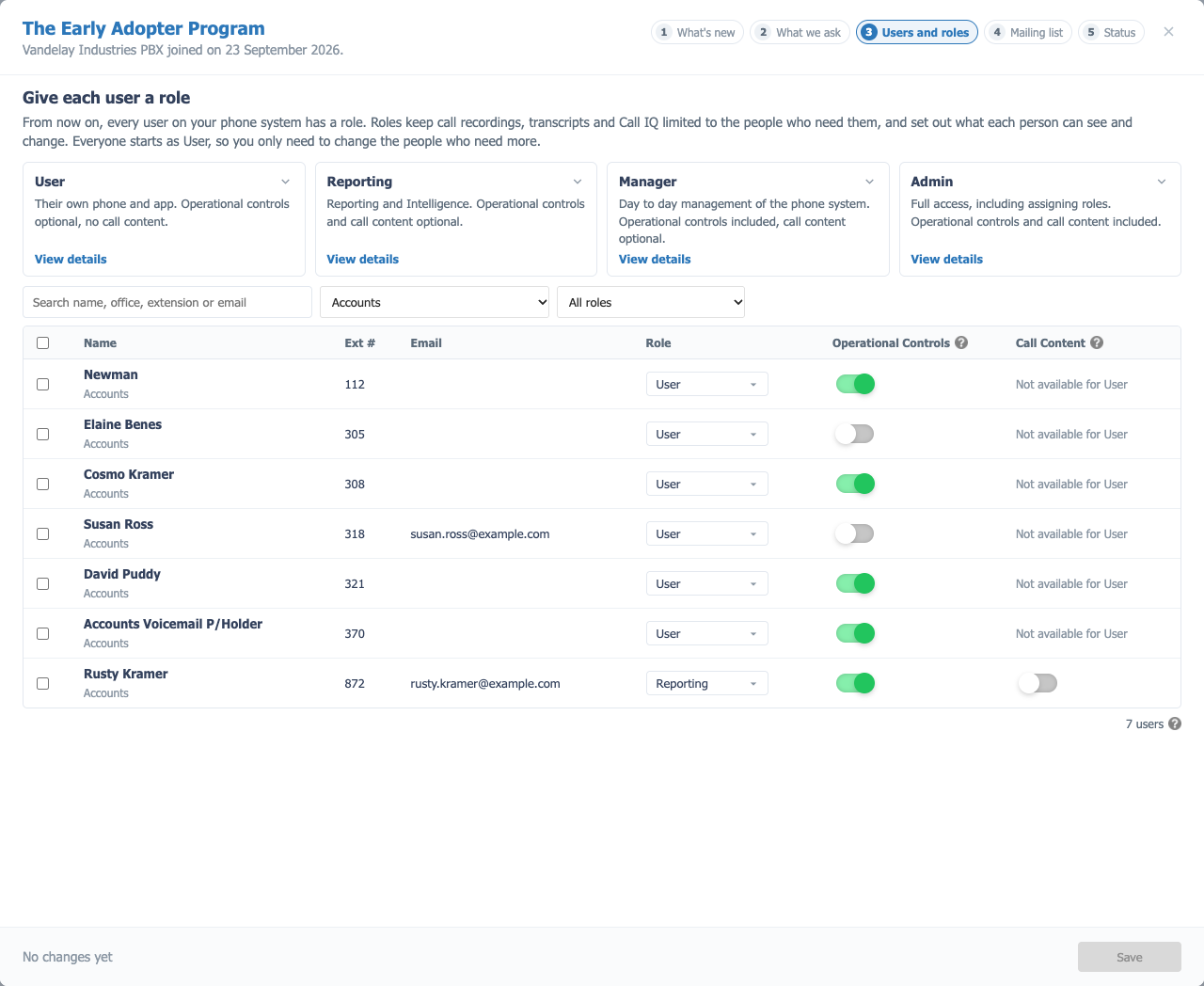
Everyone starts as User, so you only need to change the people who need more.
- The four cards at the top sum up each role. 'View details' lists what each one can do.
- Search by name, office, extension or email, or narrow the list by office or by role.
- Role sets the person's role. Each choice repeats what it includes.
- Operational Controls switches them on for that person. They are included for Managers and Admins.
- Call Content switches it on for a Reporting user or a Manager. A User shows Not available for User.
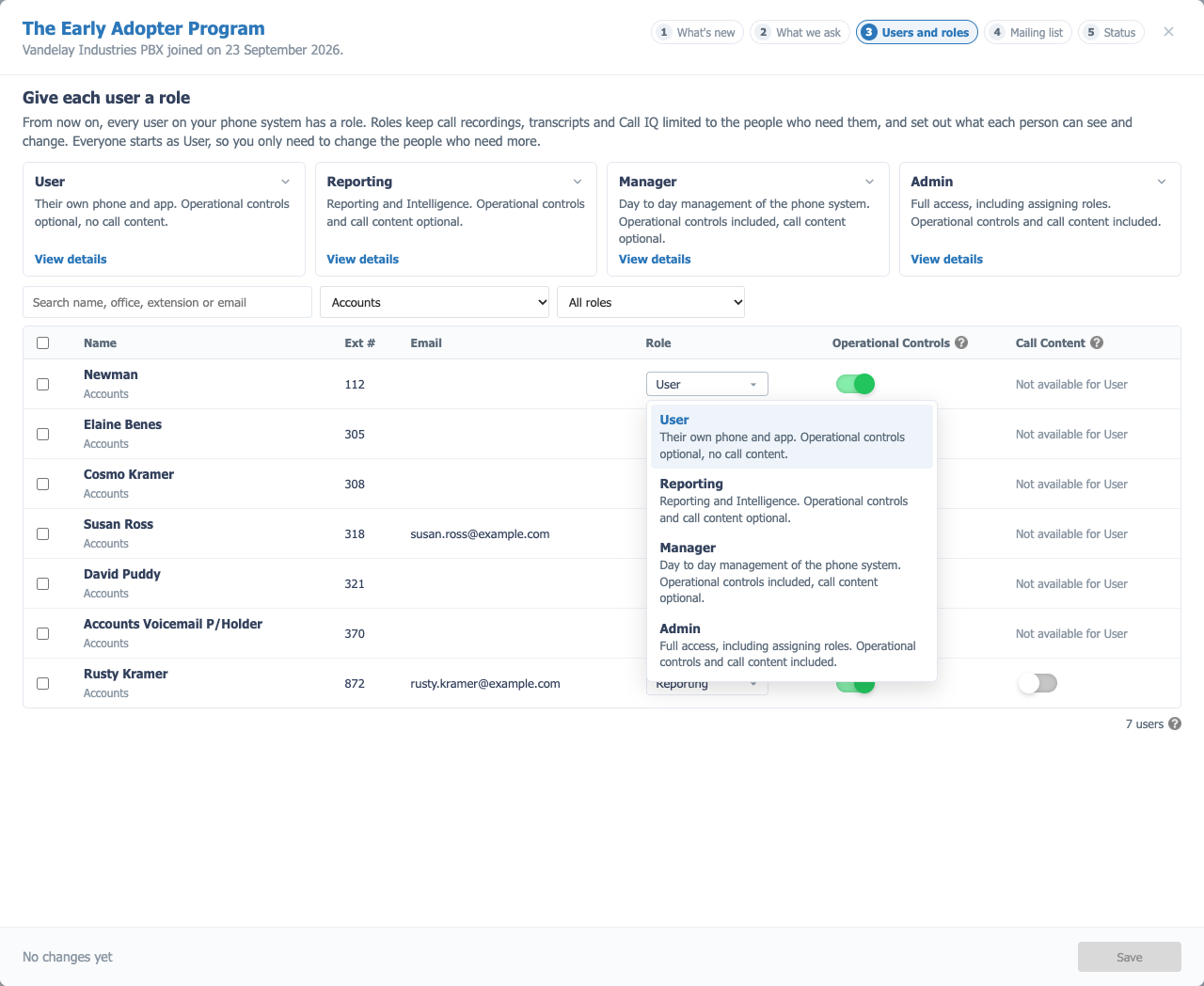
The bottom of the window lists your changes. Nothing changes for anyone until you choose 'Save'.
Make sure everyone above User has an email address on their extension, so they can sign in to the Service Portal.
Only real people's phones need a role. Guest, hotel and virtual extensions carry on as they are.
Signing in
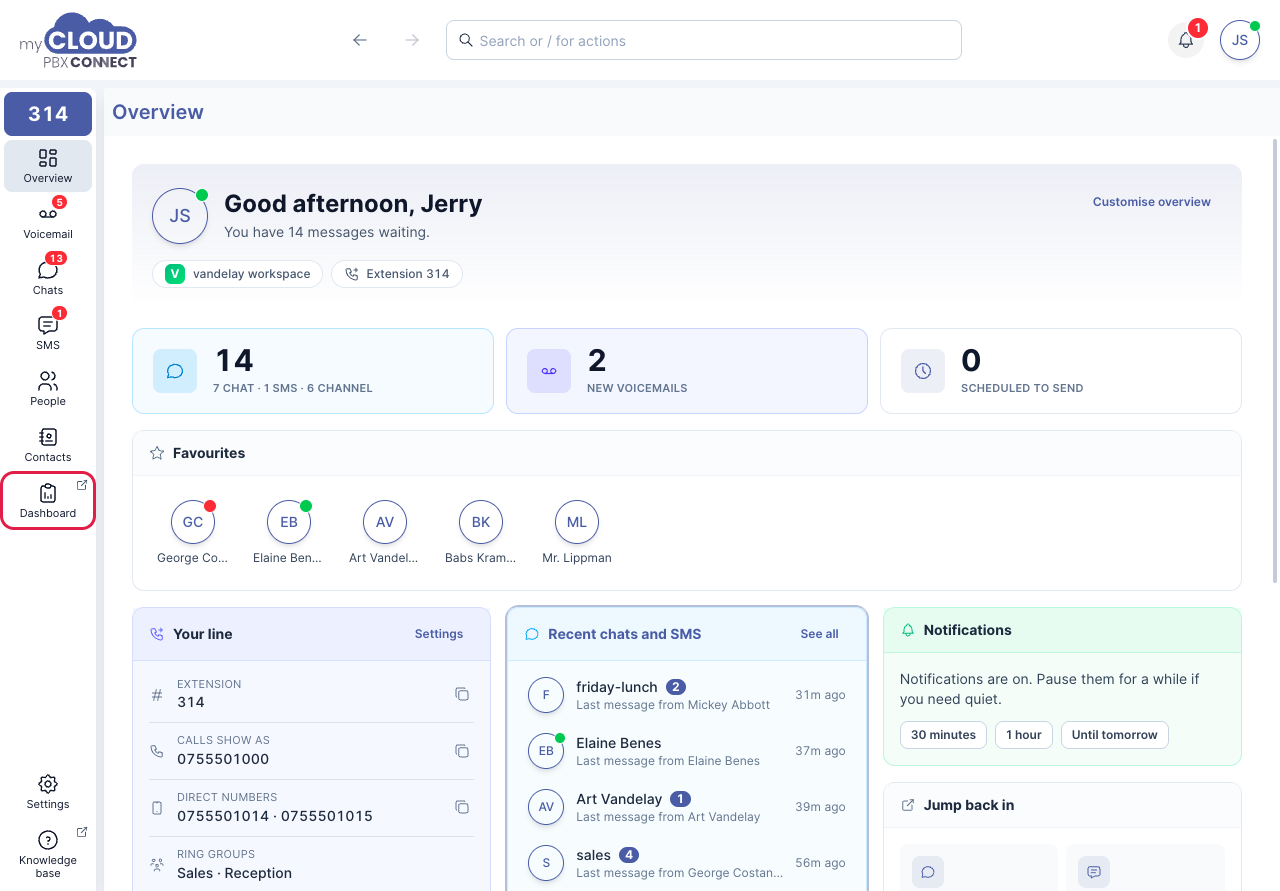
Each person chosen receives a "Welcome to the Early Adopter journey" email. It walks them through setting up their sign in and multi-factor authentication. From then on, they open the new Service Portal from Dashboard in the myCloudPBX Connect App. See Opening the Dashboard.
Existing settings carry across
Some of today's handset and directory settings, such as switching day and night mode from a handset or re-recording prompts, are now part of Operational Controls. Anyone who has them today keeps them, with nothing to set up again.
Changing a role later
A person's role and permissions can also be changed on their own page. Go to Offices & Users, select the person and choose 'Manage User'.
Role is under Account Information on the User Details tab.
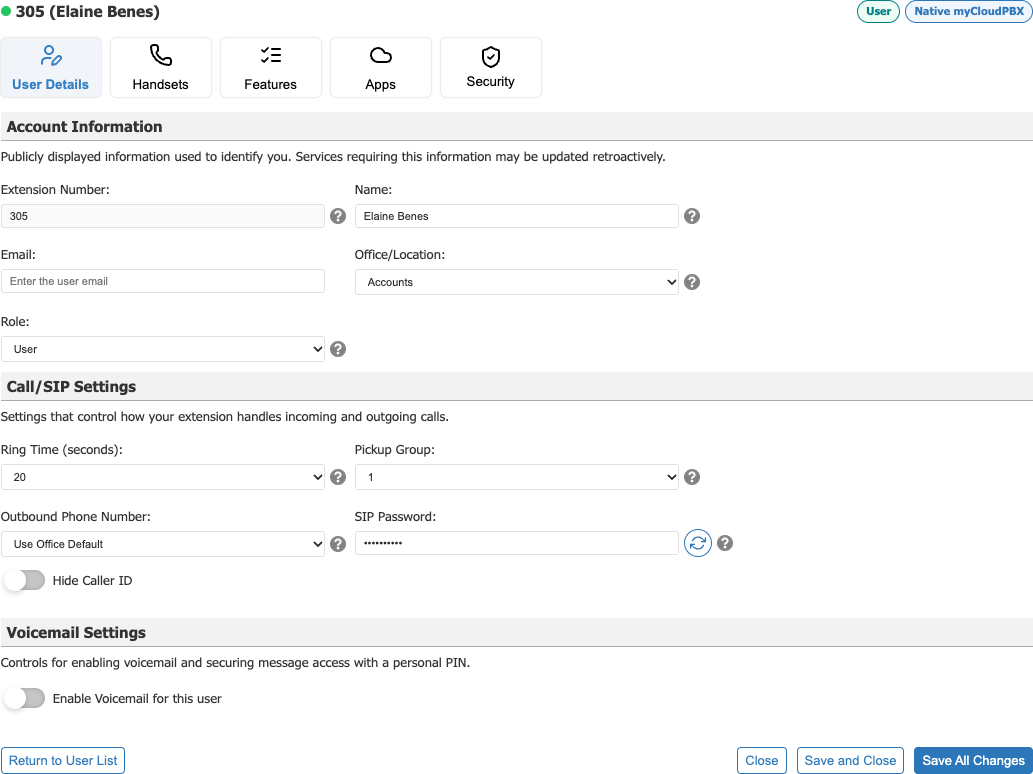
The Security tab holds the permissions, under Management.
| Role | Operational Controls | Call Content |
|---|---|---|
| User | Tick to switch on. | Not offered. |
| Reporting | Tick to switch on. | Tick to switch on. |
| Manager | Included with the role. | Tick to switch on. |
| Admin | Included with the role. | Included with the role. |
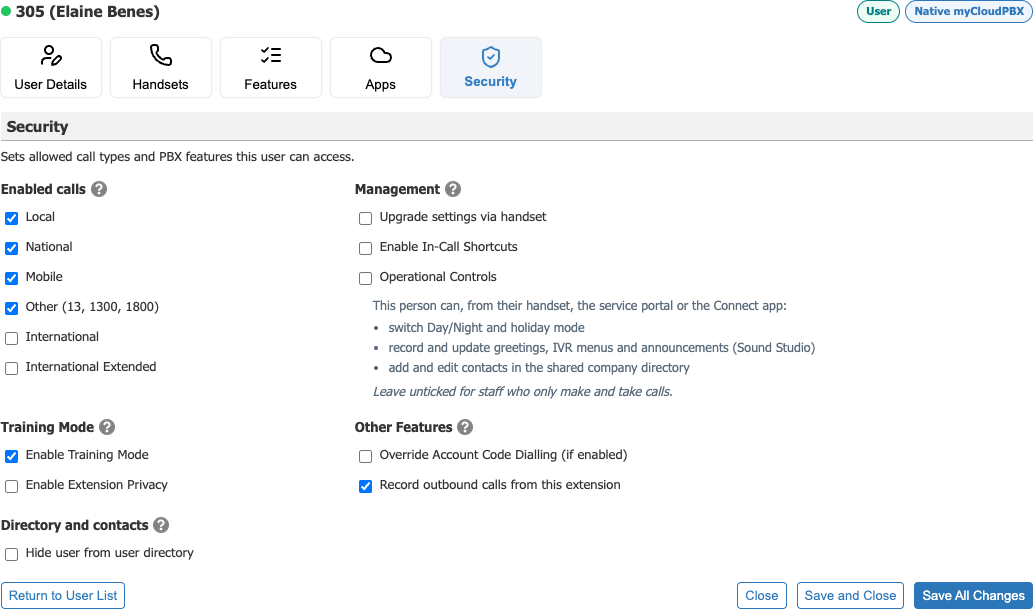
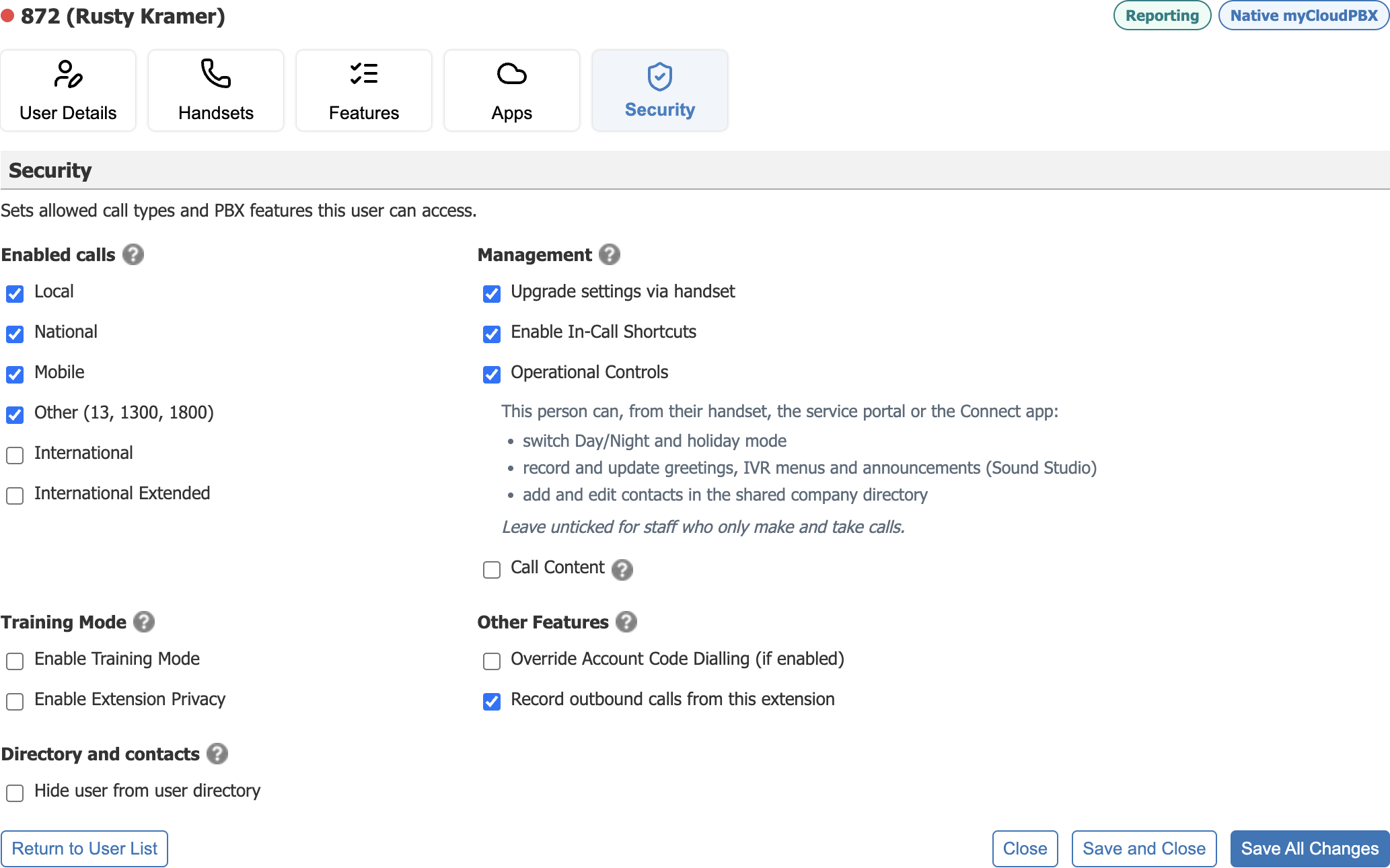
Choose 'Save All Changes' when you are done. Changes to someone's access take effect straight away.
Safeguards
- Nobody can give someone more access than they hold.
- Nobody can change their own role or permissions.
- Every phone system has at least one Admin.
- Anyone above User signs in with multi-factor authentication.
- Changes to someone's access take effect straight away.
- Every view of call content will be recorded, and Admins will be able to see who has access and who has viewed what.
Frequently Asked Questions
Does every extension need a role?
No. Anyone you do not choose is a User, which covers their own phone, voicemail and settings. You can give them a role at any time.
Can someone hold more than one role?
No. Each person holds one role on a phone system. Use the two permissions to adjust what they can do.
Do Users need multi-factor sign in?
No. Multi-factor sign in is required for Admins, Managers and Reporting users only.
What happens when the Early Adopter Program ends?
The people you choose and their roles stay in place after the program ends.