The new dashboard
Overview
The new myCloudPBX dashboard is switched on by Reporting and Intelligence in the Early Adopter Program. This guide covers signing in, finding your way around, Home and People. Reports, Call IQ, Answering and Numbers each have their own article.
Signing in
There are three ways in.
- From the portal. Open the phone system and choose 'Reporting and Intelligence'. You go straight to the dashboard for that phone system.
- From the Connect App. Choose Dashboard in the side menu. See Opening the Dashboard.
- Directly. Go to dashboard.mycloudpbx.com.au and choose 'Sign in'. Sign in with your workspace name and the email on your extension.
People signing in with a phone system role above User are asked for a code from their authenticator app as well. See Multi-factor sign-in.
Your first visit
The first time you open the dashboard, it explains what to expect.

Call IQ builds up from the calls you make and take after joining. It starts empty, and the progress list shows it filling in: calls being recorded, each one being read and scored, and the week on week trends that need about a week of calls. Reports, People, Answering and Numbers work straight away.
Choose 'Show me the dashboard' to carry on. The guide stays under Getting started in your profile menu, and a small Getting started panel on Home tracks progress until you close it.
Finding your way around
- The menu down the left lists the areas you have access to. The areas inside the one you are in are listed beneath it. The button at the bottom collapses the menu.
- The strip across the top is a reminder that you are using the program's early features.
- Preview notices. Reports, Call IQ and Answering each open with a short note while they are still being tuned. 'Got it' puts it away.
- The top bar shows the workspace you are in, a light and dark mode switch, and your profile menu.
- Your profile menu has 'Your profile', 'Open the Connect app', 'Getting started', 'Preferences' and 'Sign out'. 'Open the Connect app' opens Connect in its own browser tab, signed in if you already use Connect in that browser.
There is no workspace switcher. To look at another phone system, open it from the portal or from the Connect App signed in to that workspace.
Home
Home shows how your callers were served. The Today, 7d and 30d buttons set the window for the whole page.
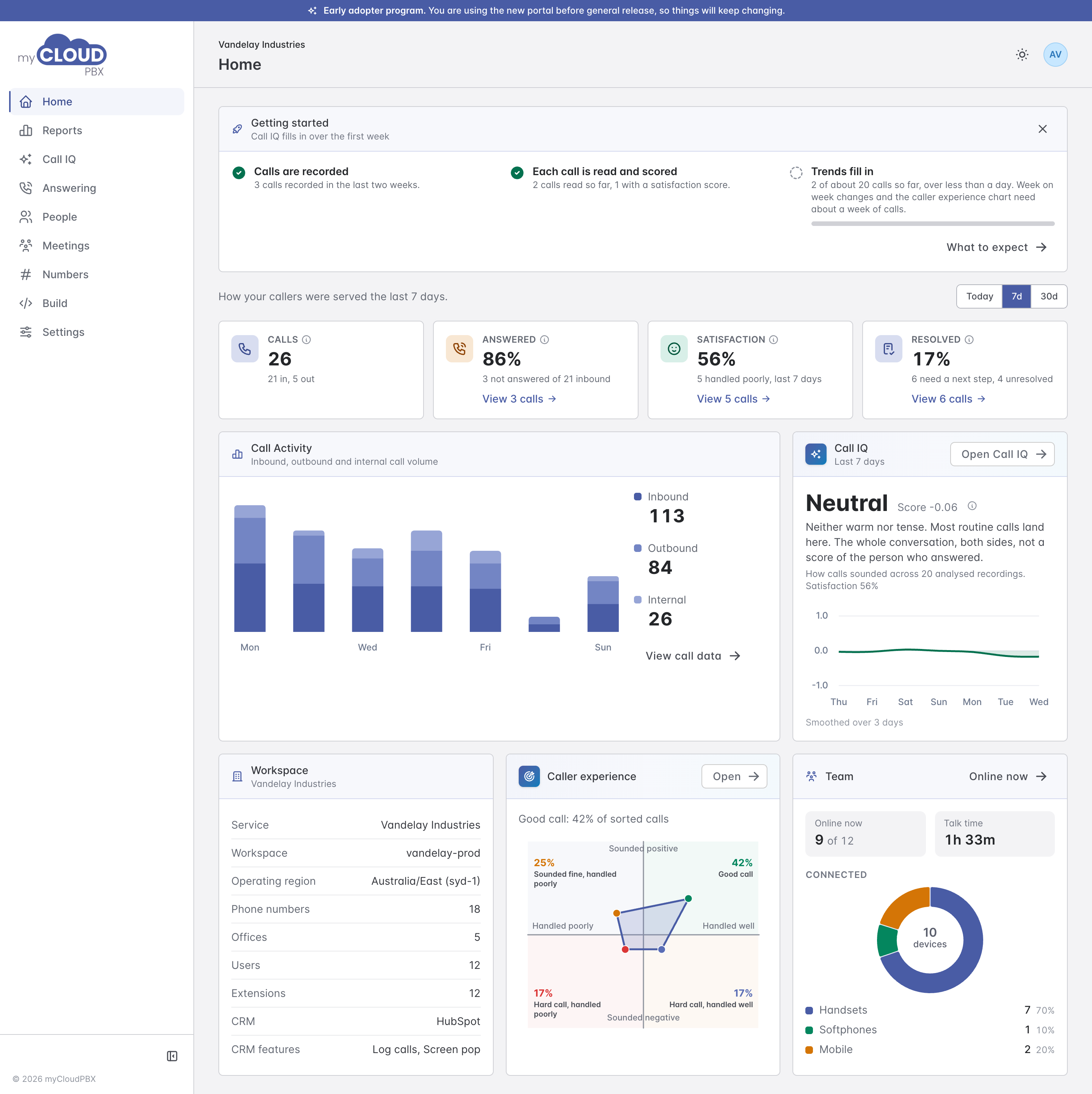
The four tiles across the top:
| Tile | What it tells you |
|---|---|
| Calls | Calls in and out of the phone system, split into in and out. Calls between extensions are left out. |
| Answered | The share of inbound calls a person or a forward picked up. Voicemail counts as not answered. Green from 90%, amber from 75%, red below. |
| Satisfaction | How well calls were handled on average, read from the calls themselves, and how many were handled poorly. Nobody is surveyed. |
| Resolved | Calls finished on the call, and how many need a next step or were left unresolved. A next step, like a ticket raised or a callback booked, is often the right result, so a low figure is not a fault on its own. |
Each tile shows the change on the period before. The i beside a tile's name says what it measures and what good looks like. With Call IQ, 'View calls' under a tile opens Call Explorer showing just those calls: the ones not answered, handled poorly, or needing a next step.
Without Call IQ, the last two tiles are To call back, the missed callers nobody has spoken to since, and Online Users.
Underneath:
- Call Activity charts inbound, outbound and internal calls by day. 'View call data' opens Reports.
- Call IQ shows how calls sounded across the window, what that band means, and the trend. 'Open Call IQ' takes you there.
- Workspace lists what the platform knows about the phone system: its numbers, offices, users and extensions, and any connected CRM.
- Caller experience sorts calls by how they sounded and how well they were handled. See Caller experience.
- Team shows who is online, total talk time, and the mix of handsets, softphones and mobiles connected.
People
Online now
Online now lists everyone on the phone system, whether they are reachable, and on what.
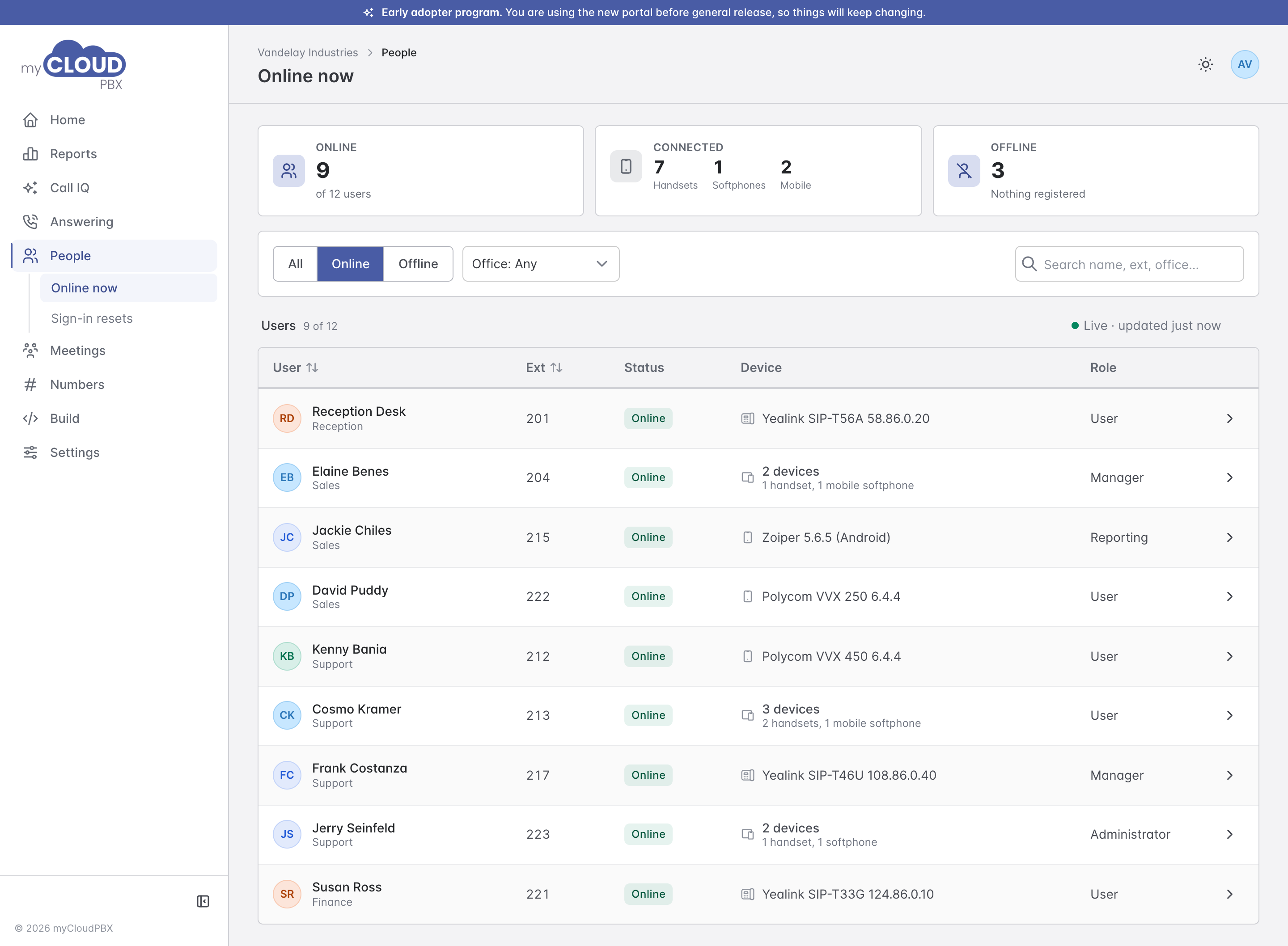
- Online, Connected and Offline across the top count people, the devices they are connected on, and those with nothing registered.
- All, Online and Offline filter the list. It opens on Online. 'Office: Any' narrows it to one office, and the search box finds a name, extension or office.
- Device shows the phone or app registered on the extension. Someone on several devices shows how many.
- Role shows each person's phone system role.
Click a person to see each device they are registered on, with its address and how quickly it answers.
Sign-in resets
When someone loses the authenticator app they use to sign in, they can ask for their sign-in to be reset. Administrators and Managers see the requests here, and get an email with a link to this page.

Each request shows who asked, when, where from, and when it expires. Call the person on their extension before you choose 'Approve', so you know it is really them. 'Decline' lets you add a reason. You cannot approve your own request; another manager has to.
Requests you have dealt with, and any that expired, are listed under Recent requests.
Preferences
Preferences, in your profile menu, has two tabs.

- Appearance sets the theme (system, light or dark) and the density, Comfortable or Compact.
- Account shows who you are signed in as: your role, email, workspace, extension and how you signed in.