Getting Started with myCloudConnect
Overview
myCloudConnect brings your phone system to your desktop and browser. It is where your team's internal chat, your SMS conversations, your colleague directory and your contacts live, alongside the CRM integration that opens the right record when a call comes in.
Connect works with the extension you already have. There is no separate account to create: you sign in with your workspace and your extension, and your line settings come across with you.
What is my workspace?
Your myCloudPBX Workspace is the dedicated environment for your organisation's phone system and its related services.
Find the workspace name in the configuration Portal on the phone system page.
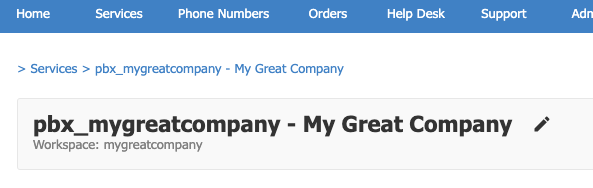
If your service name is pbx_training, your workspace is training. If you do not have Portal access, your administrator can tell you.
Signing in
Open login.mycloudpbx.com.au in your browser, or start the installed app.
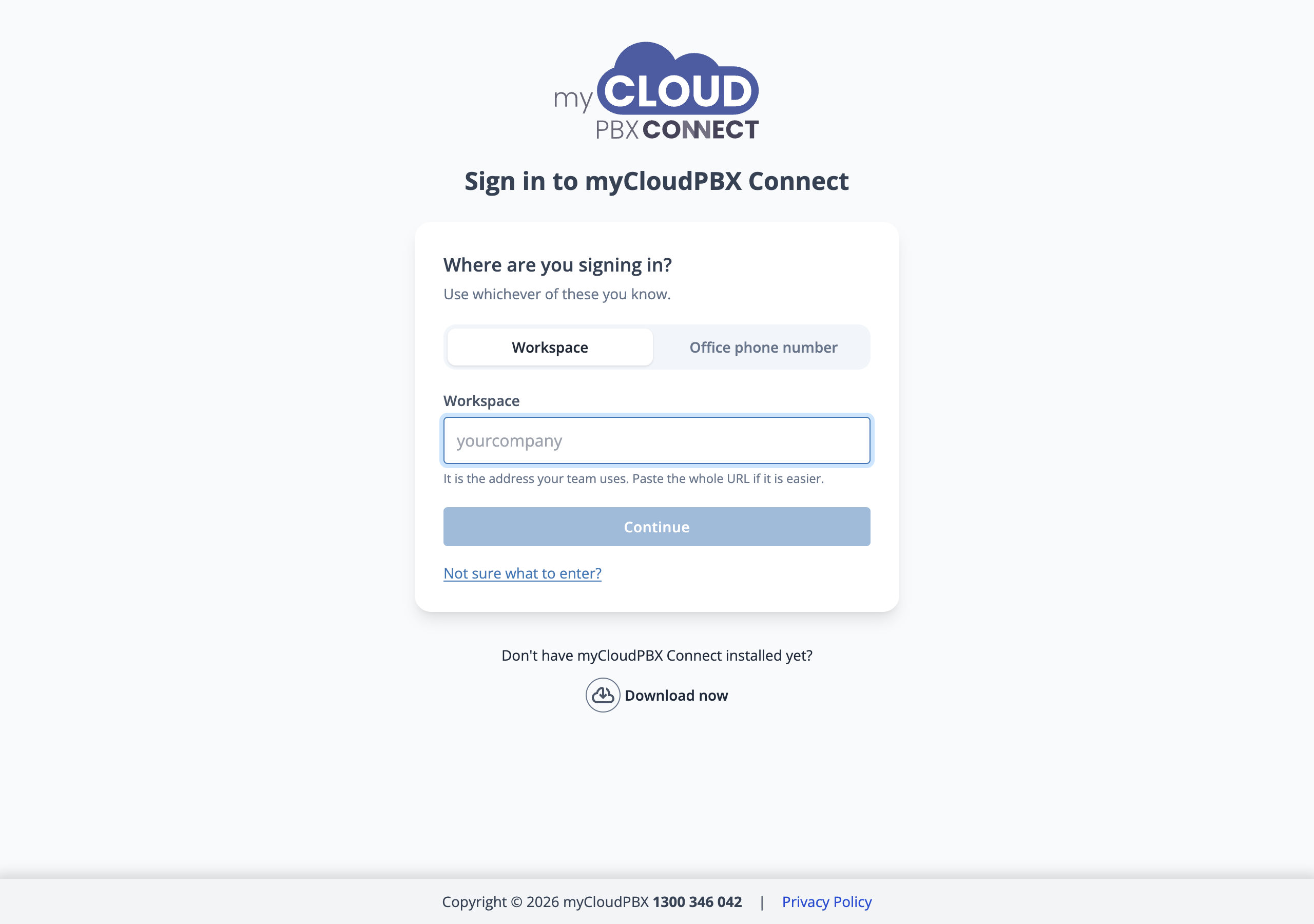
You can identify your organisation two ways, whichever you know:
| Option | What to enter |
|---|---|
| Workspace | Your workspace name, for example vandelay. You can paste the whole address instead if that is easier. |
| Office phone number | Any phone number belonging to your organisation. |
Choose 'Continue', then sign in whichever way suits you.
| Option | How it works |
|---|---|
| Your extension | Enter your extension number and choose 'Call extension'. Answer the call, note the six-digit code read to you, enter it and choose 'Sign in'. The code expires after 10 minutes. |
| Email and password | Enter the email address on your extension and choose 'Continue with password', then your myCloudConnect password. This is not your voicemail PIN. 'Forgot your app password?' sets a new one. |
| Google or Microsoft | 'Continue with Google' or 'Continue with Microsoft' signs you in with one click, once you have linked the account. See Signing in with Google or Microsoft. |
'Not sure what to enter?' on the sign-in screen explains where to find each value.
If multi-factor sign-in applies to you, you are then asked for a code from the authenticator app on your phone. See Multi-factor sign-in.
Install it rather than bookmarking it
'Download now' at the bottom of the sign-in screen installs Connect as a desktop app. It behaves the same as the browser version but keeps running in the background, so calls and messages reach you without a tab open.
You can also link a Google or Microsoft account for one click sign-in next time. See Signing in with Google or Microsoft.
Finding your way around
The rail down the left side holds the main areas, with your extension number at the top. The bar across the top has back and forward, a search box, notifications and your own avatar.
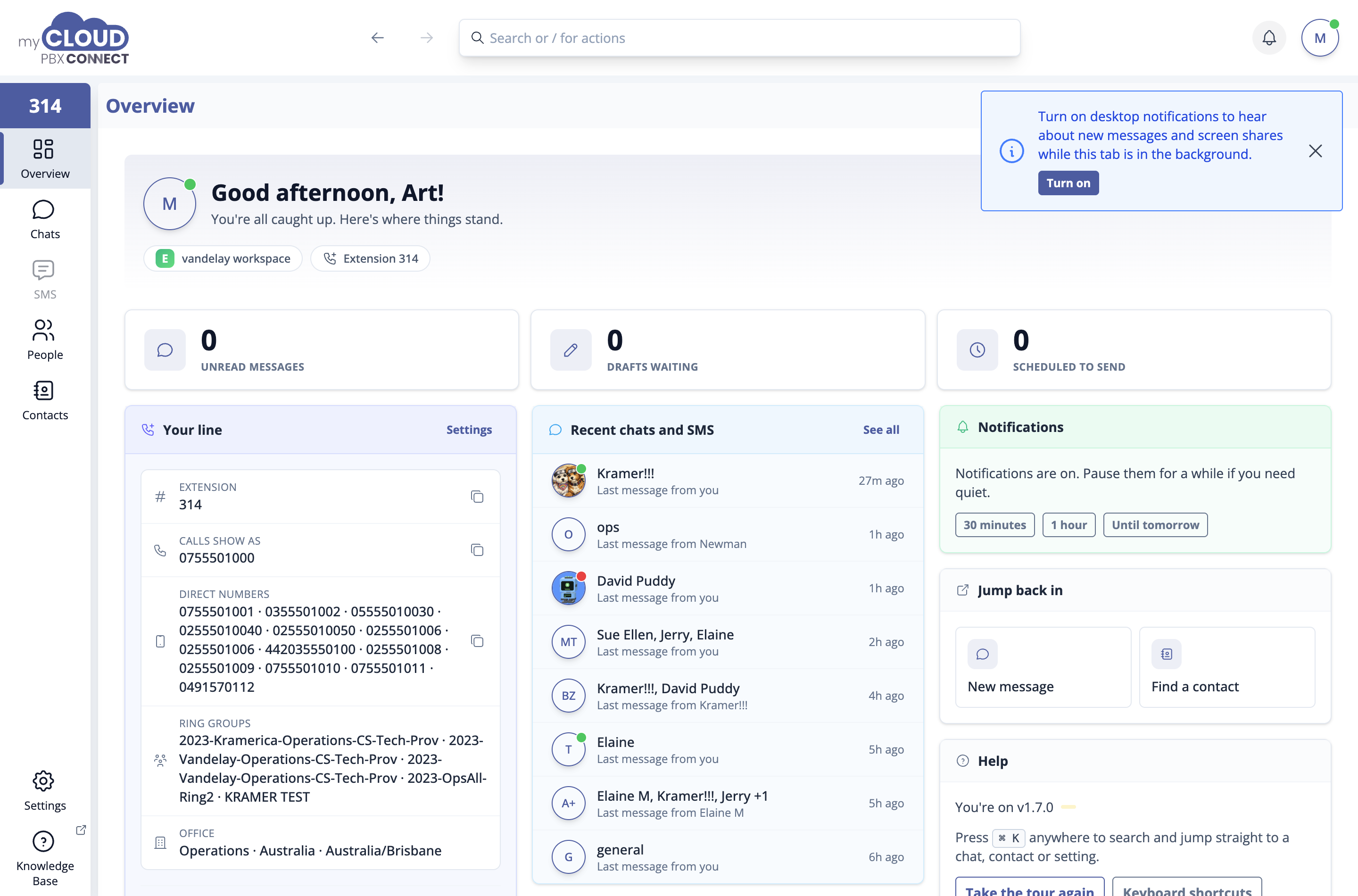
| Area | What it is for |
|---|---|
| Overview | Your starting point: what needs attention and how your line is configured. |
| Voicemail | Your messages and greetings, and any group voicemail boxes you belong to. |
| Chats | Internal messaging with colleagues, one to one and in channels. |
| SMS | Text message conversations with people outside the business. |
| People | Everyone on the phone system, and whether they are available. |
| Contacts | Your address book, shared and personal. |
| Dashboard | Opens the new myCloudPBX dashboard, already signed in. Only shown to people with access to reports. |
| Settings | How Connect looks and behaves for you. |
Voicemail, Chats and SMS show a red count when something new is waiting. On a short window, the areas that do not fit move under 'More' at the bottom of the rail, and More is marked when one of them needs attention.
Press Cmd+K or Ctrl+K
The search box finds a chat, a contact or a setting from anywhere. Typing / in it lists actions you can run directly.
The Overview screen
The Overview greets you and shows what is waiting. Counters across the top show unread messages, new voicemail and messages scheduled to send. Extra counters appear when something did not send or while notifications are paused.
Your line is the useful part. It shows your extension, the number your outbound calls present as, every direct number that rings you, the ring groups you belong to, and your office. Each value has a copy button, which saves reading a number aloud from the screen. It also shows whether voicemail is on, whether a CRM is connected, and a switch for CRM Smart-Open.
The cards underneath include:
- Latest voicemail and Recent chats and SMS, with what has come in lately.
- Favourites, the people you have starred, one click from a message.
- Channels to join, and Coming up with the messages and reminders you scheduled for later.
- Notifications, to pause alerts for a set period.
- Jump back in, with shortcuts to start a message, send an SMS or find a contact.
- Help, with your version, 'Take the tour again' and the keyboard shortcuts.
'Customise overview' chooses which cards appear and in what order. 'Reset to automatic' puts them back.
Opening the Dashboard
Dashboard in the side menu opens the new dashboard for your phone system. You are signed in already, so there is no second sign in.
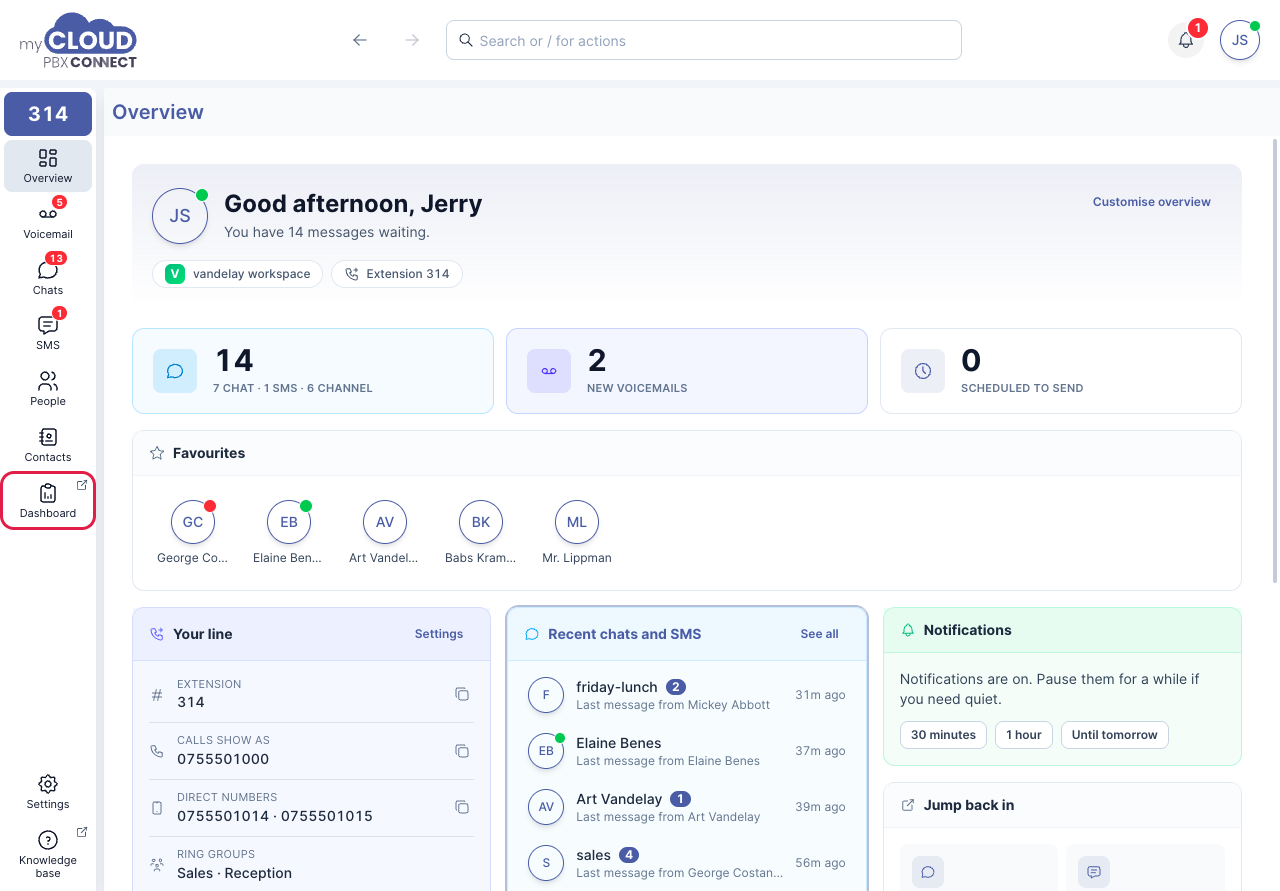
In the desktop app, the dashboard opens in your web browser. In the browser version, it opens in a new tab.
Dashboard only appears for people who can see reports and call records. On a phone system in the Early Adopter Program, that is anyone with the Administrator, Manager or Reporting role. See Workspace users and roles.
Do not see Dashboard?
Check with your administrator that your role includes reports. These roles also need multi-factor sign-in, so if you have been asked to set it up, finish that first and Dashboard appears.
Next steps
- Voicemail for your messages, greetings and group voicemail boxes.
- Chats for internal messaging and channels.
- SMS for texting people outside the business.
- People to find a colleague and see whether they are free.
- Contacts for your shared and personal address book.
- Settings to set up CRM Smart-Open and notifications.
- Troubleshooting if something is not working.