Voicemail
Overview
Voicemail in Connect is where you listen to your messages, read what the caller said, and change the greeting callers hear. If you belong to a group voicemail box, such as Sales or Reception, that box is here too.
It is the same voicemail you reach by dialling 777 from a handset, so the messages are the same in both places, and a greeting you save here is the one callers hear.
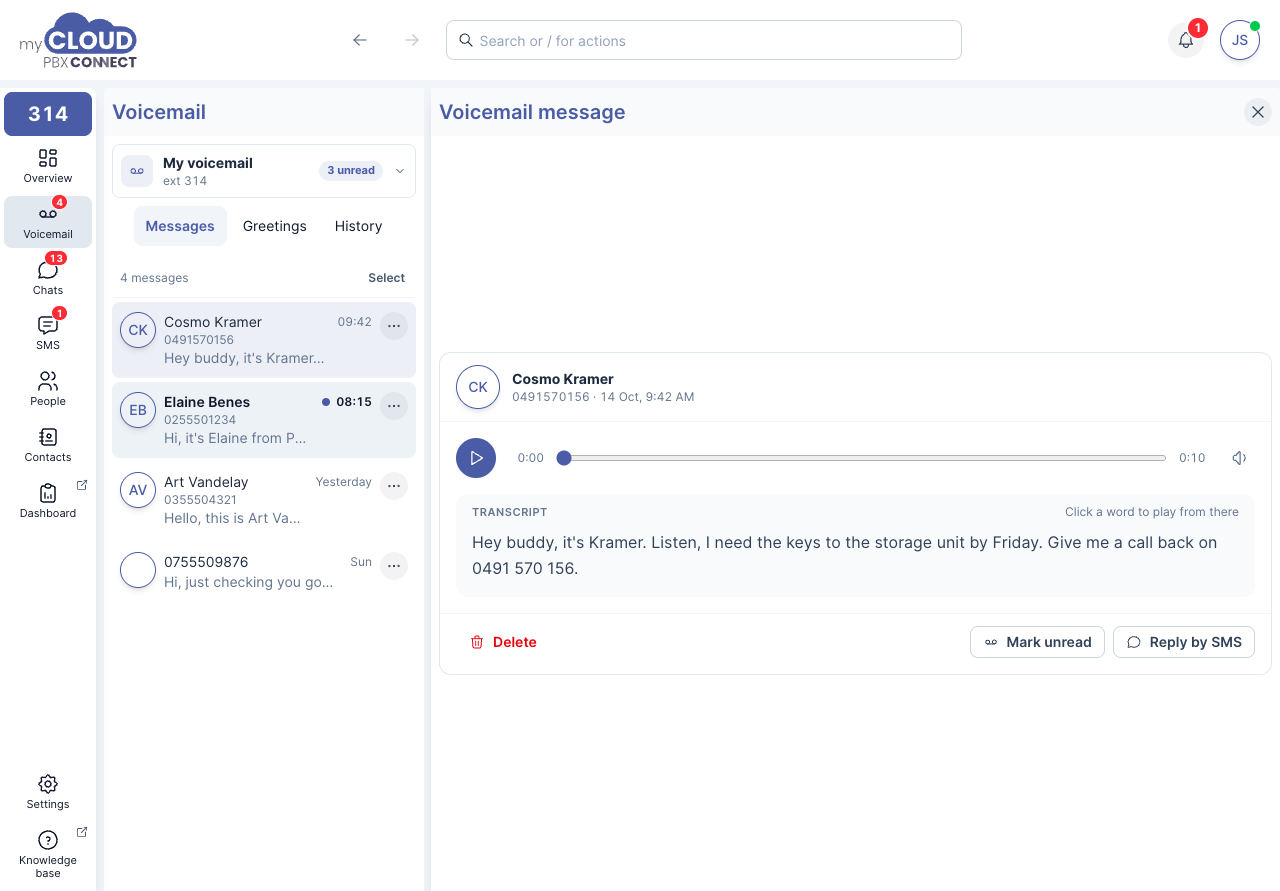
Voicemail appears in the side menu when voicemail is turned on for your extension. If you cannot see it, ask your administrator to check the voicemail settings on your extension. See Voicemail.
A red count on Voicemail in the side menu shows how many new messages are waiting, across your own mailbox and any group boxes you belong to.
Voicemail has three tabs.
| Tab | What it is for |
|---|---|
| Messages | The messages left for you, newest first. |
| Greetings | What callers hear when you cannot answer. |
| History | Every call that reached voicemail in the last 90 days, including messages that have since been deleted or emailed. |
Listening to a message
Choose a message from the list to open it. Unread messages are marked Unread, and the line under each one is the start of its transcript.
The message opens with a player and the full transcript. As the message plays, the word being spoken is highlighted. Click any word to play from that point, which is the quickest way to replay a phone number or a name.
Transcripts are automatic
A transcript is normally ready by the time the message reaches you. If it is still being written, the message says Transcribing and fills in on its own. If the caller did not speak, there is no transcript to show.
From an open message you can:
- 'Reply by SMS' when the call came from a mobile and you have an SMS number in Connect.
- 'Mark unread' to keep it on your list of things to deal with.
- 'Delete' it.
The ⋯ menu beside each message in the list has the same options, plus 'View history' to see what happened on the call.
Working with several messages
Choose 'Select' above the list, tick the messages you want, then choose 'Mark read', 'Mark unread' or 'Delete'. The selection stays in place after marking, so you can mark a set of messages and then delete them.
When the list is empty
If your extension is set to delete messages after emailing them, messages go to your email address and do not stay in Connect. The History tab still lists every call. See Voicemail for the email settings.
Group voicemail boxes
A group voicemail box is a mailbox shared by a team. Callers leave one message for the team, and everyone in the box can listen to it and deal with it.
Your administrator chooses who is in each box. See Group Voicemail. If you are in at least one, a switcher showing My voicemail appears at the top of Voicemail. Open it to see your own mailbox and each of your Group boxes, with its extension and how many messages are unread.
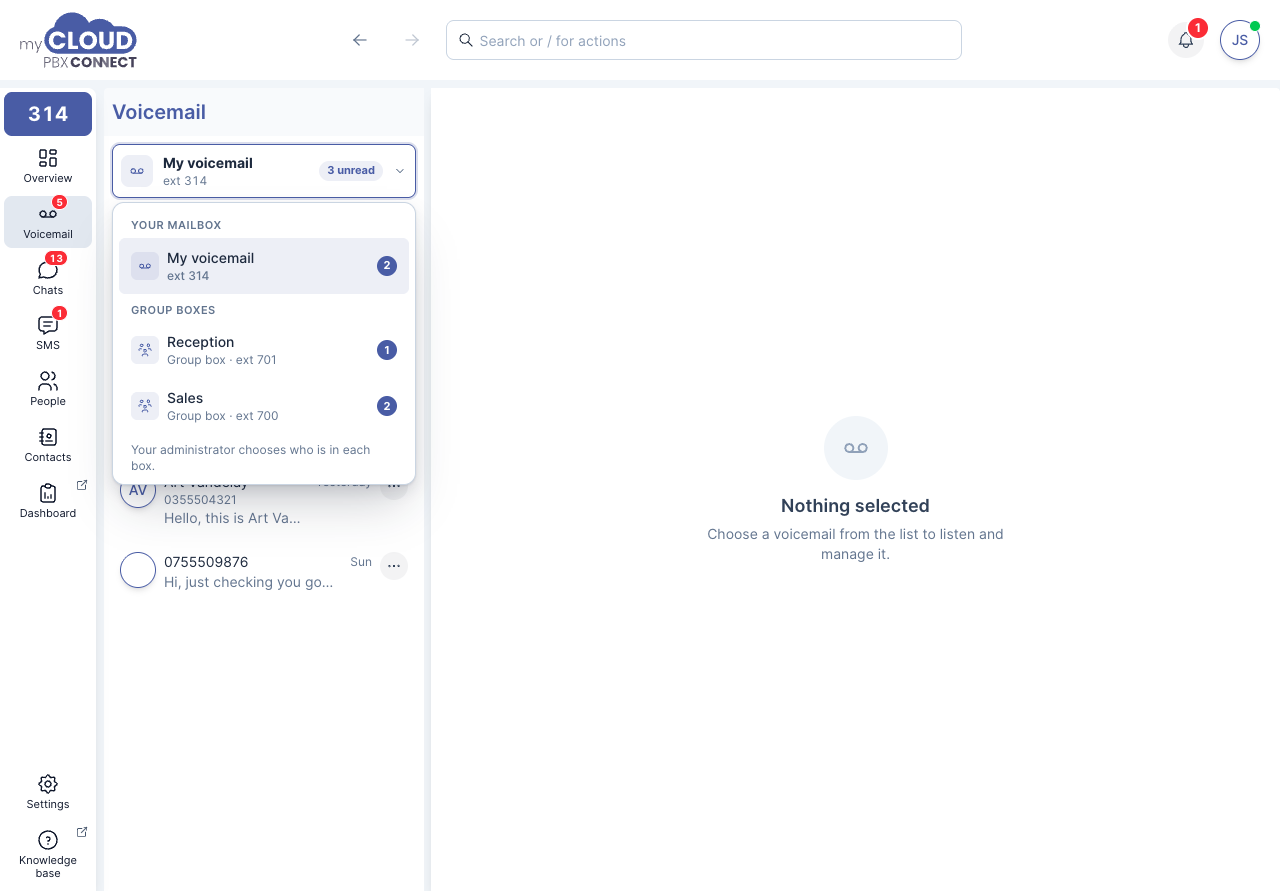
Choose a box to see its messages, greetings and history. The tabs work the same way as they do for your own mailbox.
A group box is shared
Everyone in the box sees the same messages. Playing a message marks it read for everyone, and deleting it removes it for everyone, so the delete button on a group box message says 'Delete for everyone'. Agree as a team who looks after the box, in the same way you would for a shared email inbox.
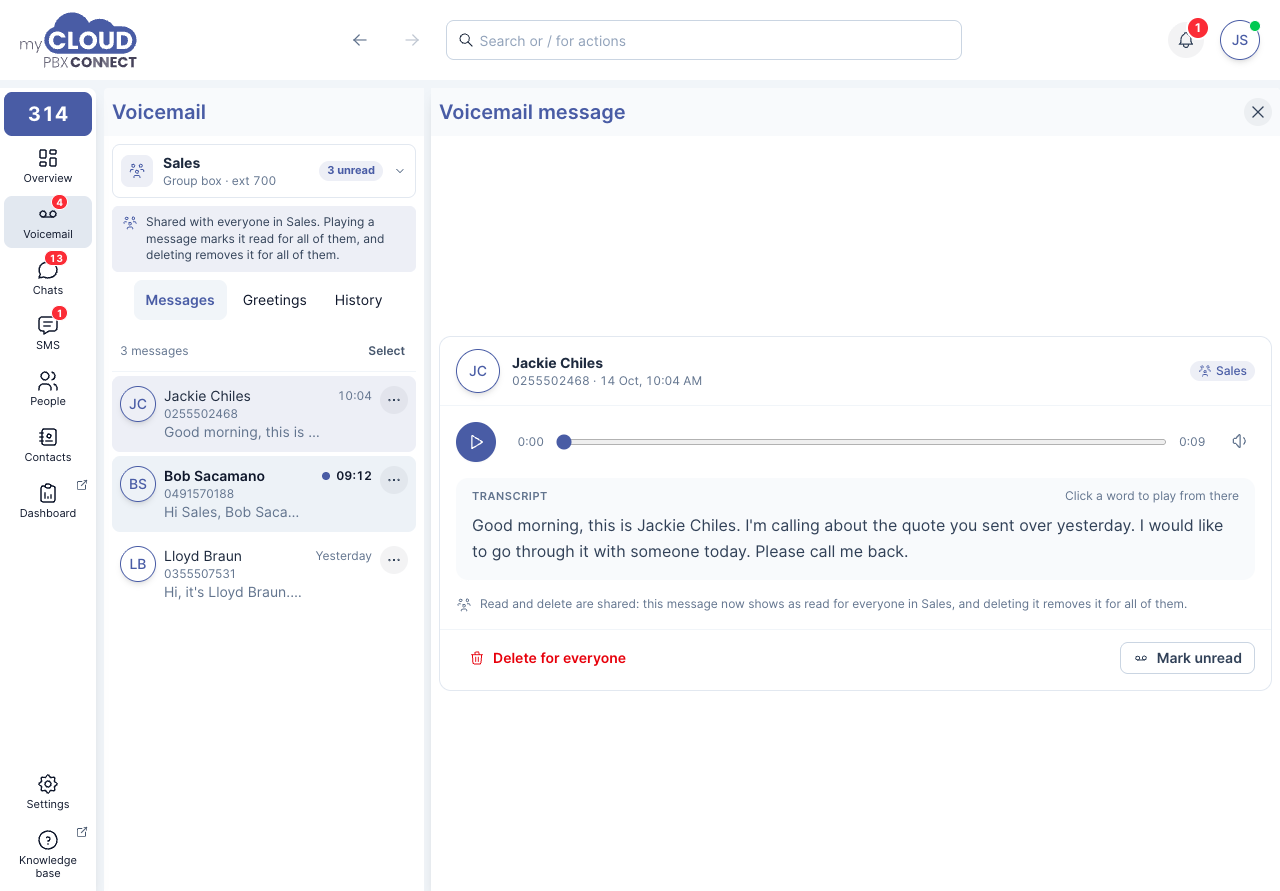
When a new message arrives in a group box, the notification names the box, for example New voicemail in Sales. Clicking it opens that box.
Changes made in a group box apply to the box, not to your own mailbox. That includes its greetings: a greeting saved while a group box is selected is what callers to that box hear.
Some group boxes are set to email each message and then remove it. A box set up that way shows "This voicemail box is configured to automatically remove messages after sending" instead of a list. Check the box's email address for the messages, or use History to see the calls.
Greetings
Greetings shows what callers hear when you cannot answer.
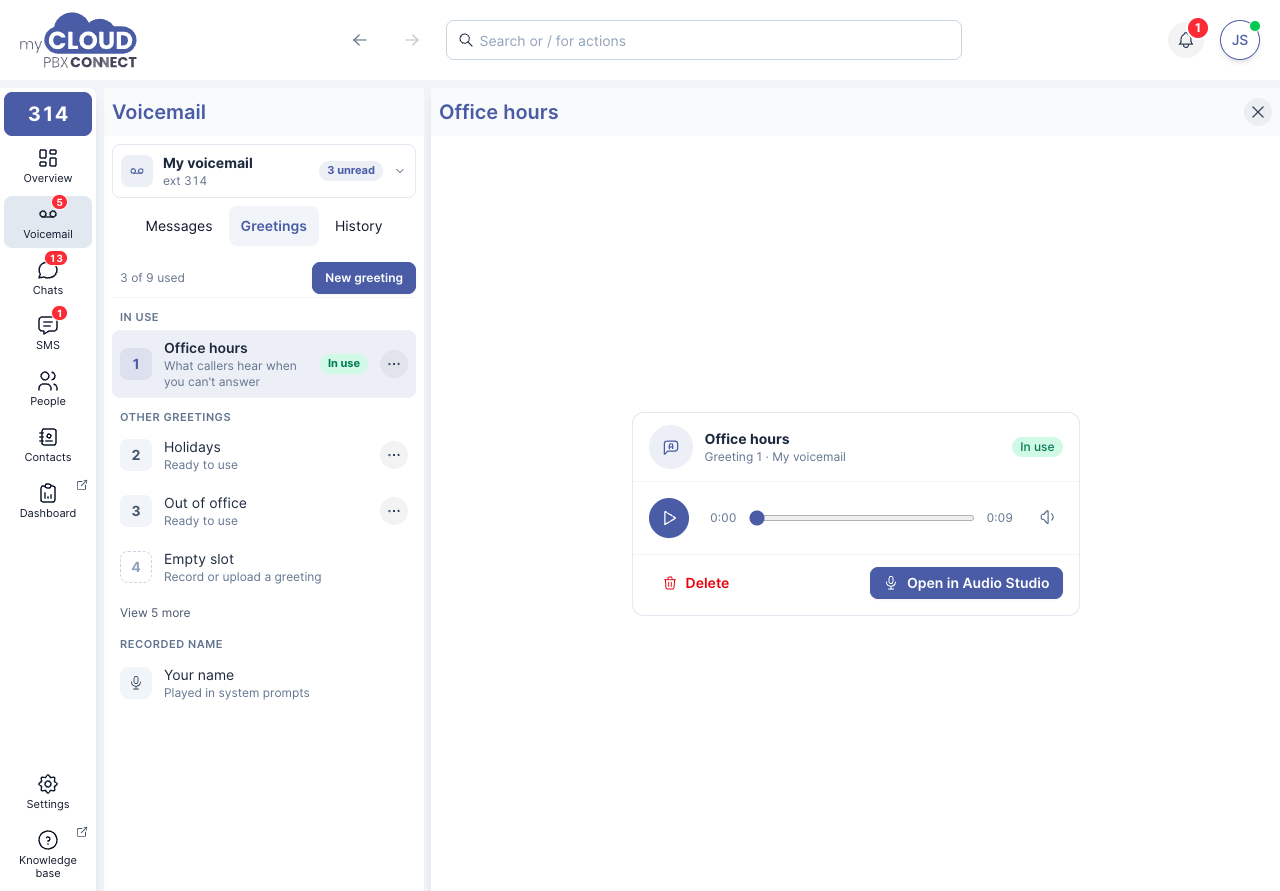
| Section | What it holds |
|---|---|
| In use | The greeting callers hear now. |
| Other greetings | Up to eight more greetings kept ready, for example one for holidays. 'View more' shows the rest. |
| Recorded name | Your name in your own voice, played in system prompts. For a group box, it is the box name. |
To switch greetings, choose one from Other greetings, then 'Use this greeting'. Callers hear it from then on.
Making a greeting in Audio Studio
Choose 'New greeting', or 'Open in Audio Studio' on an existing one. Audio Studio offers three ways to make a greeting.
| Option | How it works |
|---|---|
| Record | Record with your computer's microphone. Speak at your normal volume, about a hand's width from the microphone, and record as many takes as you like. Connect checks each take for silence, low volume and clipping, and tells you if it needs another go. |
| Upload a file | Choose a WAV or MP3 file under 25 MB, for example a greeting recorded by a voice artist. |
| Type a script | Type what callers should hear and choose a voice to read it. |
For a recording or a file, drag the edges of the waveform to trim silence from the start and end, then play the preview to hear exactly what callers will hear.
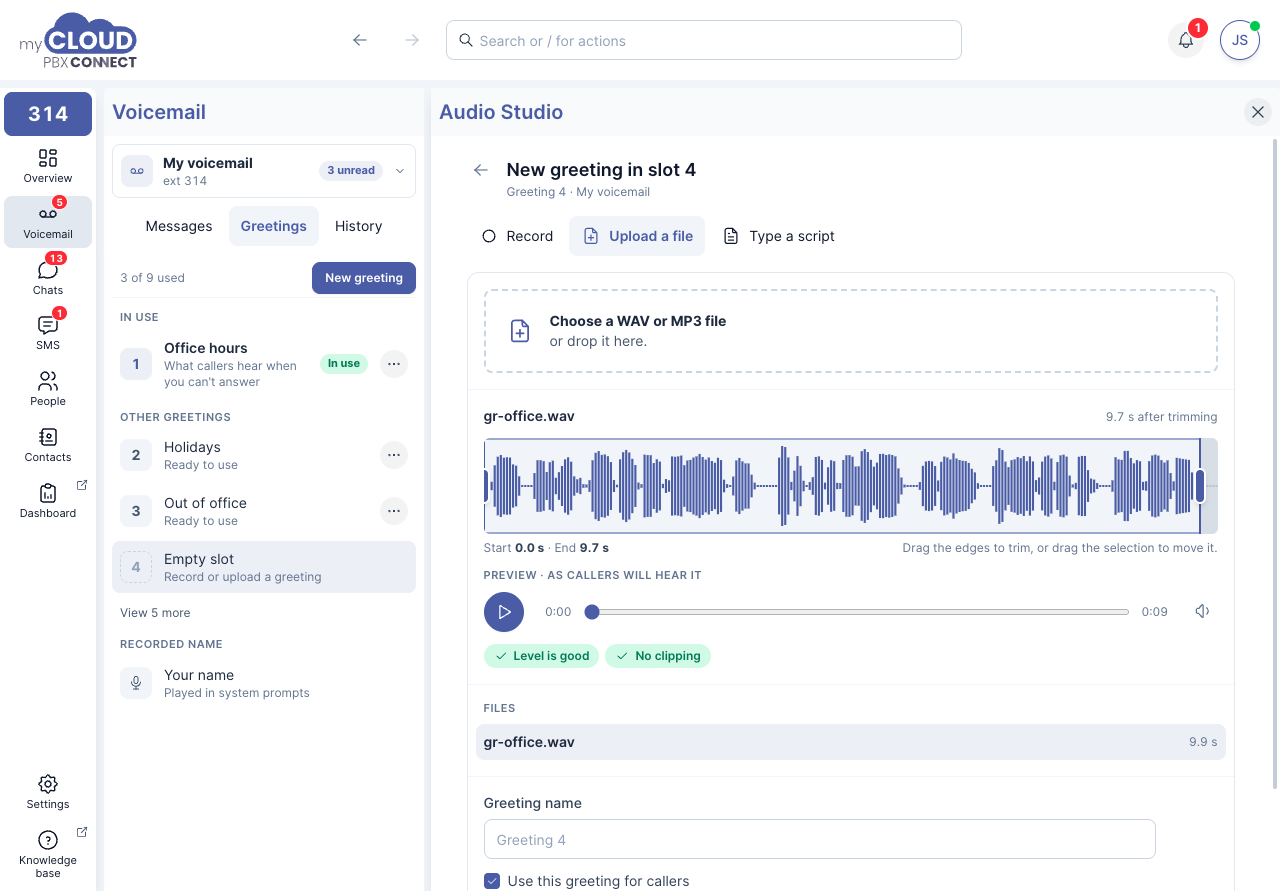
Give the greeting a name, tick 'Use this greeting for callers' if it should be in use straight away, and choose 'Save greeting'.
Record in a quiet room
Background noise and echo carry through to callers. A headset microphone in a quiet room gives the clearest result.
Typing a greeting
Type a script builds a greeting from text, read by a natural sounding voice. It takes three steps on one screen.
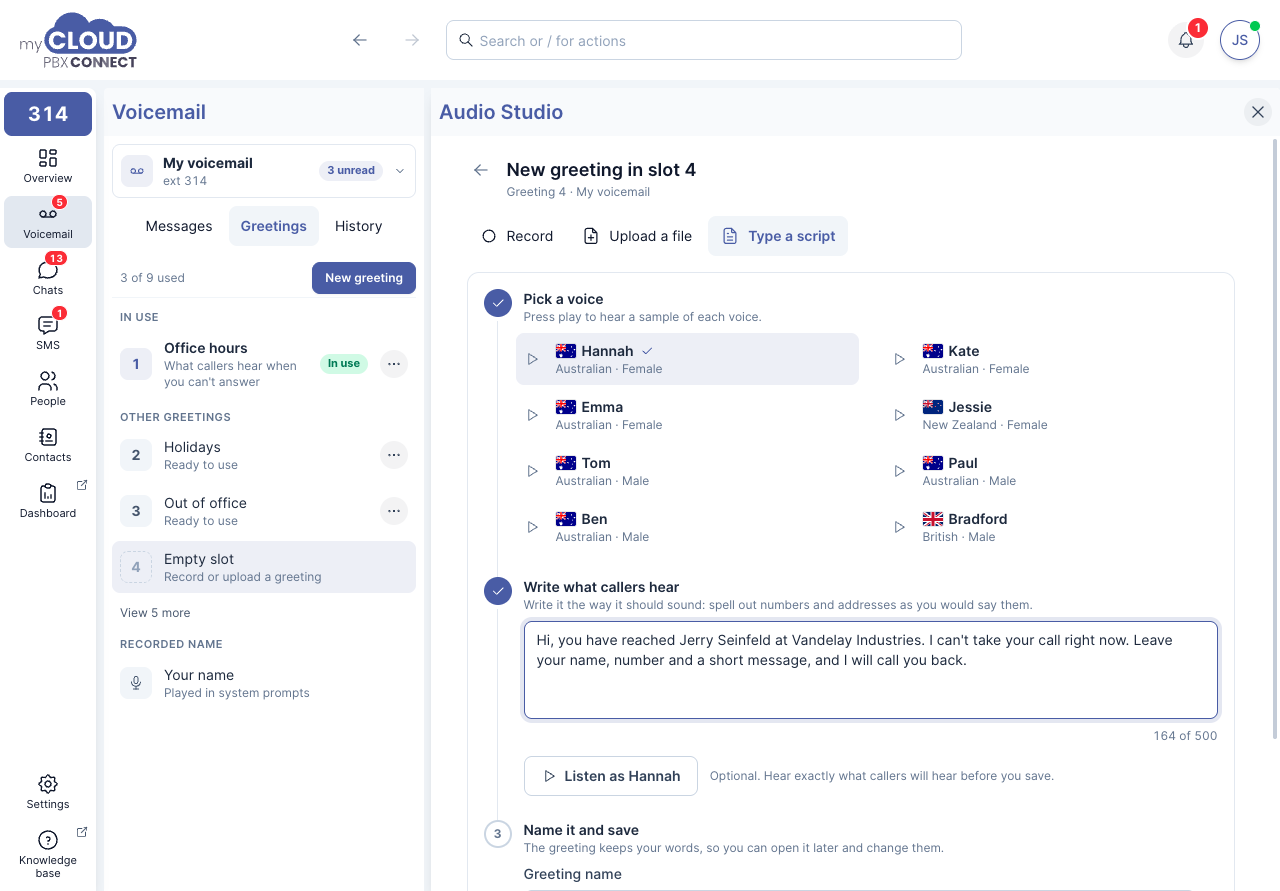
- Pick a voice. Press play beside a voice to hear a sample.
- Write what callers hear. Up to 500 characters. Write it the way it should sound, spelling out numbers and addresses as you would say them. 'Listen' plays your words in the voice you picked. Listening first is optional.
- Name it and save.
The greeting keeps your words, so you can open it later and change a detail, such as your opening hours, without starting again. Recording or uploading over a typed greeting replaces the typed words.
Characters you cannot use
Square brackets and angle brackets, [ ] < >, are not accepted in a typed greeting.
History
History lists every call that reached the mailbox in the last 90 days, including calls where no message was left and messages that were later deleted or emailed. It answers questions such as "did that customer actually leave a message?"
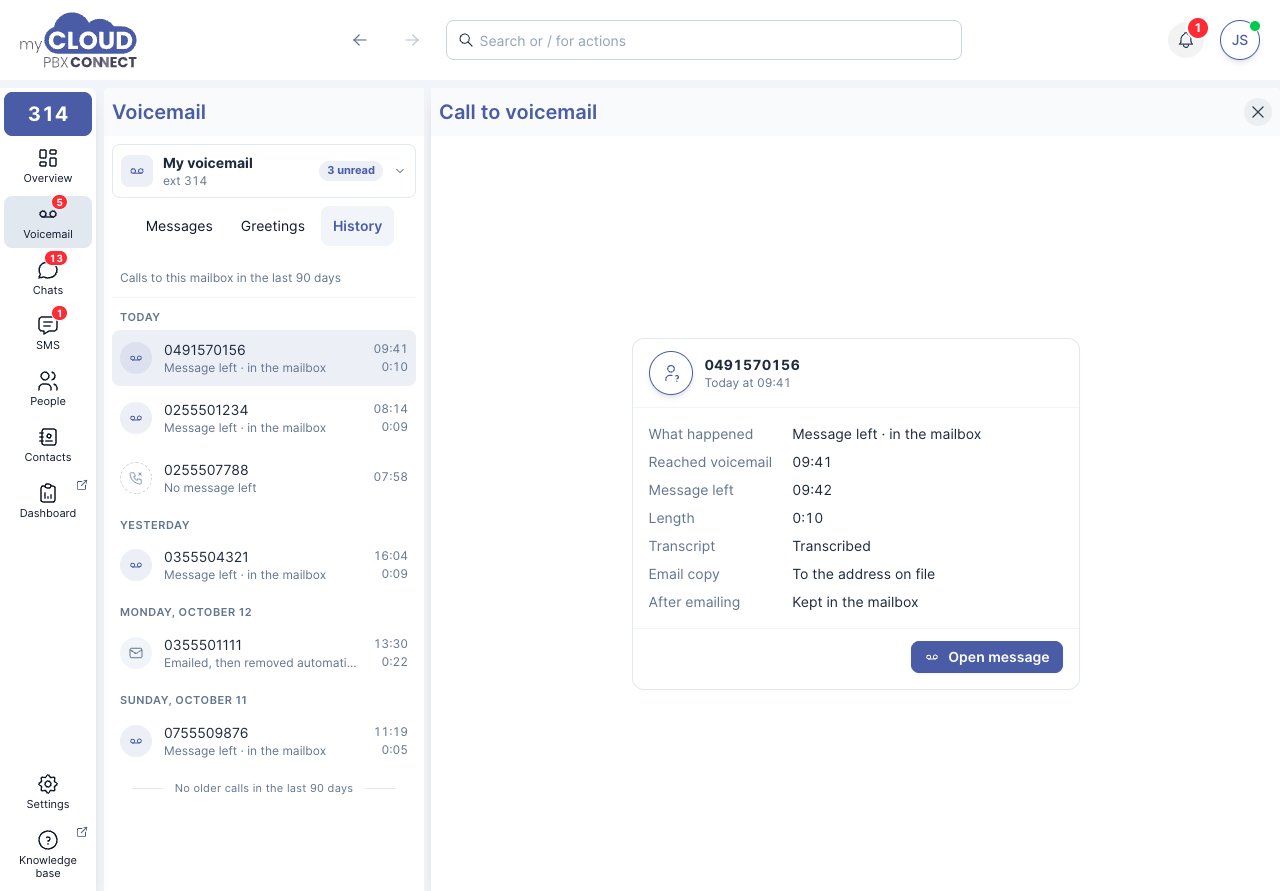
Choose a call to see what happened to it: when it reached voicemail, whether a message was left and how long it was, whether a copy was emailed, and whether the message is still in the mailbox. If it is, 'Open message' takes you straight to it.
'Load older calls' at the bottom of the list goes further back.
About the email copy
History shows whether there was an email address to send the message to. It cannot confirm the email arrived.
Related articles
- Voicemail, enabling voicemail and the handset access codes
- Getting Started
- Settings