Numbers
Overview
Numbers in the new dashboard lists every phone number on the phone system, what it is used for, and the emergency address on each one.
Administrators can set and edit emergency addresses. Managers can see everything but not change it. Other roles do not see Numbers.
Your numbers
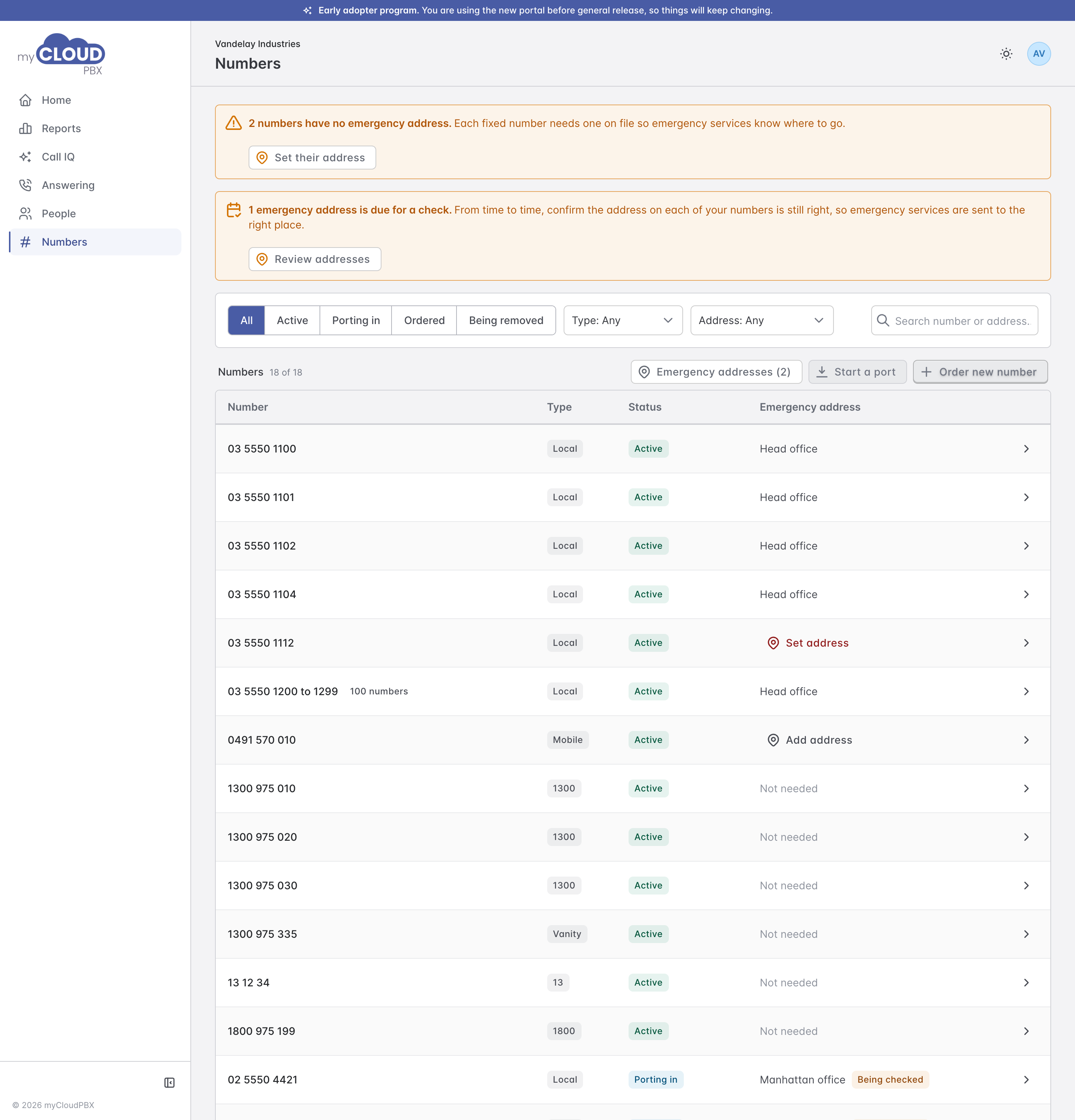
Notices at the top tell you when something needs attention: numbers with no emergency address, and addresses due for a check. Each has a button that takes you straight to it.
Filter the list by status (Active, Porting in, Ordered or Being removed), by type, or by whether an address is on file. The search box finds a number or an address. 'Emergency addresses' opens the address list.
| Column | What it shows |
|---|---|
| Number | The number. A block of numbers is shown as one row, with how many it holds. A number the carrier has not allocated yet reads To be allocated. |
| Type | Local, Mobile, 13, 1300, 1800 and so on. |
| Status | Whether it is active, porting in, ordered or being removed. |
| Emergency address | The address on file, or what is needed. |
The Emergency address column reads:
- Set address when a fixed number has none. Every fixed number needs one.
- Add address for a mobile. A mobile is located by its network, so an address is optional.
- Not needed for 13, 1300 and 1800 numbers, which cannot dial out.
- Being checked while a new or changed address is confirmed.
A number's details
Click a number to open its details.
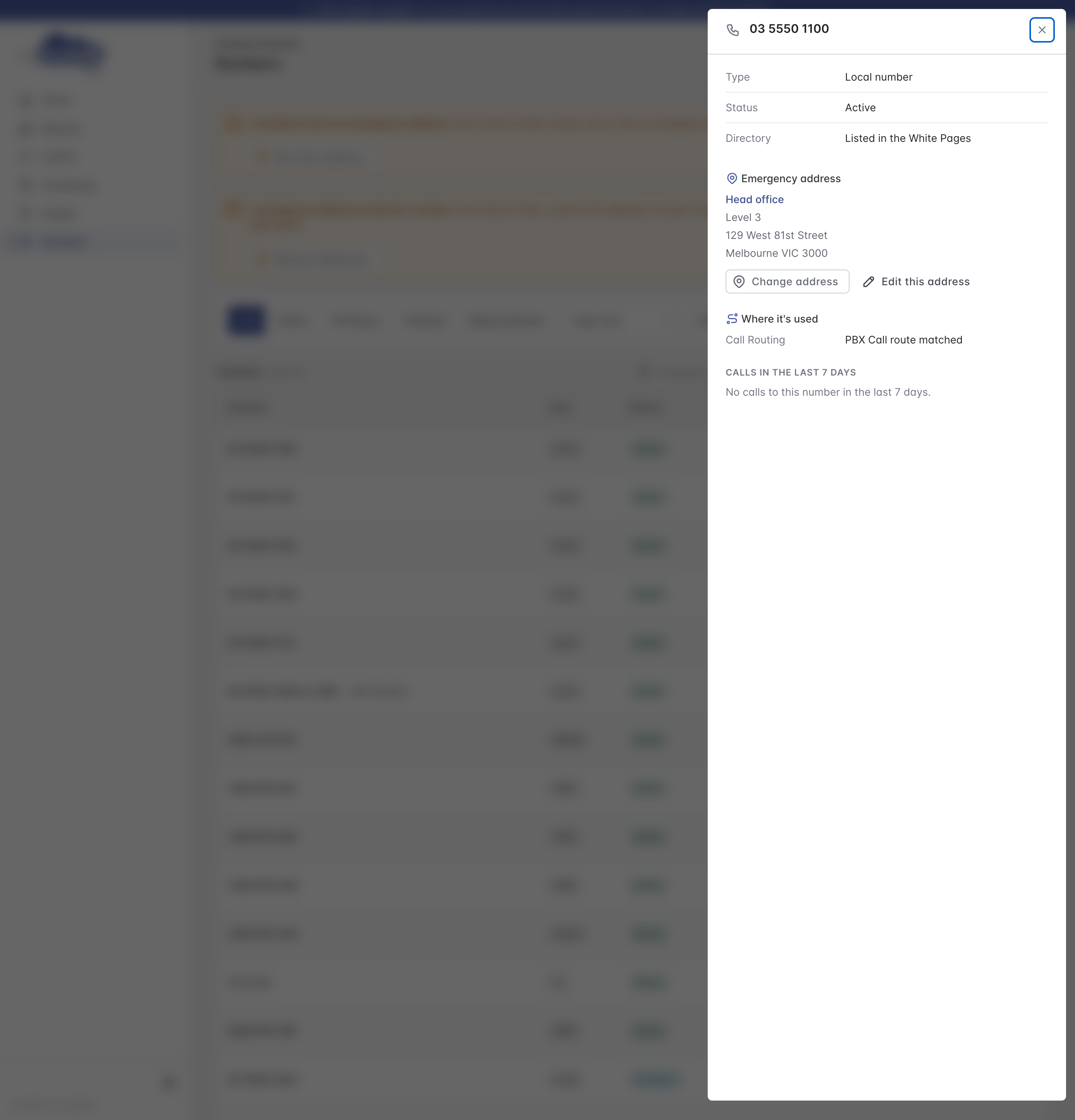
It shows the type and status, whether the number is listed in the White Pages, its emergency address with 'Change address' and 'Edit this address', where the number is used on the phone system, and the routes its calls took over the last seven days.
Emergency addresses
When someone dials 000, emergency services are sent to the address on file for the number they called from. Emergency addresses lists every address on the phone system and the numbers at each one.
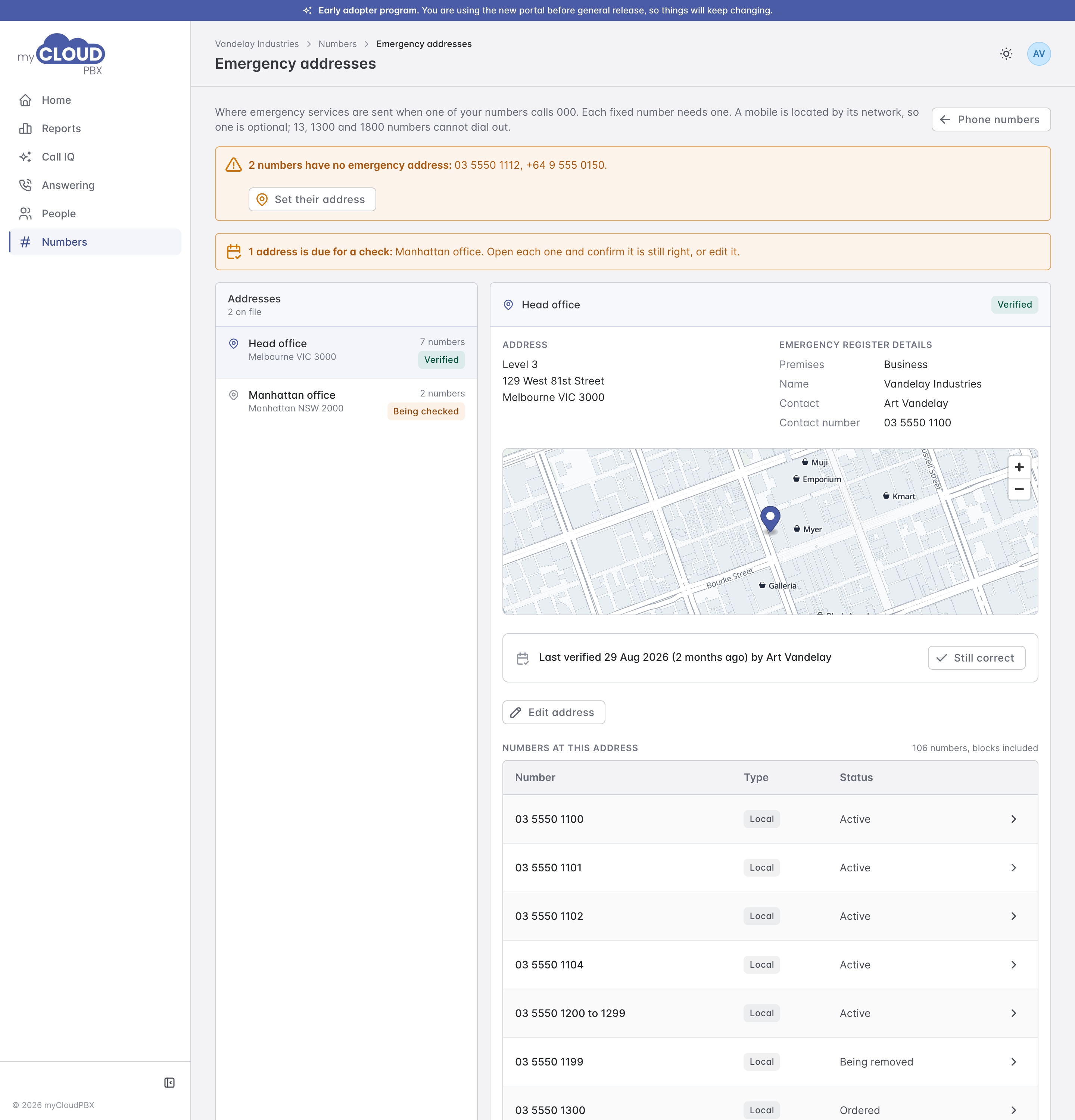
Choose an address to see its details, its place on the map, and the numbers that use it. 'Edit address' changes it. An address can be removed once no number uses it.
From time to time, check that each address is still right. When one is due for a check, the page asks Is this still correct? Choose 'Yes, still correct', or edit it.
Setting an address
'Set their address', 'Set address' or 'Change address' opens the address search.
- Start typing the address. Your existing addresses are listed first, then matches from the national address list once you have typed three characters. Choose the right one.
- Give the place a name you will recognise, such as Head office.
- Choose what the place is: business, residence, government or charity.
- Add a contact name and contact number.
- Choose 'Save address'.
If you cannot find the address, the search offers tips. Addresses outside Australia are typed in by hand.