Multi-factor sign-in
Overview
Multi-factor sign-in adds a second check when you sign in to myCloudConnect. After your extension code or password, you enter a six-digit code from an authenticator app on your phone. Someone who learns your password, or picks up your desk phone, still cannot sign in as you without your phone.
| Who | Multi-factor sign-in |
|---|---|
| Administrator, Manager and Reporting roles | Required |
| Anyone allowed to see call content | Required |
| Everyone else | Optional, and recommended |
Roles and call content are explained in Workspace users and roles.
Signing in with Google or Microsoft is not multi-factor sign-in
A linked Google or Microsoft account still asks for your authenticator code if multi-factor sign-in applies to you. See Signing in with Google or Microsoft.
What you need
An authenticator app on your phone. Any standard app works, for example Google Authenticator, Microsoft Authenticator or 1Password. The app shows a new six-digit code every 30 seconds and works without signal.
Setting it up
If multi-factor sign-in is required for you, you are asked to set it up the next time you sign in. To turn it on yourself, choose 'Set up multi-factor sign-in' under the sign-in form, or go to Settings > Multi-factor sign-in and choose 'Set up'.
- Scan the QR code with your authenticator app. On a phone, choose 'Add to authenticator app' instead. If you cannot scan it, choose 'Copy key' and type the key into the app.
- Enter the six-digit code the app shows, then choose 'Turn on multi-factor sign-in'.
- Save your recovery codes. You get ten, and this is the only time they are shown. Choose 'Copy' or 'Download (.txt)', store them somewhere safe such as a password manager, tick 'I've saved these codes somewhere safe', and choose 'Continue'.
Keep your recovery codes
A recovery code is how you get in if you lose your phone. Each code works once. Store them away from your phone.
Signing in
After your extension code or password, Connect asks you to Enter your code. Open your authenticator app, enter the six-digit code it shows and choose 'Continue'.
You are not asked again on that computer until your session ends, which is usually 30 days.
If you lose your phone
You have two ways back in.
- Use a recovery code. On the code screen, choose 'Use a recovery code instead' and enter one of your saved codes. Dashes and capitals do not matter. Then add your new phone in Settings.
- Ask a manager. Choose 'Lost your authenticator? Ask a manager to reset it'. Your managers are notified, and one of them may call your extension to check it is really you. Once they approve, you set up multi-factor sign-in again as you sign in.
Managing it in Settings
Settings > Multi-factor sign-in shows whether multi-factor sign-in is on and lets you change it.
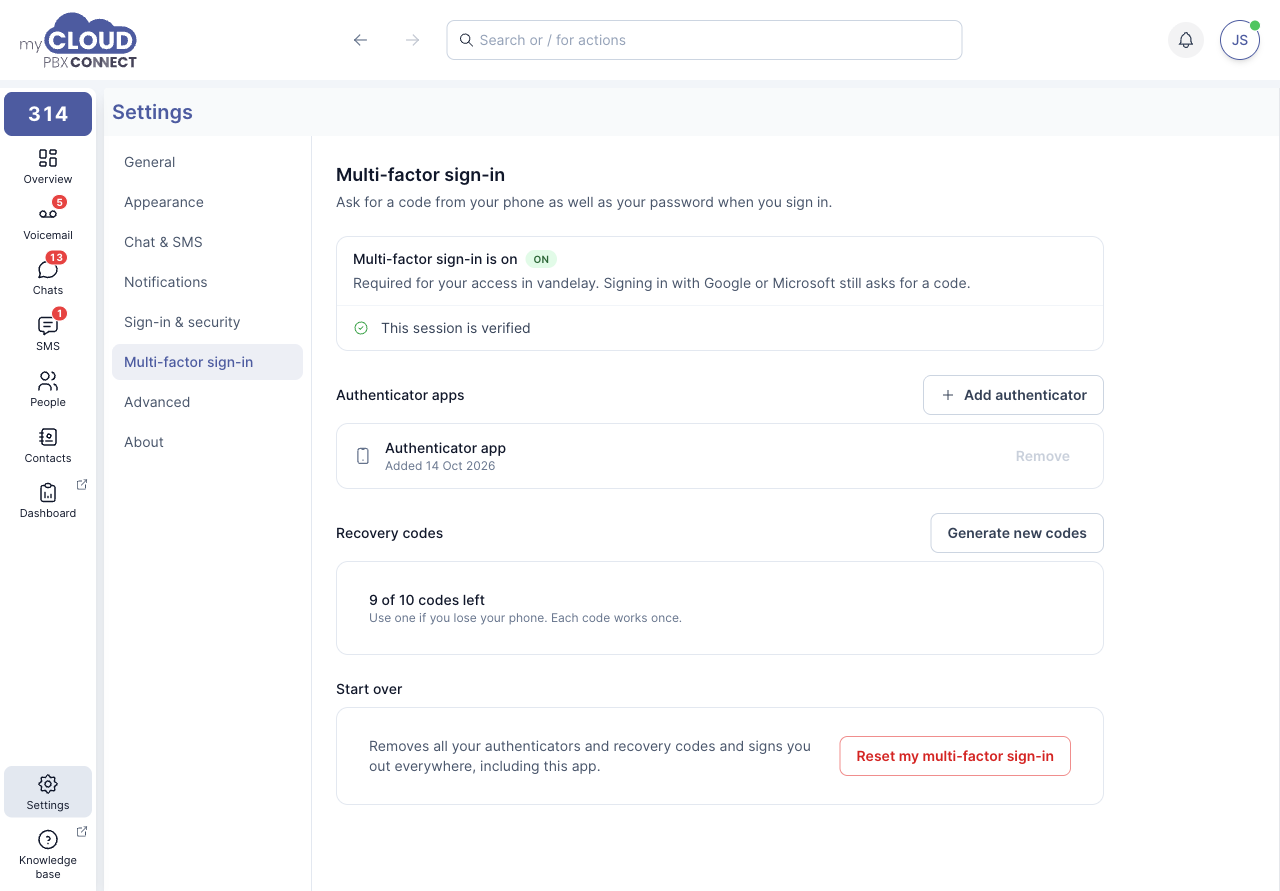
| Section | What you can do |
|---|---|
| Authenticator apps | 'Add authenticator' to use a second phone. Your existing one keeps working. 'Remove' takes one away. If multi-factor sign-in is required for you, the last one cannot be removed. |
| Recovery codes | Shows how many of your ten codes are left. 'Generate new codes' replaces them all, and the old codes stop working. |
| Start over | 'Reset my multi-factor sign-in' removes everything and signs you out, so you can set it up again from scratch. |
Before any of these changes, Connect asks you to Confirm it's you with a code from your authenticator app. It does not ask again for 10 minutes.
For managers: resetting someone's multi-factor sign-in
When someone asks for a reset, managers get a notification, asked for a sign-in reset, and a Sign-in reset requests entry under the bell at the top of Connect. Choose 'Review' to open the request.
The request shows when it was asked and the network it came from. Call the person's extension before you approve, so you know the request is really from them.
- 'Approve' resets their multi-factor sign-in. They set it up again the next time they sign in.
- 'Decline' turns the request down, with an optional reason.
You can also reset someone without a request. Open them in People, and under Multi-factor sign-in choose 'Reset'.
Only approve if you know it is them
Anyone can ask for a reset from the sign-in screen once they have someone's password. The phone call to their extension is the check that matters.