Joining the Early Adopter Program
Overview
Joining the Early Adopter Program takes about five minutes in the portal. There is no cost and no downtime. You choose who looks after the phone system in the new dashboard, and the portal switches the features on when you finish.
Before you start
Have these ready and joining goes in one pass.
| You need | Why |
|---|---|
| A portal login that can manage the phone system | Only these logins see the invitation. Reporting only logins do not. |
| One person to be the phone system's Administrator | They look after roles in the new dashboard. They need an extension on this phone system. |
| An email address on that person's extension | It is how they sign in to the new dashboard and the Connect app. Each email can sit on one extension only. |
| Call recording switched on, if you want Call IQ | Call IQ reads recorded calls. Without recording, you still get Chat and the dashboard, and Call IQ waits until recording is on. |
Your portal login and a phone system role are different things
Your portal login keeps working exactly as it does today. A phone system role belongs to a person with an extension, and decides what they can see in the new dashboard and the Connect app. If you also have an extension, you can give yourself a role.
1. Open the invitation
Open the phone system in the portal. A banner across the top says Chat, Call IQ and a new reporting dashboard are ready for it.

Choose 'See what's included'. 'Not now' hides the banner until you next sign in to the portal.
2. What's included
The first step lists the three features joining switches on: Chat in the Connect app, Call IQ, and the new reporting dashboard. Your current Reporting Dashboard stays as it is.

Choose 'Next: What we ask'.
3. What we ask
In return, we ask you to tell us what you think with a thumbs up or down, and to expect regular notes about what is changing. Early features can be reworked or withdrawn while they are in the program.

This step also explains how your call recordings are used: only for your phone system, to refine how Call IQ sorts, labels and shows your calls. They are never used to train AI models.
4. Users and roles
This is the step that needs a decision. Give each person who needs more than the basics a phone system role.

- Everyone starts as User. You only change the people who need more.
- You need at least one Administrator. If your portal email matches an extension, that extension is marked You and set to Administrator for you.
- Anyone above User needs an email address. Emails come from each extension's settings. Where one is missing, an Add email box appears in the row.
- Operational Controls and Call Content can be switched on per person. See Workspace users and roles for what each role and permission covers.
Guest rooms, voicemail boxes and virtual extensions are not listed. They always stay as User.
5. Mailing list
If you joined with your organisation's own administrator login, choose which portal administrators get our Early Adopter emails. You are always on the list. Other logins skip this step.
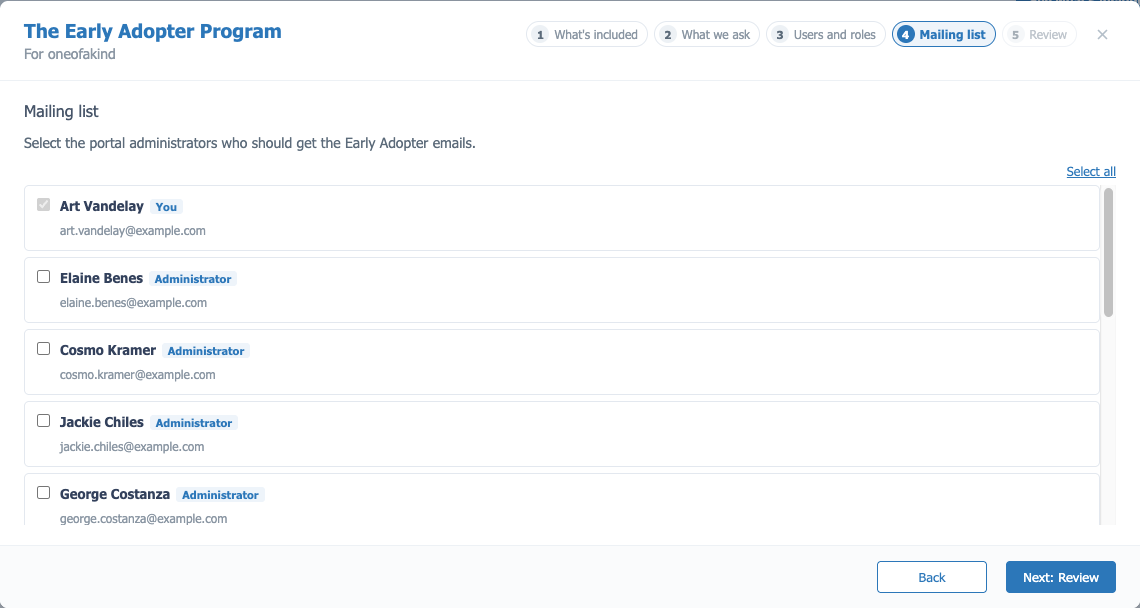
6. Review and join
Review lists everyone who will have a phone system role and who is on the mailing list. 'Change' takes you back to fix anything.

Tick 'I'm authorised to enable these features' and choose 'Join the program'.
After you join
The window shows You're in, with each feature and where its settings live. Chat is switched on straight away. Call IQ is switched on too if call recording is already on; if not, its card says it needs call recording.

An Early Adopter Program badge appears at the top of every portal page for this phone system, and 'Early Adopter Program' on the phone system page reopens this window whenever you need to change roles.
Tell your people
Joining does not email the people you gave roles to. Let them know they can open the new dashboard from Dashboard in the Connect app, signing in with your workspace name and the email on their extension. The Review step names who to tell.
The first time someone opens the new dashboard, it explains what to expect: Call IQ starts empty and fills in over the first week, while reports and call counts are there straight away. See the dashboard guide.
If you get stuck
I don't see the banner. The banner shows on phone system pages to portal logins that can manage the phone system. If you chose 'Not now', it comes back the next time you sign in. Reporting only logins never see it.
Next won't go past Users and roles. The step needs at least one Administrator, and an email address for everyone above User. The page highlights what is missing. An email can only be on one extension, so if two extensions share one, give the role on one of them only.
It says "Users could not be loaded". Your portal session has probably ended. Sign out, sign back in, and open the program again.
Call IQ shows "Requires Call Recording Feature". Switch call recording on under 'Call Recordings', then set the transcription level. See Call IQ settings below.
Someone can't sign in to the new dashboard. Check they have a role above User and that the email on their extension is theirs. They sign in with that email, not with your portal login.
Feature settings
Reporting and Intelligence
Nothing to configure. Open the new dashboard from 'Reporting and Intelligence' on the phone system page, or from Dashboard in the Connect app. The existing Reporting Dashboard keeps working alongside it.
Chat
Chat is controlled under 'PBX Settings' in Connect App Feature Settings.
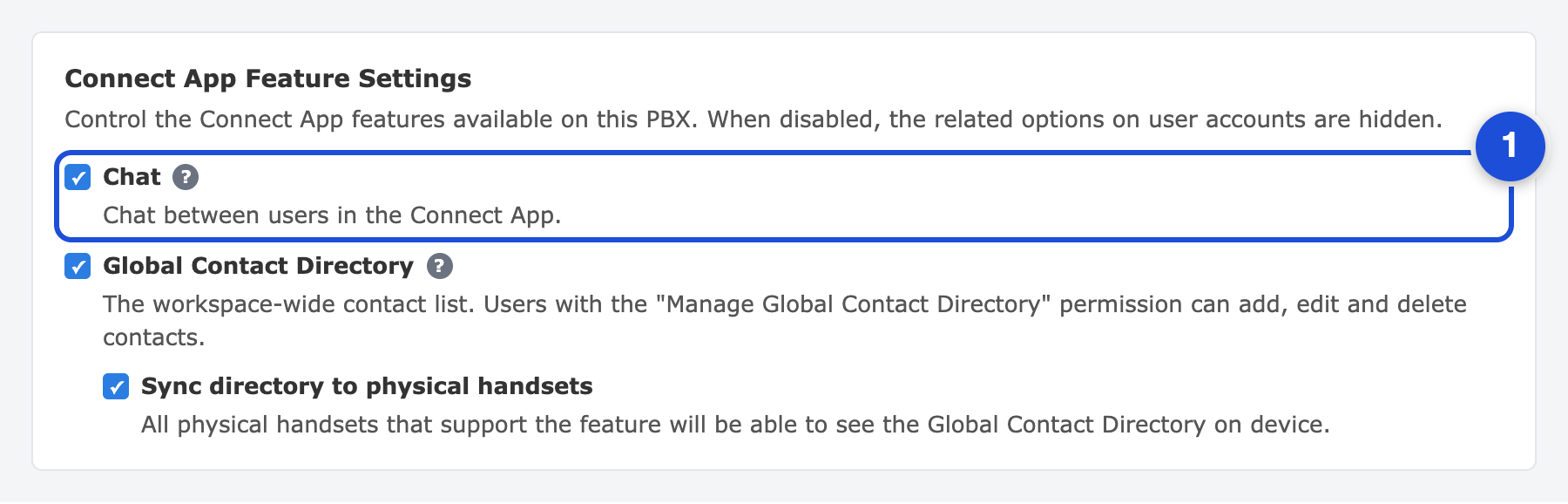
The Chat box (1) turns Chat on for the phone system. Untick it and the related options disappear from every user account. Leave it ticked and each user account shows its own Chat options, so you decide who gets it.
The same panel controls the Global Contact Directory, including whether the directory is synced to physical handsets.
Call IQ
Call IQ is set under 'Call Recordings' in Call Transcription. Call Recording itself must be on, which is the switch at the top of that page.
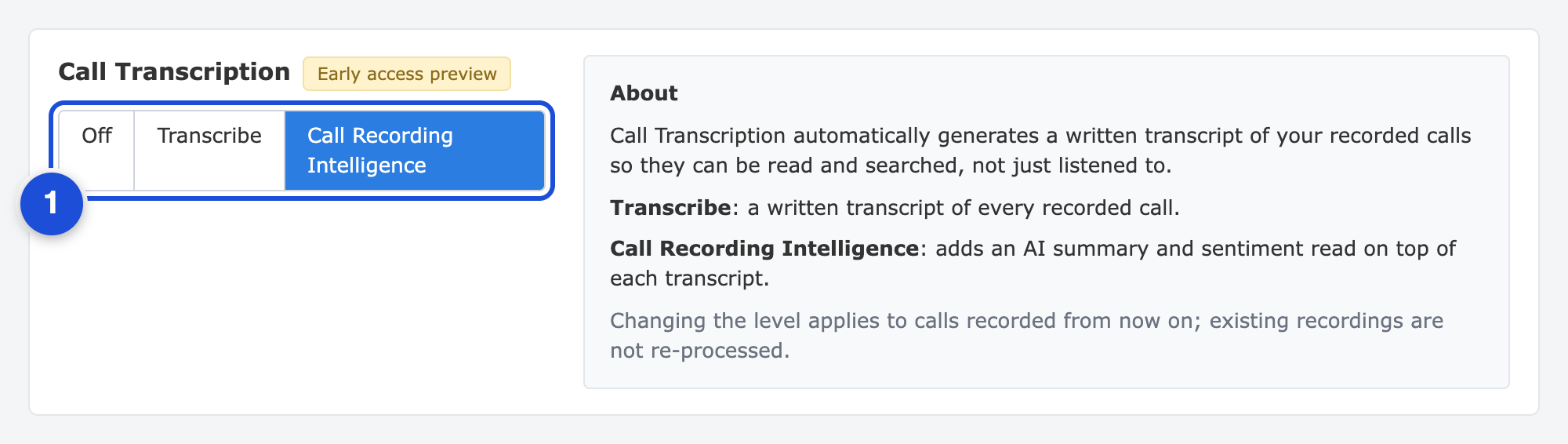
Then pick one of three levels (1).
| Level | What you get |
|---|---|
| Off | Recordings only, as today. |
| Transcribe | A written transcript of each recorded call. |
| Call Recording Intelligence | The transcript plus a summary of each call, how it sounded and how well it was handled. |
Each level needs the one before it. You cannot have summaries without a transcript, or a transcript without recording.
Choosing 'Call Recording Intelligence' shows a short acknowledgement before it switches on.
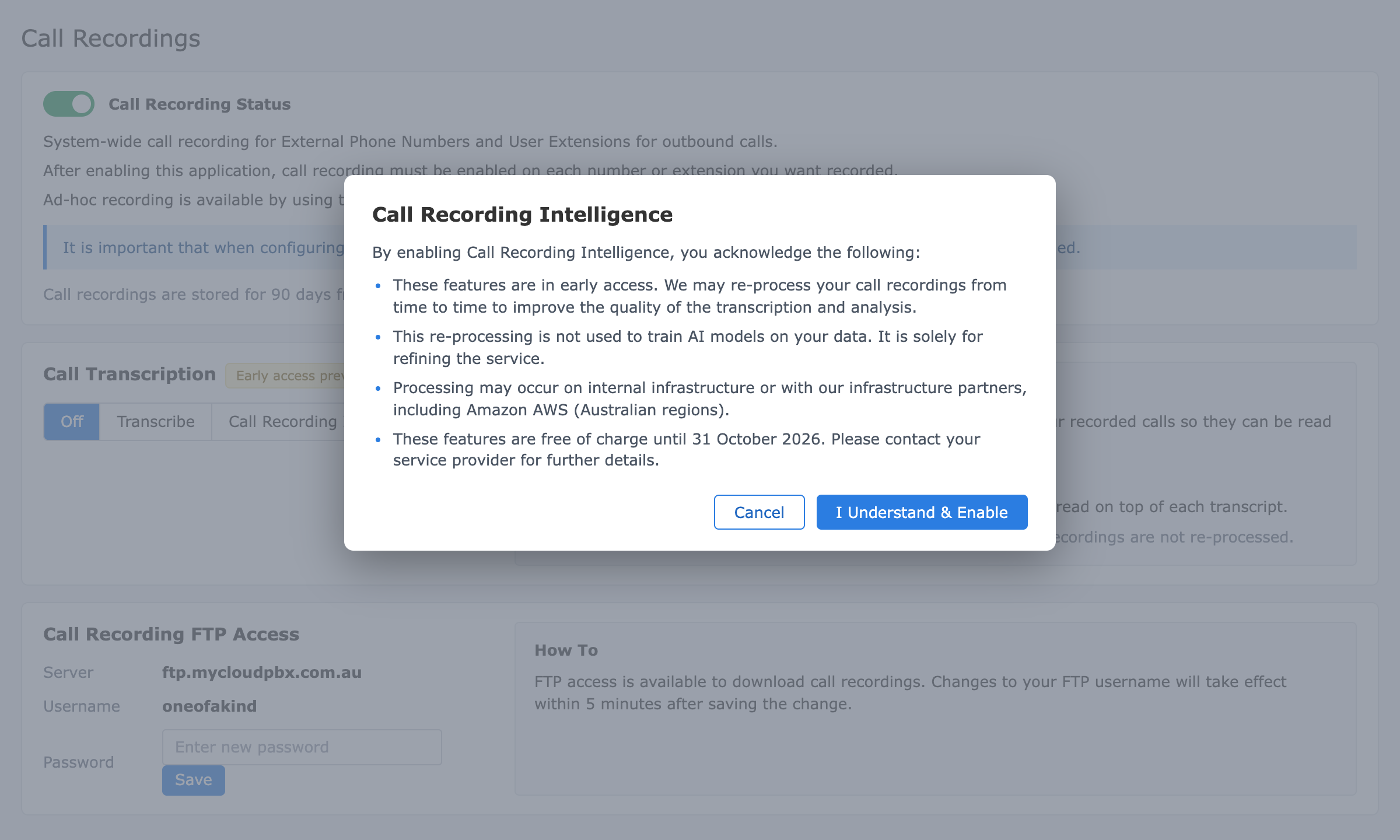
The acknowledgement covers three points.
- The feature is in early access and recordings may be re-processed from time to time to improve the transcription and analysis.
- That re-processing is not used to train AI models on your data.
- Processing may happen on internal infrastructure or with infrastructure partners, including Amazon AWS in Australian regions.
Choose 'I Understand & Enable' to continue.
Three things to know about transcription
- The level applies to calls recorded from that point on. Existing recordings are not re-processed.
- Only recorded calls are transcribed. Call Recording must be on for the phone system, and for the numbers or extensions you want covered. Recordings are kept for 90 days.
- Recording and transcription carry notification obligations for the person on the other end of the call. Check your call recording notice covers transcription.
Leaving the program
Open 'Early Adopter Program' on the phone system page, go to What we ask and choose 'Leave the program'. Only logins that can manage the phone system see this option.
The confirmation lists exactly what will change before you confirm:
- Chat is switched off.
- Everyone's phone system role is removed.
- Call IQ goes back to transcription only. Transcripts keep coming.
- The new dashboard is no longer available.
You can tell us why you are leaving, which helps. You can rejoin later while the program is running, and for 14 days after leaving the portal offers to restore the roles you had.