Answering
Overview
Answering in the new dashboard is about what callers hear and who never gets through. It has two parts, Greetings and sounds and Blocklist.
Administrators and Managers can make and change sounds and block numbers. Reporting users and Users do not see Answering.
Greetings and sounds
Greetings and sounds is where you make the greetings, menus and announcements your phone system plays. You do not need any audio experience, and you can listen to anything before it goes live.
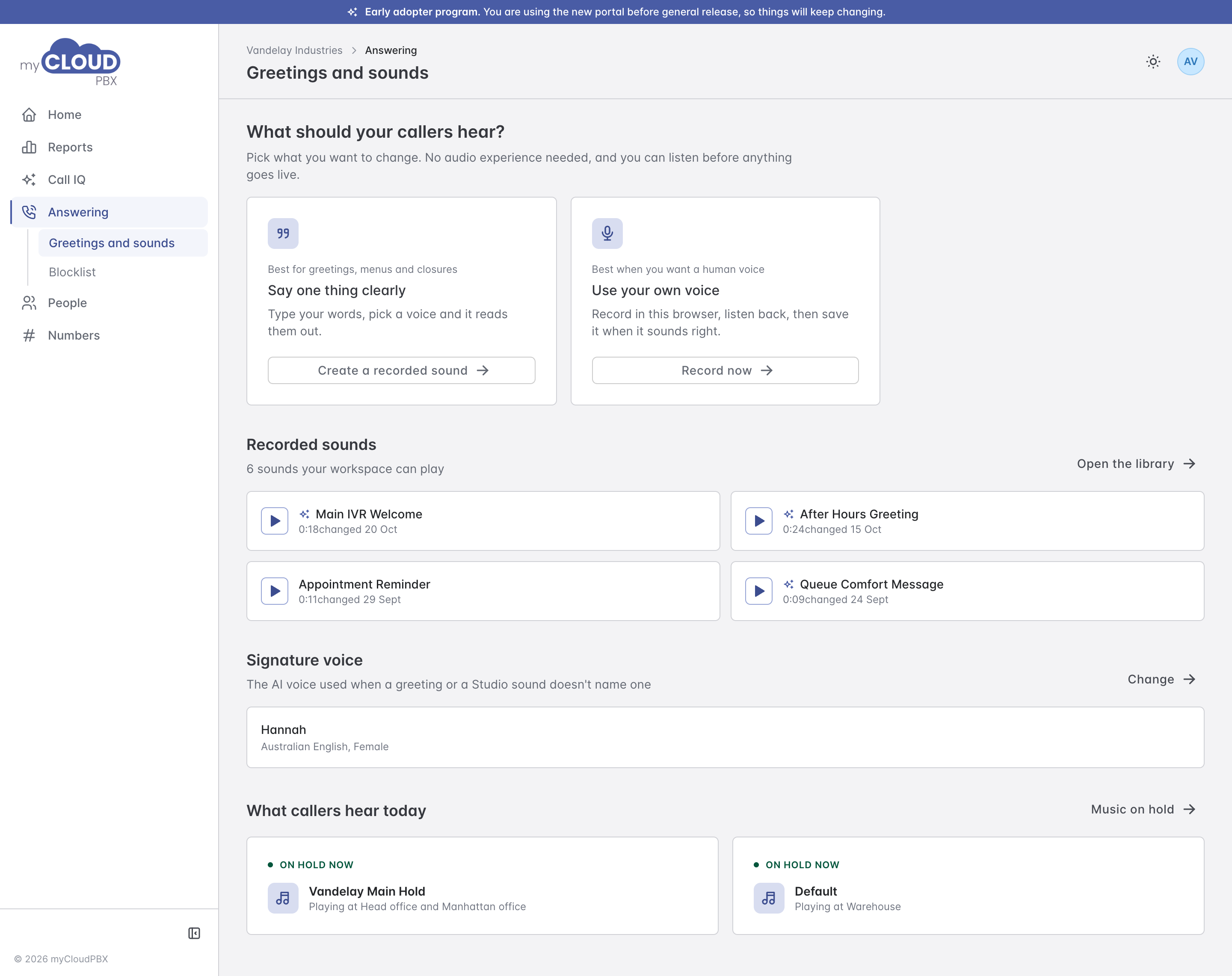
The page opens with two ways to make a sound:
- Say one thing clearly. Type the words, pick a voice, and it reads them out. Best for greetings, menus and closures. Choose 'Create a recorded sound'.
- Use your own voice. Record in your browser, listen back, and save it when it sounds right. Choose 'Record now'.
Underneath are your newest Recorded sounds, the workspace's Signature voice (the voice used when a sound does not name one), and What callers hear today, which shows the hold music playing at each office.
Making a sound from typed words
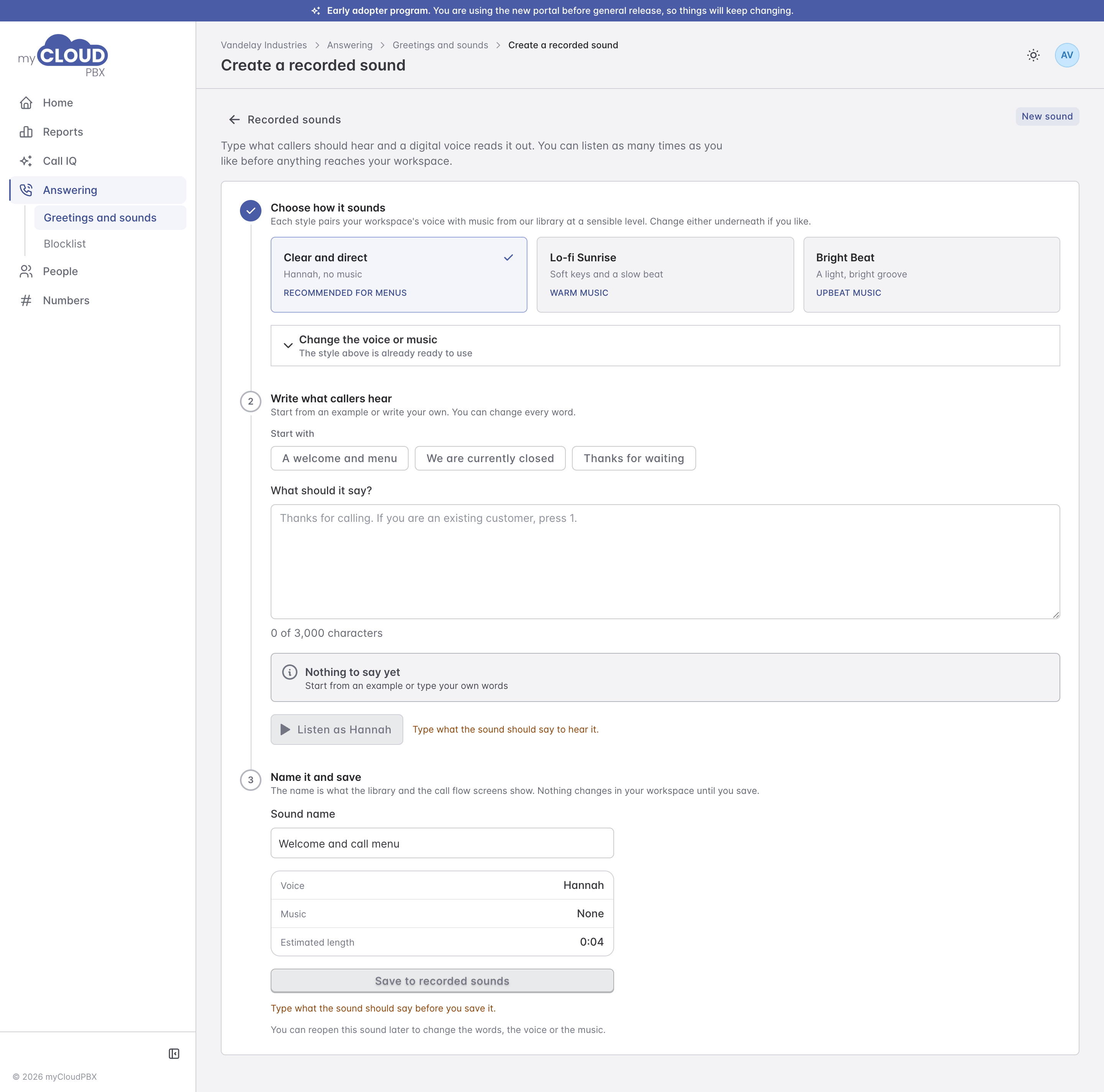
- Choose how it sounds. Pick a style, which pairs a voice with music from the library at a sensible level. 'Change the voice or music' lets you choose them yourself.
- Write what callers hear. Start from an example or write your own. 'Listen' plays it in the voice you picked, as many times as you like.
- Name it and save. Choose 'Save to recorded sounds'. Nothing changes for your callers until the sound is used somewhere.
Write numbers and addresses the way they should be said. You can reopen the sound later to change the words, the voice or the music.
Recording your own
'Record now' records from your computer's microphone. After each take, Listen back checks the level and that it will sound right on a phone. Name it and save it when you are happy with it. You can also upload a recording you already have: an MP3 or WAV file, up to ten minutes and 16 MB.
To record a sound from a handset instead, see Recorded Sounds.
The library
'Open the library' lists every sound, with filters for active and removed sounds, how each was made, and a search box. Click a sound to see its length, when it was last changed and by whom, what it says, and where it is used.
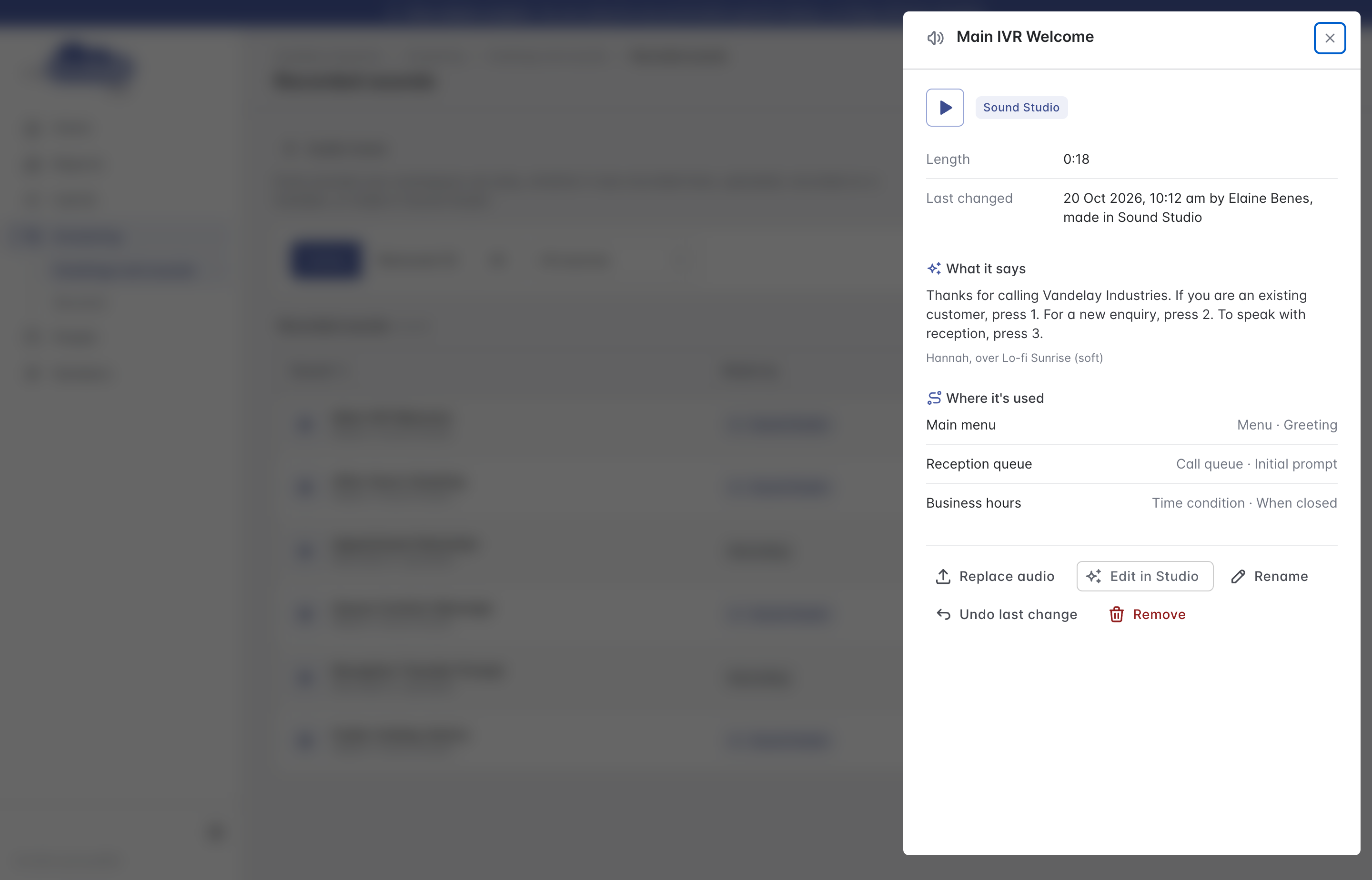
From there you can:
- 'Edit in Studio' to change the words, voice or music of a typed sound, or 'Re-voice in Studio' to turn one of your recordings into a typed sound from its own words.
- 'Replace audio' with a new file.
- 'Rename' it.
- 'Undo last change' to go back one step.
- 'Remove' it. A removed sound can be restored from the Removed filter.
When a sound is already in use, saving a change updates what callers hear straight away. The edit screen says so beside 'Publish changes'.
Music on hold
'Music on hold' lists your hold music and the shared system music. To choose which music plays where, use Music on Hold in the portal.
Blocklist
The Blocklist hangs up on calls from numbers you choose, before they ring anyone or reach a menu. Use it for nuisance and scam callers.
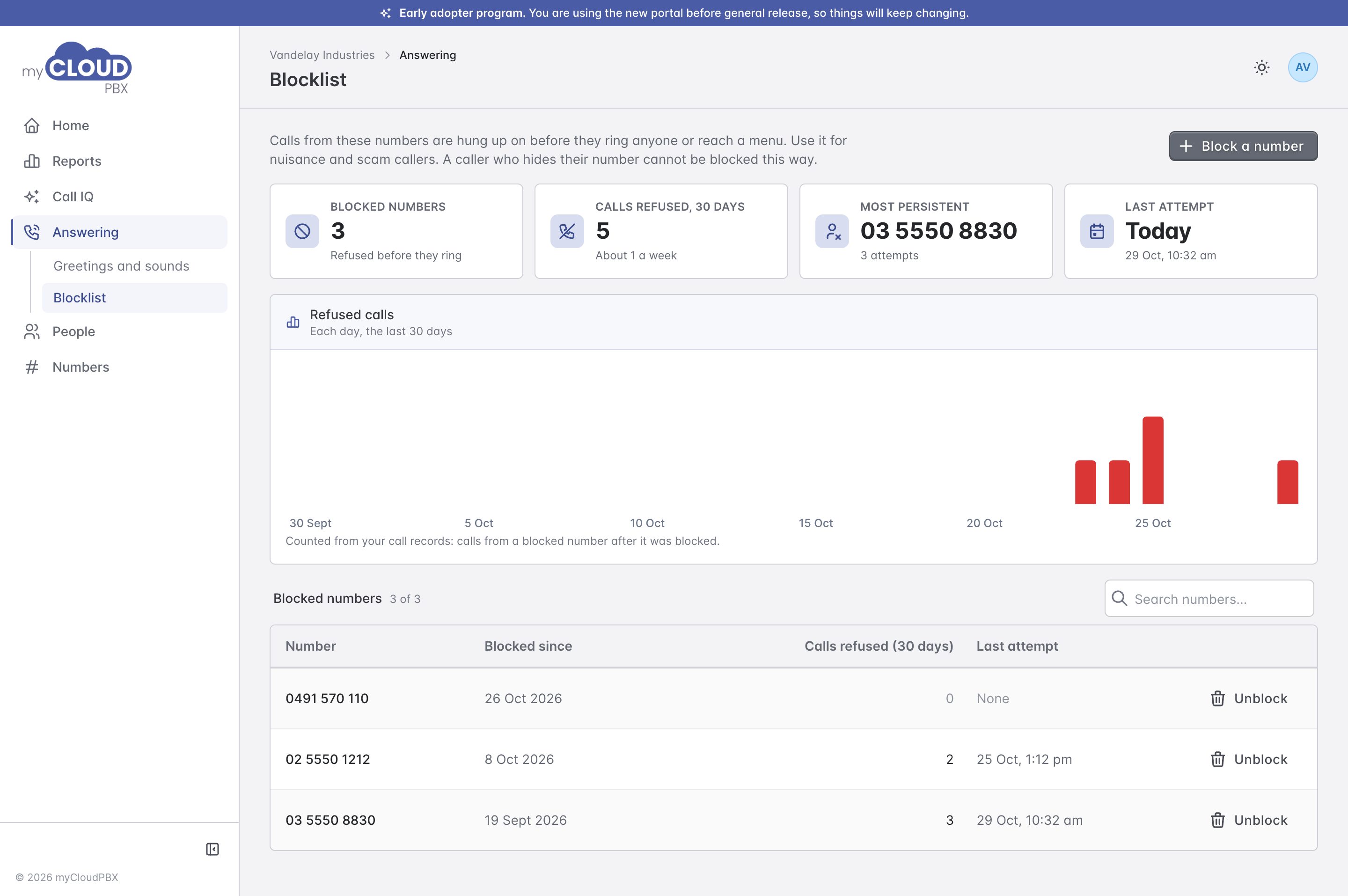
To block a number, choose 'Block a number' and enter it. Australian numbers go in as you would dial them, for example 0491 570 110. Numbers from other countries need their country code, for example +64 9 281 4410. The dialog shows what will happen before you confirm with 'Block number'.
The tiles show how many numbers are blocked, how many calls were refused in the last 30 days, the most persistent caller and the last attempt. The chart counts refused calls by day, from your call records. In the list, 'Unblock' lets that number ring through again straight away.
Hidden numbers
A caller who hides their number cannot be blocked this way, because there is no number to match. See Block Unwanted Callers for more on blocking.