Roles and Permissions
Overview
User Roles allow administrators to control what a portal user can access and manage.
This guide will explain where User Roles are managed, how to create a role, and how to assign that role to a user.
Before you start
You will need:
- Administrator access to the configuration Portal.
- Permission to manage users and roles.
- A clear list of the access the user should have.
Creating a User Role
To create a custom User Role follow these steps:
-
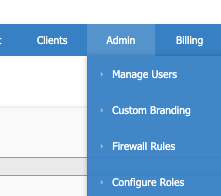
Navigate to the 'Admin' menu, then click 'Configure Roles'.
-
Here you can see a list of your currently Configured Roles.
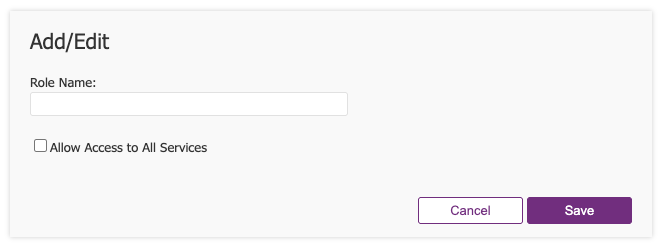
- Click 'Add Role' to create a new Role.

-
Add the following:
- Give the new role a name, and enable 'Allow access to all services' as per your requirements.
- Click 'Save' when finished.
-
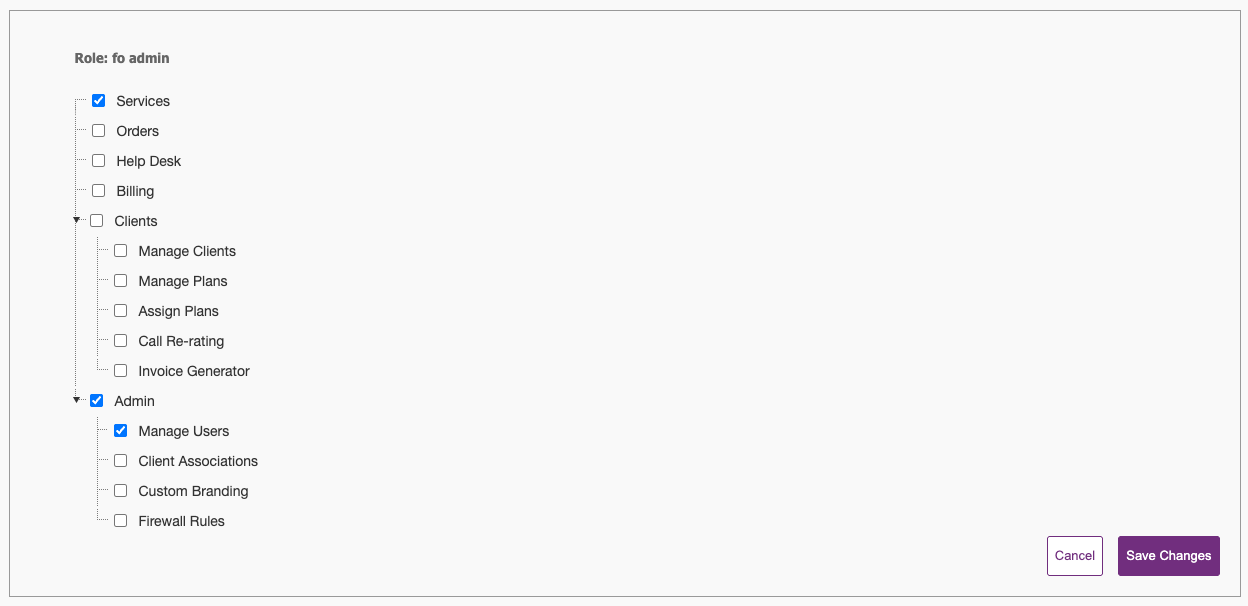
Select the required permissions.
-
Click 'Save Changes' when finished.
Assigning a User Role to an existing user
To allocate a role to a user:
-
Navigate to the 'Admin' menu, then click 'Manage Users'.
-
Navigate to the user account and click 'Manage'.

-
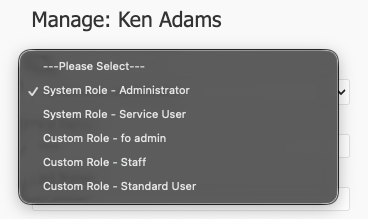
From the 'Role' dropdown, select the desired role.
-
Click 'Save'.
- The user will need to sign out and back in again for the changes to take effect.
Testing access
After assigning a role, test that the user can access the required areas and cannot access areas outside their role.
Confirm that the user can:
- Log in successfully.
- View the expected menu items.
- Complete the required tasks.
Confirm that the user cannot:
- Access unrelated customers or services.
- Change settings outside the intended scope.
- Access wholesale-only or administrator-only areas unless required.
Troubleshooting
The user cannot see the expected menu item
- Confirm the role includes the required permission.
- If the role was updated recently, ask the user to log out and back in.
- Ask the user to clear their browser cache and try again.
The user can access too much
Review the assigned role and remove unnecessary permissions.
The User Role menu is not visible
Confirm your administrator account has permission to manage User Roles.